Lab 1.3 - Start a User Story on its own Git branch
The situation
The backlog is in BACKLOG.md. Your first story is at the top:
US-014 - Show the crew how many panels a job needs
As a delivery crew member, I want to see the number of panels required on the installation record, so that I load the right quantity on the van.
Acceptance criteria:
- A Panels Required field exists on Installation
- It is visible to the crew permission set
- Planners can fill it in
- It appears on the Installation record page
Small on purpose. What matters in this lab is not the field, it is the loop you are about to learn and repeat for the rest of your career on this project.
Branch, in one sentence: a branch is a named line of work inside the repository. Yours starts as an exact copy of what the team has right now. You change what your story needs on it, and the team's version stays as it was until your Pull Request merges yours back in, which is how two people work on two stories at once without stepping on each other. The extension creates the branch, switches you onto it and later pushes it, so you never type a Git command.
Before you start
- Lab 1.2 finished: your fork (your own copy of the course repository on GitHub, for example
github.com/my-username/sfdx-hardis-training) is cloned, andintegrationanduatname their orgs -
helios-devlisted as Connected in Orgs Manager
Steps
1. Start the User Story
Goal the New User Story command started, on its first screen.
Do
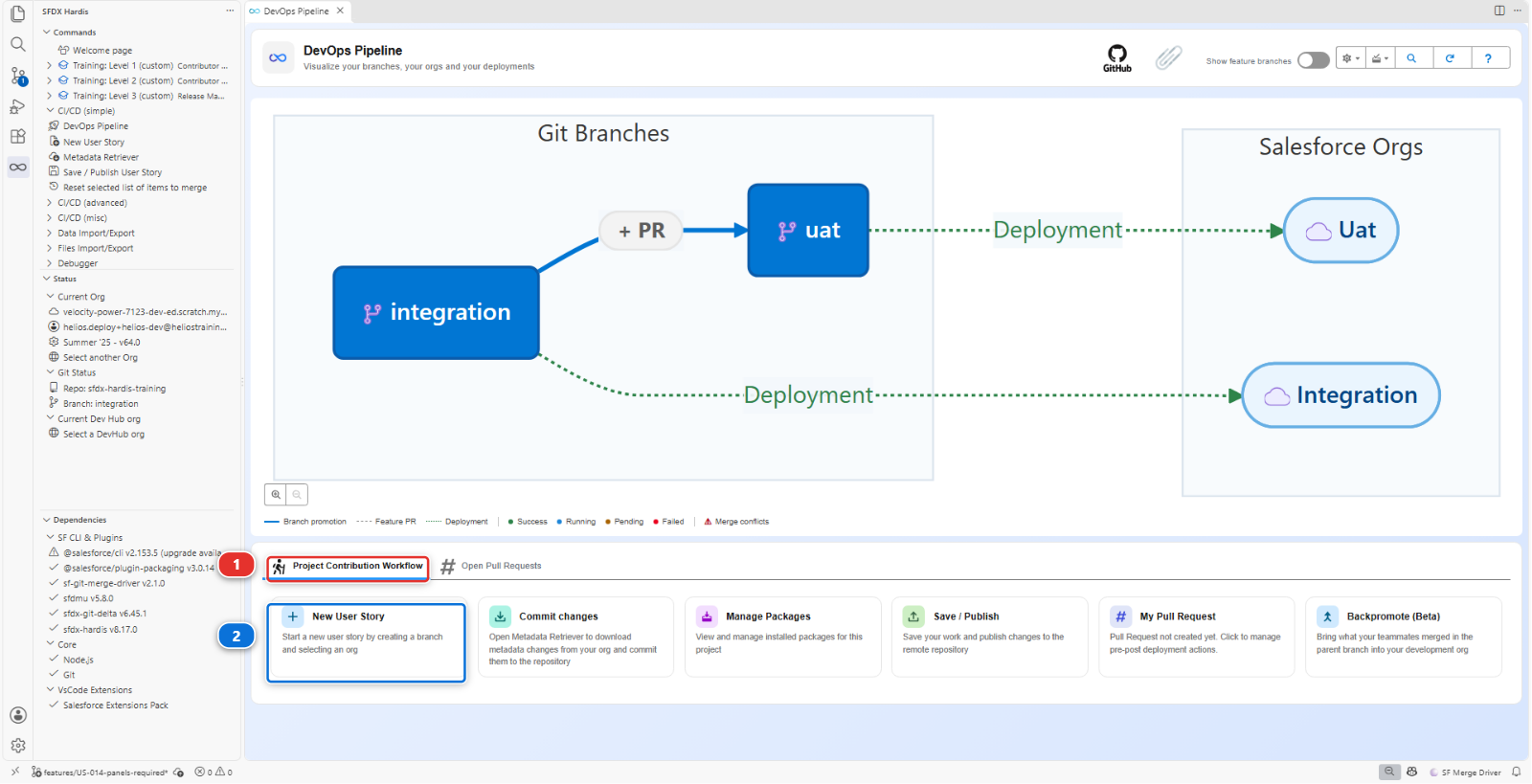
- On the Welcome page, open the DevOps Pipeline panel
- Scroll past the diagram to the Project Contribution Workflow (1). Cannot see the cards? They sit under the branch diagram: scroll down in the panel
-
Click the New User Story card (2)
Why
The extension asks four questions, one screen at a time. Each one appears in its own panel, and every answer you give stays visible above the next question, so you can always see what you told it.
You should now see
- The first screen of the command. Before the first question, it tells you something instead of asking
2. Where the work is going
Goal you know where your work is going, integration, before you answer anything.
Do
-
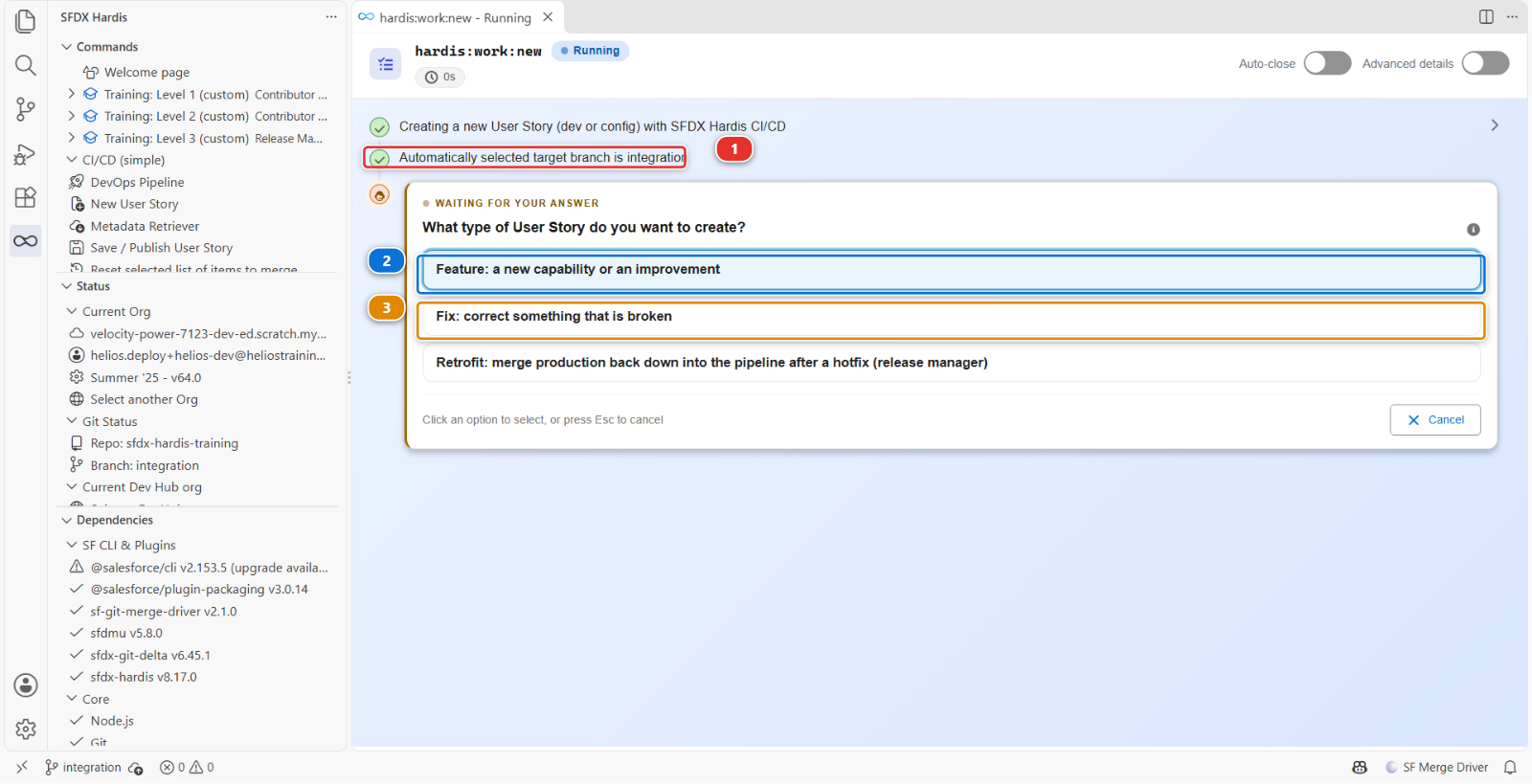
Read the first line under the header: Automatically selected target branch is integration (1)
Why
It is not a question, because there is nothing to choose: this project declares
integration as the only branch a contributor may target, in availableTargetBranches. Lab 3.1
adds preprod, where urgent fixes start, and from then on the command asks, offering both.
You never guess where your work is going: the command says it first, writes it down, and every later step reads it back.
You should now see
- Under that line, the first real question already waiting. Two of its answers, (2) and (3), are the ones you choose between: the next step is about them
3. What kind of work it is
Goal the User Story typed as a Feature.
Do
- To What type of User Story do you want to create?, take Feature: a new capability or an improvement (2): US-014 adds something that was not there
- Leave the third answer, Retrofit, alone
Why
Fix: correct something that is broken (3) is for correcting something already delivered.
Both answers are worded by this project, in branchPrefixChoices.
The third answer, Retrofit, is the release manager's. It brings a production hotfix back down into the pipeline, and Lab 3.7 is where it is used.
The answer becomes the first part of your branch name, features/ or fix/, so anybody looking
at the list of branches can see at a glance what kind of work is in flight.
You should now see
- Your answer kept above the next question, which asks for a name
4. What to call it
Goal the User Story named US-014-panels-required.
Do
-
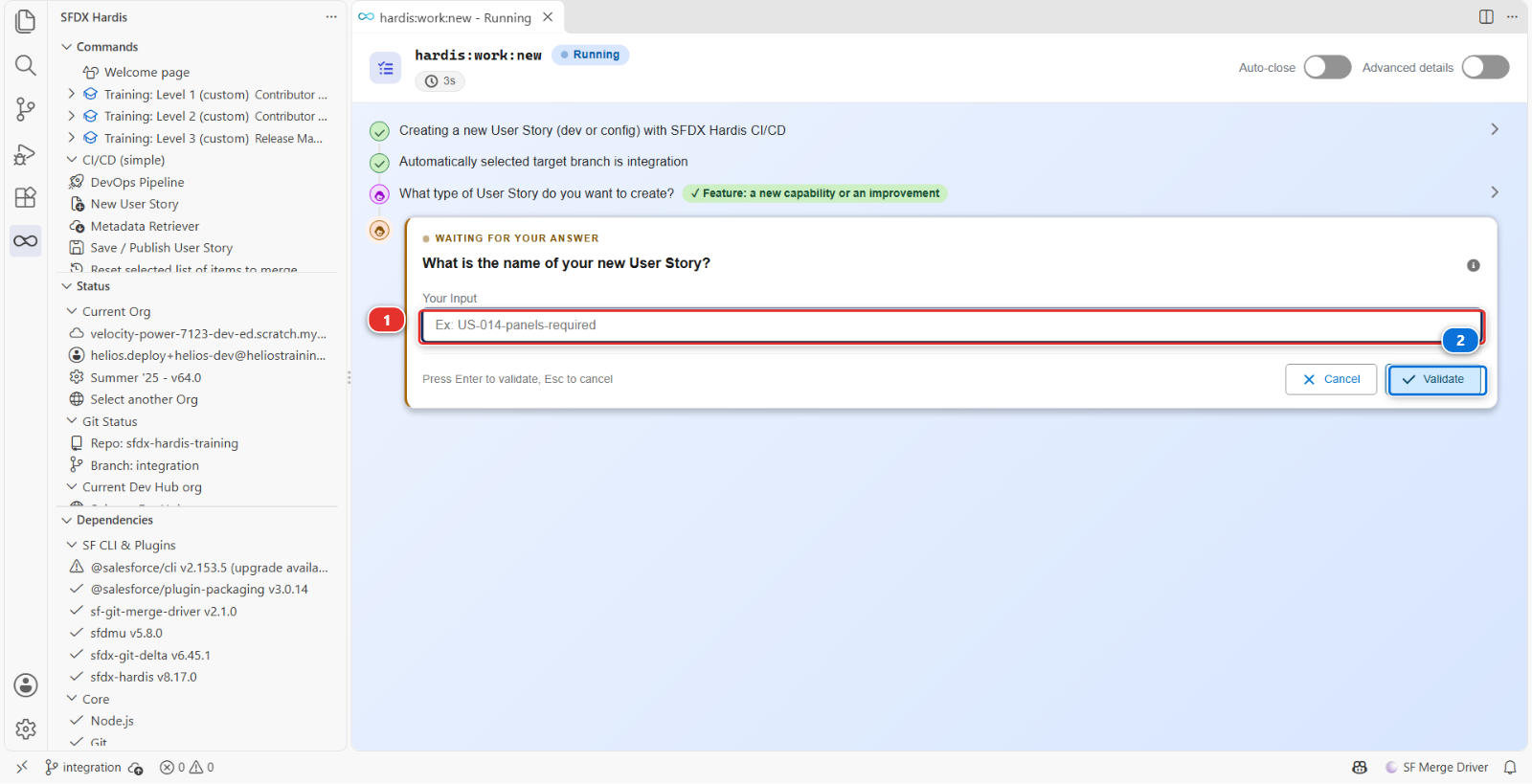
To What is the name of your new User Story?, type the name in the box (1):
-
Click Validate (2)
Why
The greyed-out example inside the box is not decoration: this project declares a pattern that names
have to match, and the example is a name that matches it. Type something else, Panels Required
say, and the command tells you what it expected and asks again.
You should now see
- The name accepted, and the next question, about the org
5. Which org you will build in
Goal helios-dev attached to the User Story, as the org you build in.
Refresher Lab 1.2
Do
-
To Which Salesforce org do you want to work in?, take Scratch org (1):
helios-devis one, created in Lab 1.2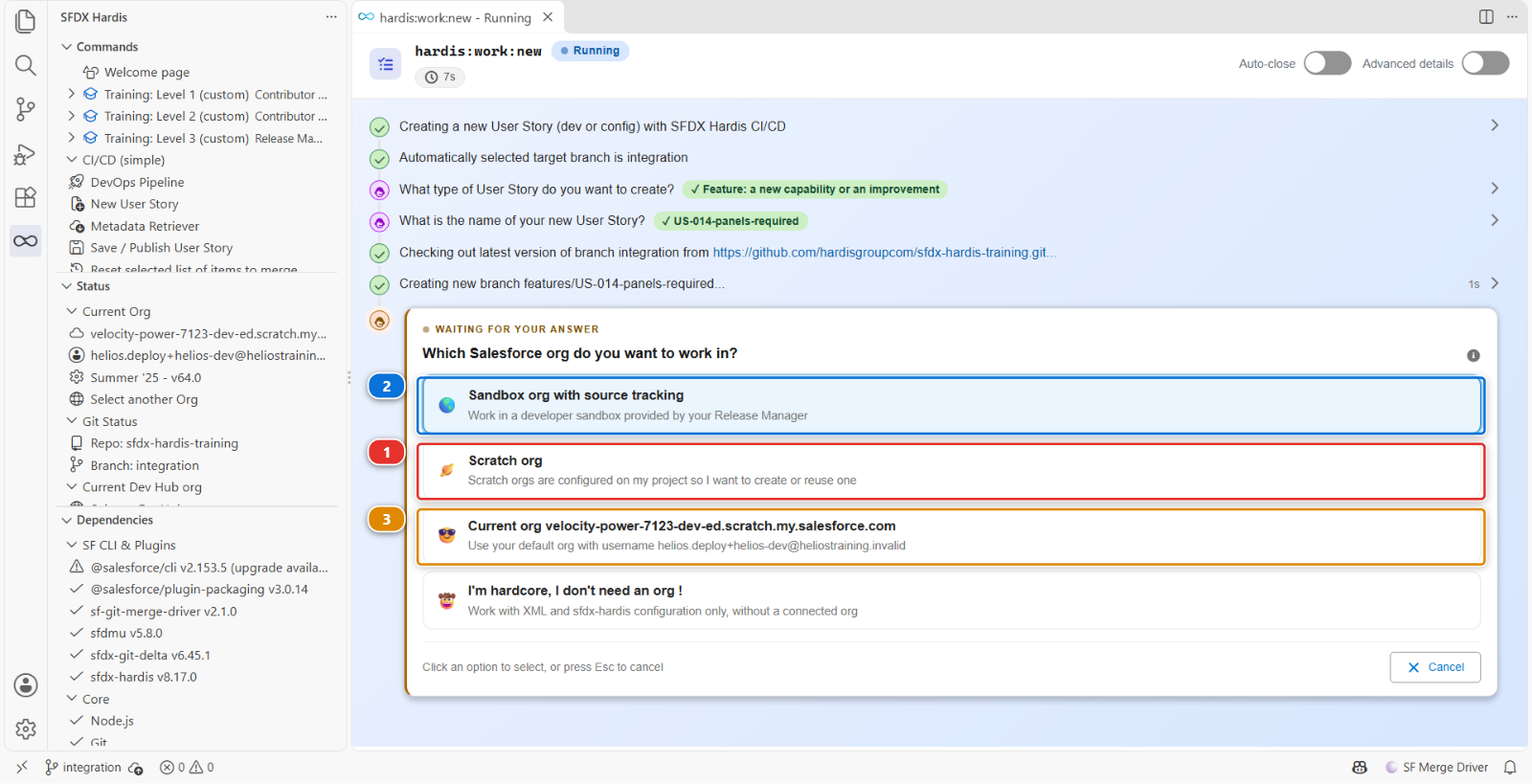
-
Then comes the list of orgs it could attach. Take Reuse scratch org helios-dev (1)
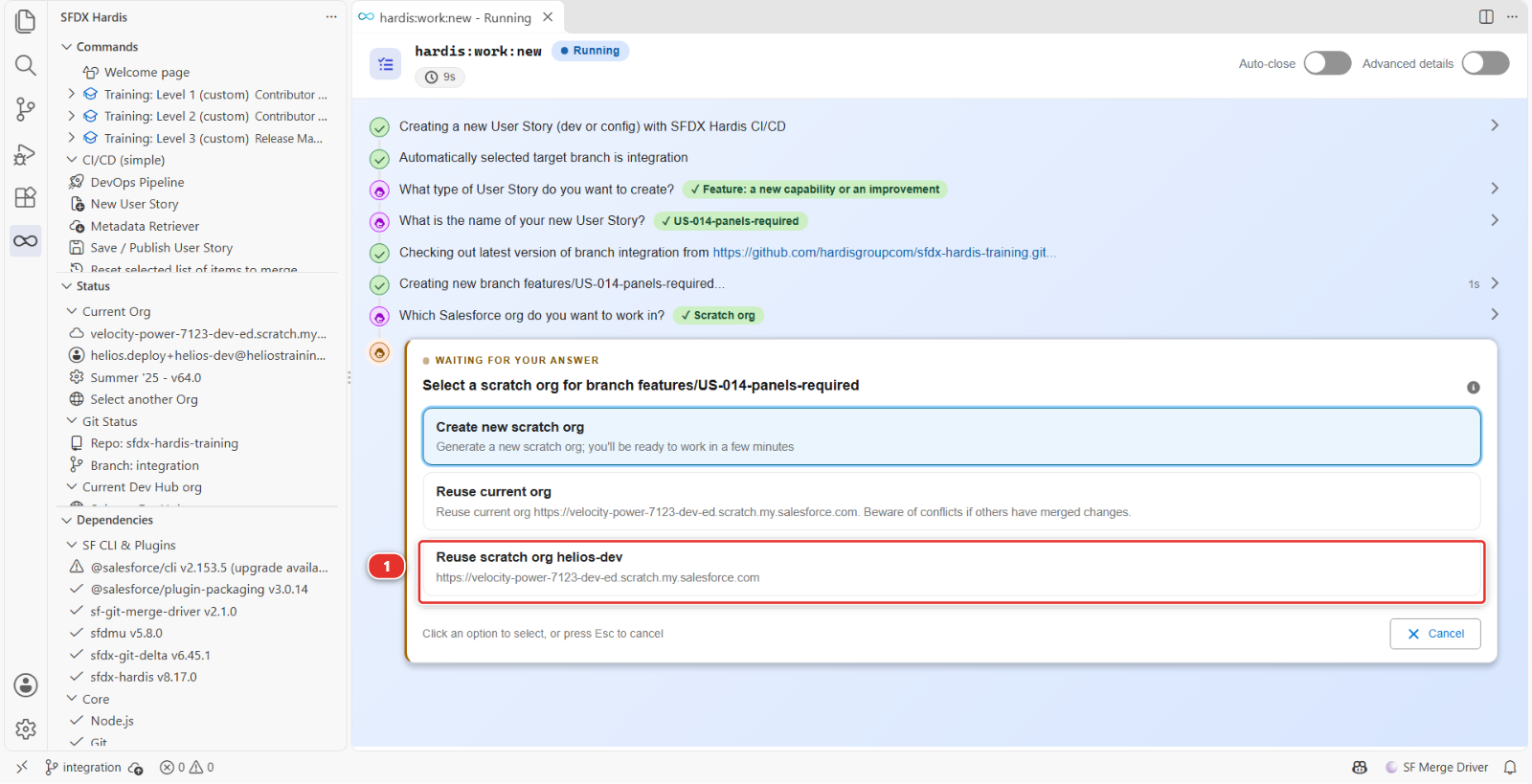
Never take Create new scratch org here
It is the first answer, and on a real project it is often the right one. Here it would ask your Dev Hub for a fourth scratch org, and a Developer Edition Dev Hub keeps only three alive: the command fails after a long wait, with nothing to show for it.
Why
The other answers of the first question are for other projects. Sandbox org with source
tracking (2) is what most teams use, a developer sandbox the release manager hands out. Source
tracking means the org keeps a running note of what changed in it since you last synchronised, which
saves you looking. Current org (3) names whatever org your project points at, by its
address: it is helios-dev today, but an address tells you nothing, so do not rely on it. The last
answer is for editing the project's files directly, with no org at all.
helios-dev is the org Lab 1.2 filled with the Helios app, and the one you are about to change by hand in
Setup. The list does not offer helios-integration or helios-uat: the command knows those two
belong to major branches, and building directly in a shared org is exactly what this whole way of
working exists to stop.
The middle answer of the list, Reuse current org, would land on the same org here, by its address rather than by its name. Take the named one: an address tells you nothing about which org it is.
You should now see
helios-devchosen, and the command carrying on by itself
6. Read what it tells you at the end
Goal the branch and the org the command reports, checked before you build anything.
Do
- The command opens
helios-devin your browser: leave that tab for Lab 1.4 -
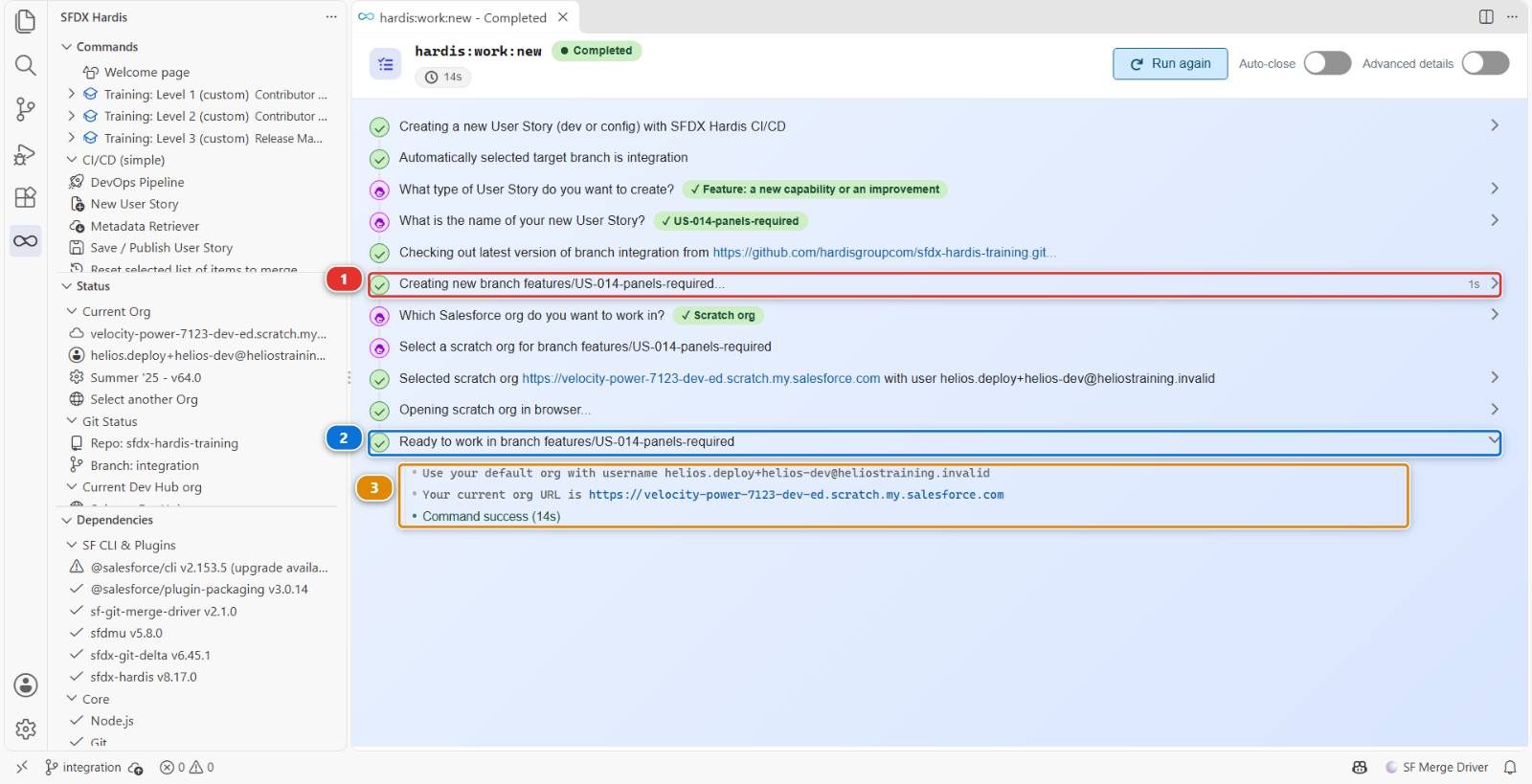
Wait for it to finish and print what it did. Read it rather than closing it
Why
Those three lines are worth a glance every time. A branch name that is not the one you expected, or an org that is not the one you meant, is a problem that costs thirty seconds now and an afternoon later.
Under the hood: what "New User Story" just did
The panel ran:
sf hardis:work:new
which did seven things, in order:
- Picked the target branch. With a single entry in
availableTargetBranchesit takes that one without asking; with several it asks, and it remembers the answer for this branch - Fetched and updated the target branch.
git fetch, thengit checkout integrationandgit pull, so your branch starts from what the team has now rather than from whatever you had last week. This is the step people skip by hand and regret a week later - Created the branch, named from your answers:
git checkout -b features/US-014-panels-required - Wrote your user configuration in
config/user/.sfdx-hardis.<your-username>.yml, recording the branch this User Story targets,integration. That file is git-ignored: it is yours, nobody else needs it - Selected the org as the default target for the following commands
- Opened the org in your browser, since you are about to work in it
- Registered the org in the development orgs list of your repository, an issue named
Development Orgs Dashboard:
helios-devtargetsintegration, and you own it. The Dev orgs view of the DevOps Pipeline shows it, with the number of Pull Requests merged intointegrationthat it does not have yet
The list of scratch orgs is the ones your default Dev Hub created, which Lab 1.2 set to helios-prod,
minus the ones named in config/branches/. Nothing here brings what is on integration into your
org: that is a backpromote, and Level 2 starts with one.
The branch prefix features/ and the name pattern come from config/.sfdx-hardis.yml:
branchPrefixChoices:
  - value: features
    title: "Feature: a new capability or an improvement"
  - value: fix
    title: "Fix: correct something that is broken"
newTaskNameRegex: '^US-\d{3}-[a-z0-9-]+$'
Change those two settings and every contributor gets different prompts. That is how a project enforces a convention without anybody having to remember it.
Command documentation: hardis:work:new
You should now see
- The branch it created and checked out (1)
- The confirmation that you are ready to work on it (2)
- The org it attached to this User Story, by username and URL (3)
What you should see
Three things, all visible without leaving VS Code:
- Bottom left of the status bar: the branch is now
features/US-014-panels-required - The sfdx-hardis panel, Status section: Current Org names the scratch org you picked. It
shows the org's own address and username, the ones Salesforce invented, and never the
helios-devalias. To be sure it is the right org, compare that username with the one on thehelios-devrow of Orgs Manager - The DevOps Pipeline panel:
integrationanduat, unchanged. Your new branch is not there, and that is correct. The diagram draws the major branches and the Pull Requests open against them, and your branch has neither a Pull Request nor an org of its own yet. It appears in Lab 1.6, the moment you open the Pull Request
If the first two disagree with each other, stop and fix it now rather than after you have built something.
If it goes wrong
The command refuses the name.
The pattern this project uses is US-014-panels-required: three digits, then lowercase words
separated by hyphens. US14-PanelsRequired is rejected on purpose.
It says the branch already exists and asks for another name. A new User Story never reuses a branch: an old branch would carry its own commits into your Pull Request. Which way out depends on where that branch comes from:
- You are working on US-014 right now, and the command stopped halfway or you clicked New User
Story twice. You do not need a second branch: click Cancel, then click the branch name at the
bottom left of the status bar and pick
features/US-014-panels-requiredfrom the list. If you had changes you had not committed, the command put them aside before it asked: the next entry gets them back - It is left over from an attempt you gave up, after Reset this level kept it. Do not go back
to it: it starts from an old
integration. Type a new name instead,US-014-panels-required-2, and carry on from there
A file you were editing has disappeared.
You changed something before starting, and hardis:work:new never carries stray work onto a fresh
branch: it puts it aside in a stash, and says so in its panel, naming the files. To get them back
on the new branch: Source Control panel, the ... menu at the top, Stash, then Pop
Latest Stash.
The org list does not show helios-dev.
The scratch org expired: they live 30 days. Click Training: Level 1 > Set up my training
environment again. It creates a new helios-dev with the Helios app, and leaves everything else
as it is.
It fails with a message about the scratch org limit. You took Create new scratch org. Nothing was created and nothing is broken: start the User Story again and take Reuse scratch org helios-dev.
It warns that helios-dev is not registered in the development orgs list, as issues are switched off.
Your fork was set up before the setup learned to switch issues on, and GitHub turns them off on
every new fork. sfdx-hardis keeps the development orgs list in an issue, so the last thing the
command does, registering the org (step 6, Under the hood), did not happen. Nothing else is
affected: your branch and your org are ready. Click Training: Level 1 > Set up my training
environment again, which switches issues on and leaves everything else as it is. The next
New User Story registers helios-dev.
Check your work
Welcome page > Training: Level 1 > Check my work, then pick Lab 1.3.
It looks for your story branch, features/US-014-..., the one thing this lab leaves behind. Your
work has not reached integration yet, and nothing here expects it to: that is Lab 1.6.
In Agentforce Vibes, if the panel says the content is blocked
A browser IDE sometimes loses the frame a panel runs in, and shows the content is blocked where the command should be. Nothing is wrong with your work: reload the browser tab and click Check my work again. It happens to any panel, not only this one.
Go deeper
Next: Lab 1.4 - Build a custom field in your Salesforce org