Lab 2.6 - Permission sets, profiles and why a grant disappears
Level: 2 Contributor advanced
Time: ~30 min (observed: median 34 min, 6 learners, fastest 21 min)
You will: chase a permission that vanishes between a green deployment and the target org, and find out it was removed on purpose.
The situation
US-033 - Crews can read the panel batch cost
As a delivery crew member, I want to see the cost of the batch I am installing, so that I report damage with the right value.
You grant the permission, publish, the check is green, the deployment is green, and the permission is not in the integration org. Nothing failed. Nothing warned you.
This is the failure mode that makes people distrust a pipeline, and it is entirely explainable.
Before you start
- Lab 2.5 finished and merged
-
helios-devlevel withintegration
Steps
1. Take the story and do it the way an admin would
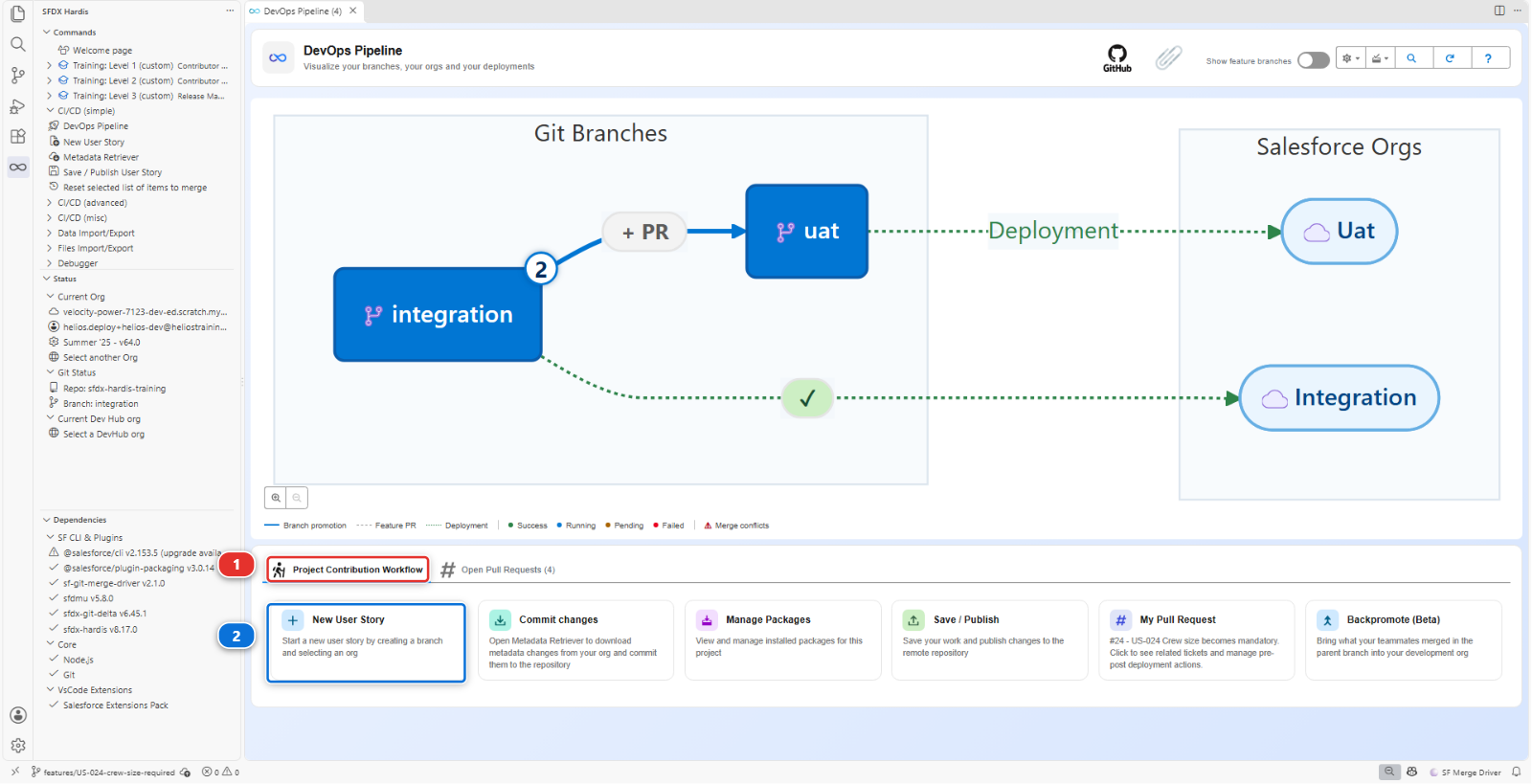
New User Story (2), under Project Contribution Workflow (1) of the DevOps Pipeline
panel. Name US-033-batch-cost-visibility, org helios-dev.
The crews log in with the Helios Crew profile. It is one of the two Profiles this repository
carries, next to Admin, the System Administrator profile: in the DevOps Pipeline panel, open
the Deployment packages menu, then Package XML, and the Profile row lists both.
In helios-dev, the quick way: Setup > Object Manager > Panel Batch > Fields & Relationships >
Cost > Set Field-Level Security, tick Visible for the Helios Crew profile, Save.
That is how most people grant a permission, and it is what this lab is built on.
Retrieve it the usual way: Commit changes, Recent Changes, Search Metadata, tick the
Helios Crew Profile, retrieve, and commit it from Source Control. Then Save / Publish,
push, Pull Request, green, merge.
The file is much longer than the one in the repository. The Retrieve mode of the Metadata
Retriever reads Auto: it retrieves a Profile whole, every permission it grants in helios-dev,
so your new grant on Cost is in it, along with everything else the profile can do.
2. Discover that nothing happened
Open helios-integration and check the field-level security of Panel Batch > Cost: the
Helios Crew column is not ticked. The permission is not there.
Go back to the Pull Request. The deployment comment says ✅ Deployed to integration, and its
folded 📋 table counts a Profile among the components that changed. What was deployed is not what you committed, though.
3. Read your own diff
Your commit had the permission in it. You saw it in the diff before you clicked Commit.
Open the Source Control panel, look at the history of your branch, and read the commit
Save / Publish made after yours, chore(sfdx-hardis): clean sfdx project. It takes the
permission you added straight back out, along with every other section of the file that a
Permission Set could carry. What is left is what only a Profile can hold.
That is a project setting called minimizeProfiles, one of the cleaning rules this project switched on, and you can see it in the Pipeline Settings panel on the Salesforce Project tab.
4. Understand why a project would ever do that
Profiles are the single worst metadata type to version, for three reasons that all bite at once:
- They are enormous and they are shared. One Profile file lists every object, field, tab, app and class permission in the org. Two people touching two unrelated stories both produce a thousand-line diff of the same file, and they conflict every time
- A retrieved Profile can say no to what it did not have. Retrieved the standard way, it lists
the fields and objects of your package with
falsewherever the profile had no access when you retrieved it. If a colleague granted one of them since, deploying your file switches theirs off, silently. The Metadata Retriever's Auto mode leaves thosefalselines out - What you retrieve depends on how, and from where. Retrieved the standard way, a Profile only holds the permissions of the components retrieved with it. Retrieved whole, as the Metadata Retriever does in Auto, it holds everything the profile has in the org it came from. Either way, the same Profile looks different depending on who retrieved it, from which org, and when
minimizeProfiles strips from Profiles everything that a Permission Set could carry instead,
leaving Profiles to hold only what genuinely cannot live anywhere else: login hours, IP ranges,
default record types, page layout assignments.
So the pipeline did not lose your work. It refused to carry it, because carrying it would eventually delete somebody else's.
Why the Profiles stay in the repository all the same
Removing Profiles from the sources would be the wrong conclusion. A user logs in with a
Profile, and what only a Profile holds, the default app, the page layout of each object, the tab
settings, the login hours, has to be the same in every org. So Admin and Helios Crew stay in
force-app/main/default/profiles/, stay in manifest/package.xml, and are deployed with
everything else.
They carry no field, object, class or Flow permission on purpose, and no user permission
except on Admin. A Profile retrieved whole lists hundreds of user permissions, and Salesforce
adds and removes some at every release, three times a year: a full Profile committed in spring
can fail to deploy in autumn on a permission that no longer exists. minimizeProfiles takes
those permissions out every time somebody publishes a Profile. What stays can still be long,
because a Profile retrieved whole lists the tab setting and the page layout of every object of
the org: those are exactly what only a Profile can hold.
Those lines are also where a Profile stays tied to the org it came from. It names each page layout and each tab, standard objects included, and an org that does not have one of them refuses the whole Profile. It deploys everywhere in this course because your orgs are built to hold the same objects, under the same names. If it goes wrong, below, shows how to find out which org differs when they do not.
5. Do it the way the project expects
Redo the grant where it belongs. Your first Pull Request is merged, so this is a second one for the
same story: New User Story, name US-033-crew-permission-set, org helios-dev.
In helios-dev: Setup > Permission Sets > Helios Delivery Crew > Object Settings > Panel
Batches > Edit, tick Read Access on Cost, Save.
Retrieve the Permission Set this time, commit it, Save / Publish, and open the Pull
Request. The Git Delta package.xml report
names Helios_Delivery_Crew.
Nothing to tidy up: the Profile you published in step 1 stays in the repository, cleaned, and it keeps being deployed as it always was.
The check goes green. Merge, and check helios-integration: Setup > Permission Sets > Helios
Delivery Crew > Object Settings > Panel Batches, Cost is readable. Every crew member holds that
permission set, whatever their Profile.
6. Look at the other protection while you are here
Open the DevOps Pipeline panel, then Pipeline Settings in the gear menu. Leave the scope selector (1) on Global Settings: these are project rules, identical for every branch.
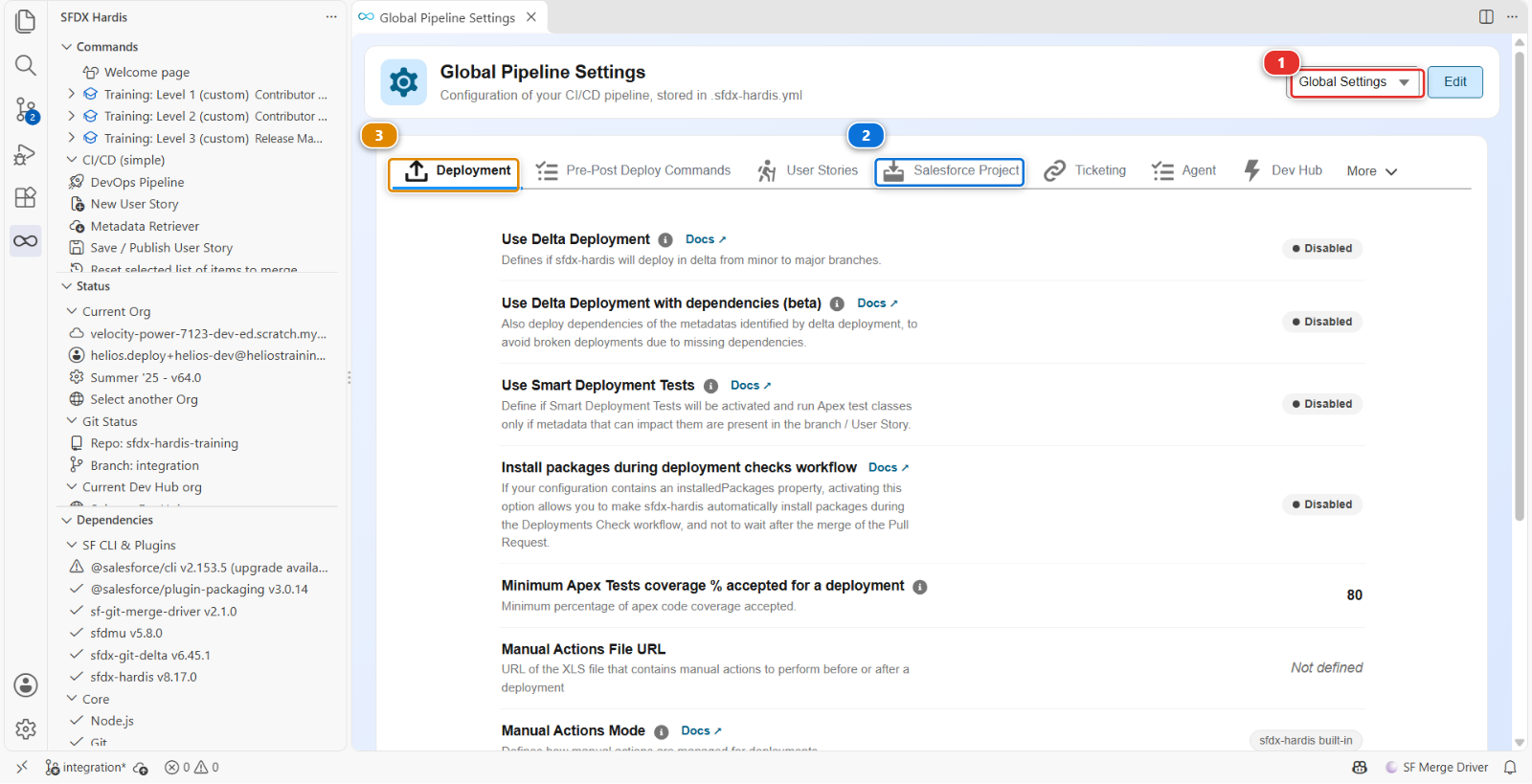
The settings are grouped in tabs. Two of them do the job you just met, and it is worth knowing which is which:
| Setting | Tab | What it protects against |
|---|---|---|
autoCleanTypes: minimizeProfiles |
Salesforce Project (2) | A Profile carrying permissions that belong on a Permission Set |
autoRemoveUserPermissions |
Salesforce Project (2) | Specific user permissions that must never travel between orgs at all, whatever carries them |
Both run on your machine, when you publish: they decide what your commit carries. The tab beside them, Deployment (3), decides how the pipeline sends it to each org. That one belongs to the release manager, and Level 3 is where you meet it.
Under the hood: what cleaning actually did to the file
The cleaning pass of hardis:work:save ran over the Profile you had committed, and for
minimizeProfiles it rewrote its XML in a commit of its own.
Whole sections are deleted, because a Permission Set can carry all of them:
agentAccesses, classAccesses, customMetadataTypeAccesses, customPermissions,
externalDataSourceAccesses, fieldPermissions, flowAccesses, objectPermissions,
pageAccesses, ServicePresenceStatusAccesses.
Three sections are thinned rather than deleted, keeping only the entries a Permission Set cannot express:
| Section | What survives |
|---|---|
recordTypeVisibilities |
only the entries marked default (or personAccountDefault) |
applicationVisibilities |
only the default app, and apps explicitly hidden (visible false) |
userPermissions |
only permissions explicitly turned off, plus everything on the Admin profile |
And some sections are never touched, because nothing else can hold them: loginHours,
loginIpRanges, layoutAssignments, tabVisibilities, custom, userLicense.
So a Profile still does a job in this pipeline. It is just a much smaller one.
Nothing was removed from your org. The cleaning changes what the repository carries, never what
Salesforce holds. Your admin-style grant is still in helios-dev, which is exactly why the lab
asks you to do it again on the Permission Set rather than to fix the file by hand.
The rule to take away: if a permission can live on a Permission Set, put it there. This is not an sfdx-hardis opinion, it is what Salesforce has been recommending for years, and this pipeline enforces it rather than hoping.
Command documentation: hardis:work:save
What you should see
Costgranted on the Helios Delivery Crew permission set inhelios-integrationAdminandHelios Crewstill inforce-app/main/default/profiles/, with no field permission in them
If it goes wrong
The permission set edit does not show the Cost field. The field is not in the permission set's object settings until the object is granted. Grant read on Panel Batch first.
The deployment fails with INSUFFICIENT_ACCESS on the permission set.
The CI user cannot grant a permission it does not have itself. Assign Helios Delivery Manager to
the integration org user, which Training: Level 2 > Set up one of my training orgs does.
The Profile comes back a thousand lines long.
A Profile retrieved whole keeps, after the cleaning, the tab settings and the page layout of every
object of the org, its default app and record types, and on Admin its user permissions: those
stay on purpose. If it still carries field, object or class permissions, it was committed after a retrieve and never went through the cleaning. Check
that minimizeProfiles is still listed on the Salesforce Project tab of Pipeline Settings, then
Save / Publish again. Do not shorten the file by hand.
A deployment refuses the Profile with no Layout named ... or no CustomTab named ....
It can happen on this Pull Request, or much later, the first time the Profile reaches an org of
Level 3. The Profile assigns a page layout, or shows a tab, that the target org does not have. The
message names it, as Object-Layout name: start there.
- Is it yours? Search the repository for the layout name (
Ctrl+Shift+F). If a file holds it, the layout only misses frommanifest/package.xml, which is the error of Lab 2.2. If no file holds it, Salesforce created it in the org the Profile was retrieved from, and nobody decided it -
Why does one org have it and not the other? Open Setup > Object Manager in both orgs and look for the object, then for its Page Layouts. There are three usual answers:
What you find in the target org The cause The object is not there A Salesforce feature is on in one org and off in the other. ServiceAppointmentand its neighbours come with Field ServiceThe object is there, its layout has a translated name The layout was created by a user working in another language: Présentation Crew Capacityinstead ofCrew Capacity LayoutThe object is there, with no layout or another one The two orgs were not created at the same time, or somebody renamed or deleted the layout by hand -
Fix the cause, not the message. A feature: make the orgs agree, by switching it on in the target org before the deployment, which is a manual action for the release manager, or off in the org you build in, and retrieve the Profile again. A language: set your user to English in the target org, your picture > Settings > Language & Time Zone, and rename the layout there. Anything else, on an object your project does not use: the line has no business in the repository. In a Fix User Story, open the Profile file, delete the
<layoutAssignments>block that names the layout, or the<tabVisibilities>block that names the tab, and publish
Salesforce reports one missing name per deployment, so a second one can hide behind the first.
If the list has dozens of names, all standard objects, your scratch orgs were created before this
course switched Field Service and the Thanks badges off in them. Training: Level 2 > Update my
course, then Training: Level 1 > Set up my training environment again: it switches both off
in the scratch orgs you have, and deletes nothing. Then a Fix User Story from helios-dev,
retrieve Helios Crew again as in step 3, and Save / Publish.
Check your work
Welcome page > Training: Level 2 > Check my work, then pick Lab 2.6.
Go deeper
Next: Lab 2.7 - Resolve a Git merge conflict with a teammate