Lab 2.4 - Ship reference data and a batch with deployment actions
Level: 2 Contributor advanced
Time: ~45 min (observed: median 45 min, 9 learners, fastest 24 min)
You will: meet the worst kind of failure, the one where nothing fails, and fix it with three deployment actions of three different kinds.
The situation
US-026 - Crew capacity reference data and nightly recalculation
As a planner, I want capacity rules per crew type and a nightly job that recalculates them, so that the planning board is right every morning and I get a summary of it in my inbox.
Acceptance criteria:
- 12 Crew Capacity records exist in every org
- The batch is scheduled nightly
- The planner receives the morning summary email
You build it, the deployment is green, everyone signs it off, and three weeks later a planner says the board has never updated. The metadata arrived. Nothing else did.
A deployment carries metadata. It does not carry records, it does not carry scheduled jobs, and it does not carry anything a human had to click in Setup. Every one of those has to be declared, or it happens once in your org and nowhere else, forever.
Before you start
- Lab 2.3 finished and merged
-
helios-devlevel withintegration
Steps
1. Take the story and build the metadata
New User Story (2), under Project Contribution Workflow (1) of the DevOps Pipeline
panel. Name US-026-crew-capacity-data, org helios-dev.
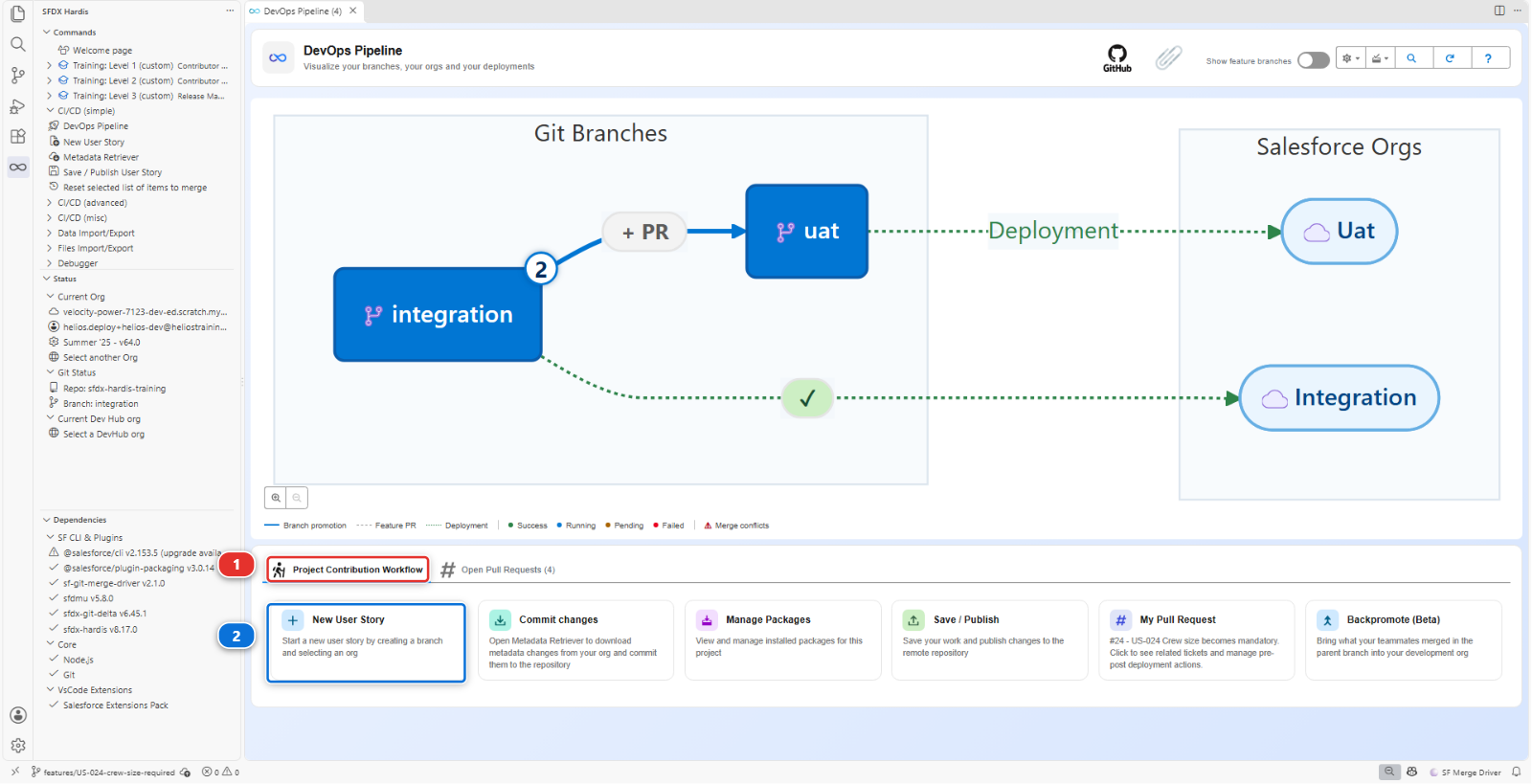
In helios-dev, create:
- A custom object Crew Capacity (
Crew_Capacity__c), with:External_Id__c, Text 40, External Id, UniqueCrew_Type__c, Picklist:Roof,Ground,ElectricalRoof_Type__c, Picklist:Tile,Slate,Flat,MetalPanels_Per_Day__c, Number 3,0
- A tab for it, so the records can be found in the app: Setup > Tabs, New under Custom Object Tabs, object Crew Capacity, any tab style. Keep the profile visibility the wizard offers. On the last screen, Add to Custom Apps, untick Include Tab at the top of the list, then tick Helios Delivery alone: the other apps have no use for it
- An Apex class
CrewCapacityBatchthat recalculatesTotal_Capacity_kW__con planned installations and that Salesforce can run on a schedule, plus its test classCrewCapacityBatchTest. You do not have to write these, and they are the one thing in this list you do not create in the org. Fromscripts/apex/samples/in the repository, copyCrewCapacityBatch.cls,CrewCapacityBatchTest.clsand their two.cls-meta.xmlfiles intoforce-app/main/default/classes/, in the Explorer, with copy and paste, as in Lab 2.3. What they compute matters far less here than the fact that somebody has to schedule them in every org, which is the whole point of the lab - The access, on Helios Delivery Manager: Read, Create and Edit on Crew Capacity, Read and Edit on its four fields, and under Tab Settings on the same page, Available and Visible. Planners maintain these numbers, and it is also the permission set the pipeline's own user holds in every org: without it the data load of step 4 would find fields it is not allowed to write. The tab setting is what shows the tab in the other orgs, where the profile visibility you kept in the wizard never travels
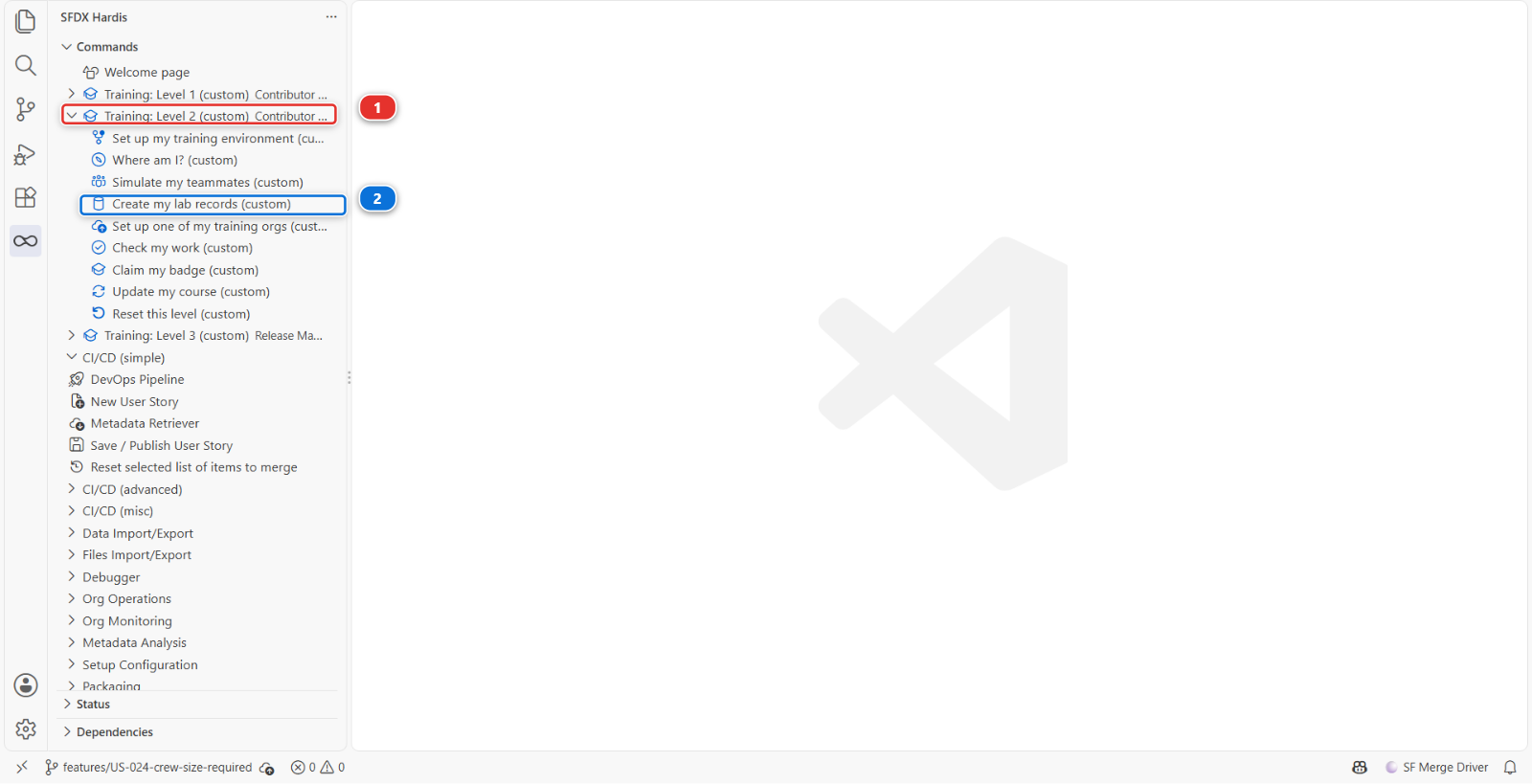
Then the records. Helios supports 12 combinations, three crew types by four roof types, and each one needs a Crew Capacity record saying how many panels a day that crew lays on that roof. Typing twelve records teaches nothing this lab is about, so the Training menu creates them: Training: Level 2 (1) > Create my lab records (2). The panel picks Lab 2.4 - the 12 Crew Capacity records and helios-dev on its own, the only lab and the only org it offers here: answer Yes to Create them?.
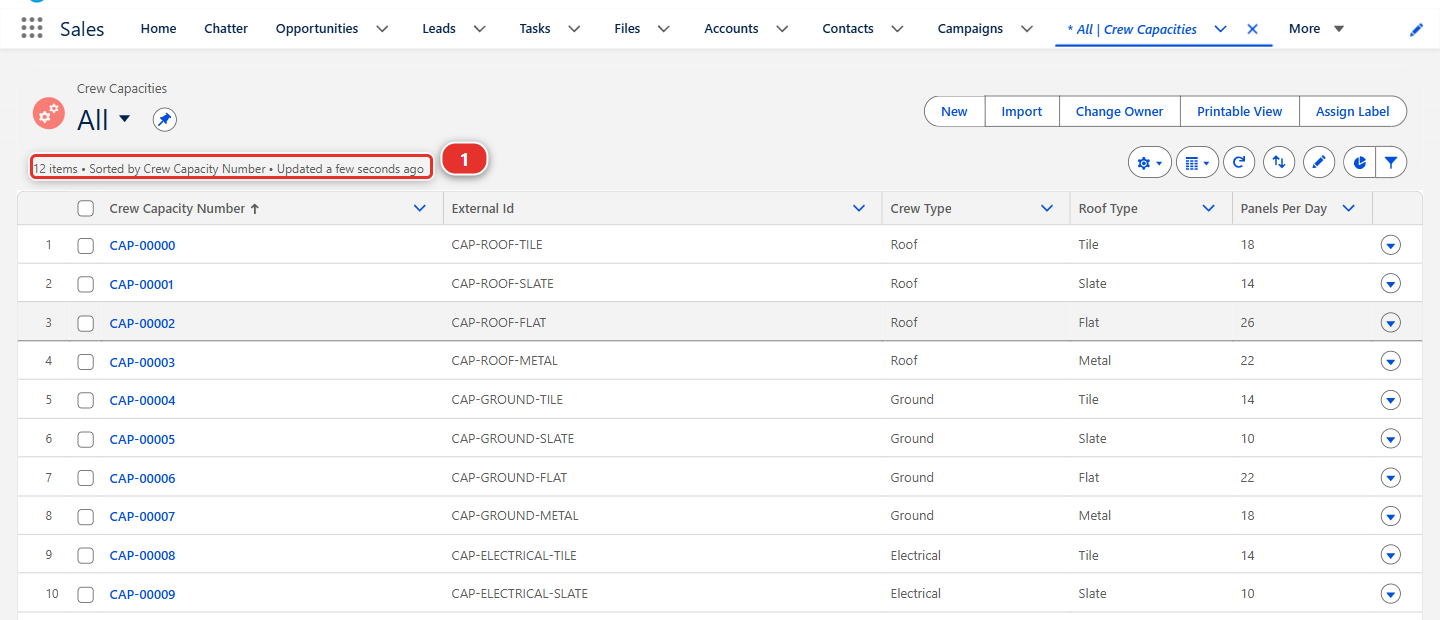
The panel first checks that your object and its four fields are in the org, then creates the
records, lists them, and ends with a See them in the org link. Open it, or open the Crew
Capacity tab of the Helios Delivery app and pick the All list view: it reads 12 items
(1), from CAP-ROOF-TILE to CAP-ELECTRICAL-METAL. If the
panel says a field is missing, finish the object first, then run it again: it updates the same
twelve records rather than creating more.
Under the hood: how the records were created
The menu entry ran:
node scripts/training.mjs records
which loaded scripts/lab-records/lab-2-4/Crew_Capacity__c.csv into helios-dev with
sf data upsert bulk, matching on External_Id__c, and added an All list view to the object
when it had none, so the link has a list to open. That list view is metadata, like the object: it
is one of the things step 2 retrieves. On a real project somebody enters these
records in the org, or loads them from a spreadsheet: either way they exist in one org only, which
is the problem the rest of this lab solves.
2. Publish and watch nothing fail
Retrieve the object, its fields, its tab, its All list view (the ListView row named
Crew_Capacity__c.All), the Helios_Delivery app and Helios_Delivery_Manager with Commit
changes. Without the list view, the tab would open in the other orgs on Recently Viewed,
which shows each person only the records they opened themselves. The two Apex classes are not retrieved: they are already files of the
project, and Source Control lists the four you copied next to what you retrieved. Commit all of it,
then Save / Publish, push, Pull Request. The check is green. Merge. The deployment is green.
Now open helios-integration and look:
- The Crew Capacity tab is in the Helios Delivery app and its All list view is there, with zero records
CrewCapacityBatchexists, scheduled nowhere- Nobody checked that the org is allowed to send the batch's summary email
The feature is in the org and completely inert. This is worse than a failure, because a failure tells you.
3. Build a data workspace for the reference records
The story is merged, so what is missing goes into a second Pull Request for the same story. New
User Story, name US-026-crew-capacity-actions, org helios-dev: a follow-up branch is how a
team finishes a story, and sfdx-hardis says it itself at the end of every Save / Publish, do not
reuse the same branch.
On the Welcome page, click Data Workbench. The panel that opens is titled Data
Import/Export Workbench. Create Workspace (1) sits at the top right, and the workspaces
the project already carries are listed on the left (2): HeliosBaseline is the one the Training
menu uses to seed your org.
A workspace is a folder of CSV files plus the recipe that says which object each one fills and how. It is run by SFDMU, the data loader sfdx-hardis uses, and nothing in it is specific to one org.
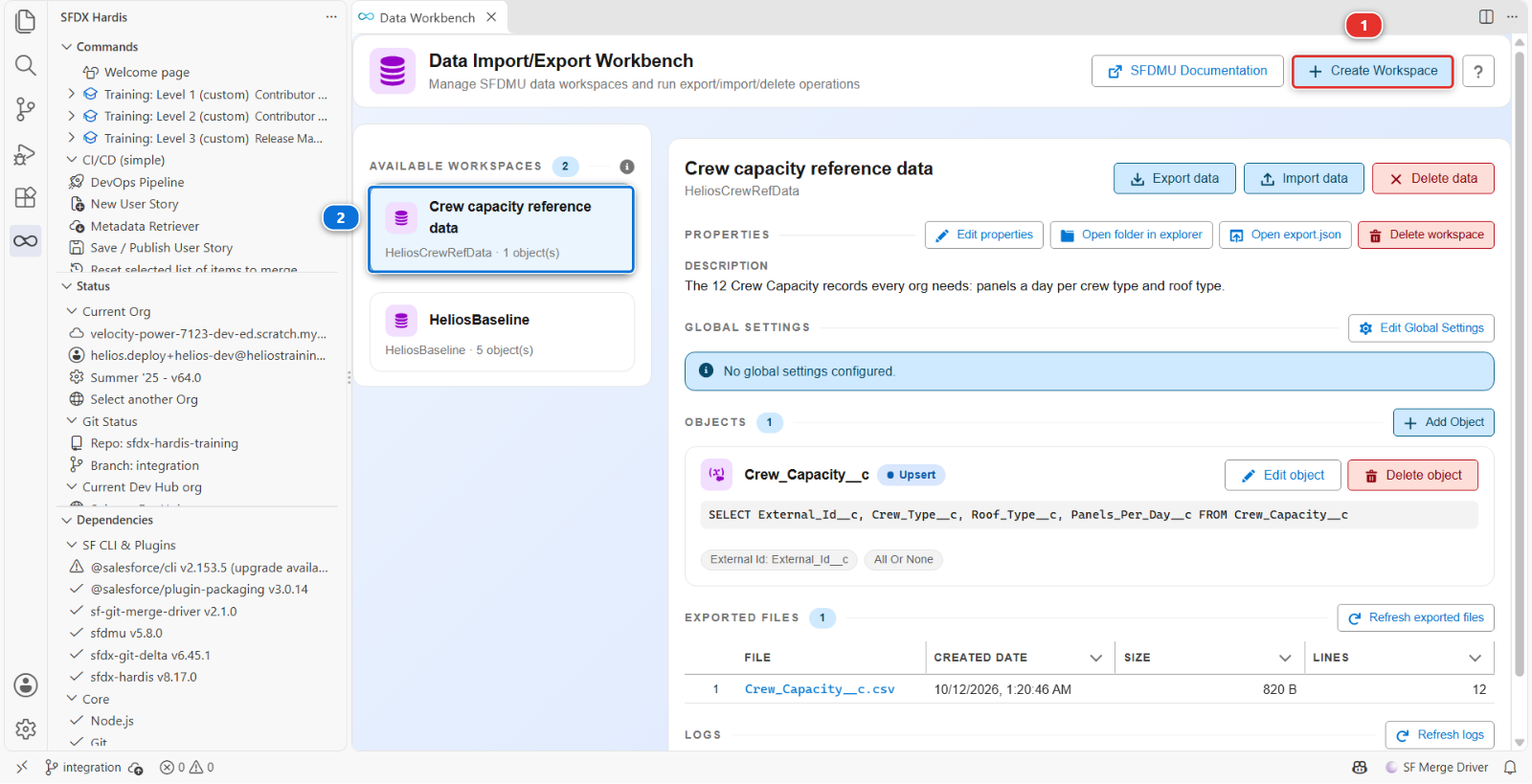
The picture was taken at the end of this step, so it already lists HeliosCrewRefData under
HeliosBaseline. Yours lists HeliosBaseline alone until you create it.
Create a new workspace:
- Create Workspace (1), and fill in its three fields:
- Workspace Name:
HeliosCrewRefData, the name of its folder underscripts/data/ - Display Label:
Crew capacity reference data, the name the panels show, for example when you pick this workspace in a deployment action in step 4 - Description:
The 12 Crew Capacity records every org needs: panels a day per crew type and
   roof type.
- Workspace Name:
-
Add Object, and paste this into SOQL Query. It names the object and the four fields you created:
-
Operation: Upsert
- External Id (for Upsert):
External_Id__c
Then Export data. It asks two questions: whether to use your default org, helios-dev, and
whether you confirm the export. Yes to both. The panel pulls your 12 records into
scripts/data/HeliosCrewRefData/Crew_Capacity__c.csv.
Open that file (1) and read it. Twelve rows, one column per field, each with a stable external
id (3), and an Id column first (2): the record ids of helios-dev, which mean nothing anywhere else and which
the import ignores, because it matches on the external id. That file is now versioned, reviewed
and deployed like any other source. The logs, reports and target folders the export also
wrote next to it are git-ignored: nothing to commit there.
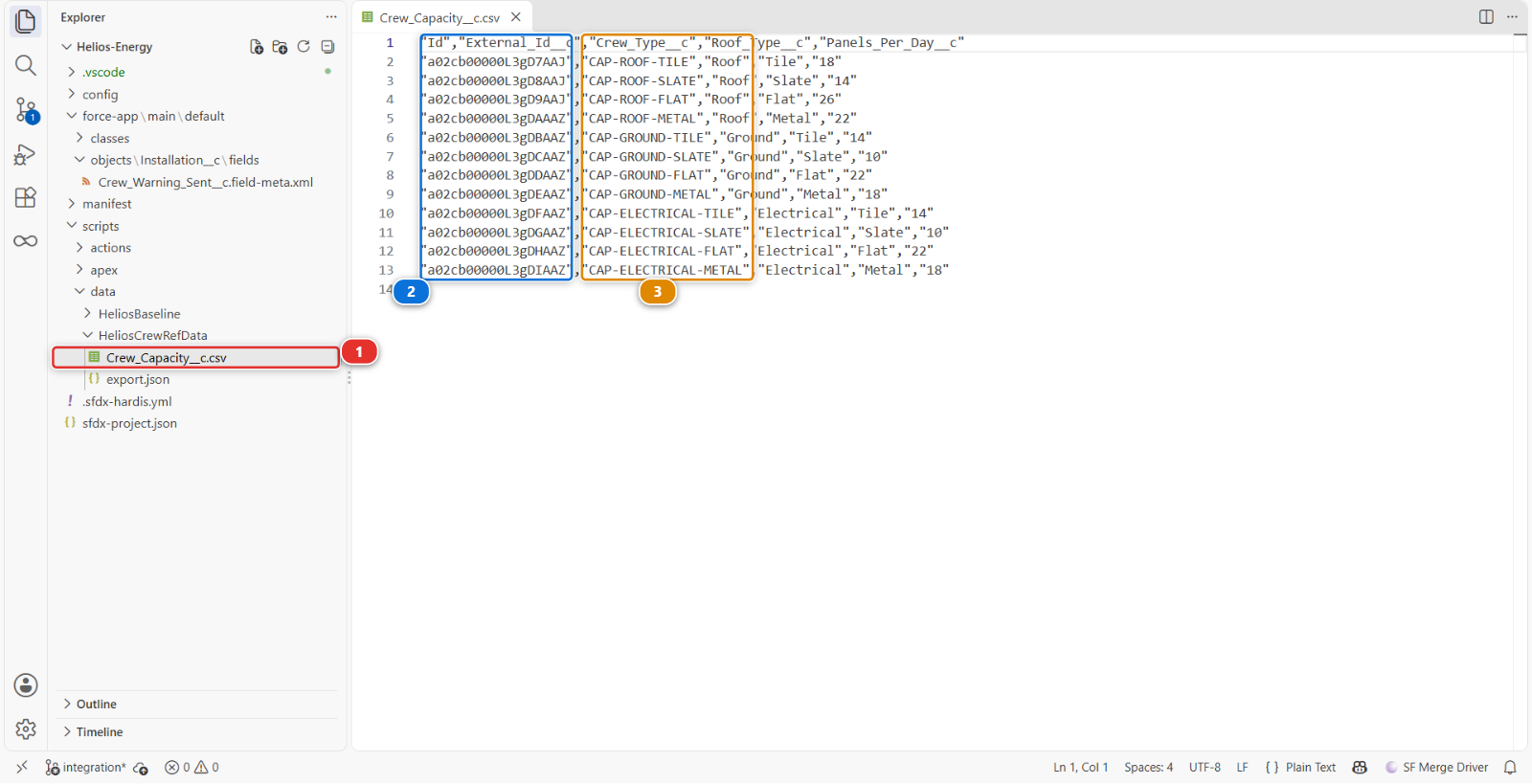
Why the external id is not optional
Upsert on External_Id__c means running the import twice updates the same twelve records
instead of creating twelve more. Without a stable external id the import is not repeatable, and
an import that is not repeatable cannot be part of a pipeline.
4. Declare the three actions
Actions belong to a Pull Request, so it has to exist first: commit the workspace, its
export.json and the CSV file, Save / Publish, and open the Pull Request. Then open it in the
DevOps Pipeline panel, Deployment Actions tab, and add three.
One: load the reference data.
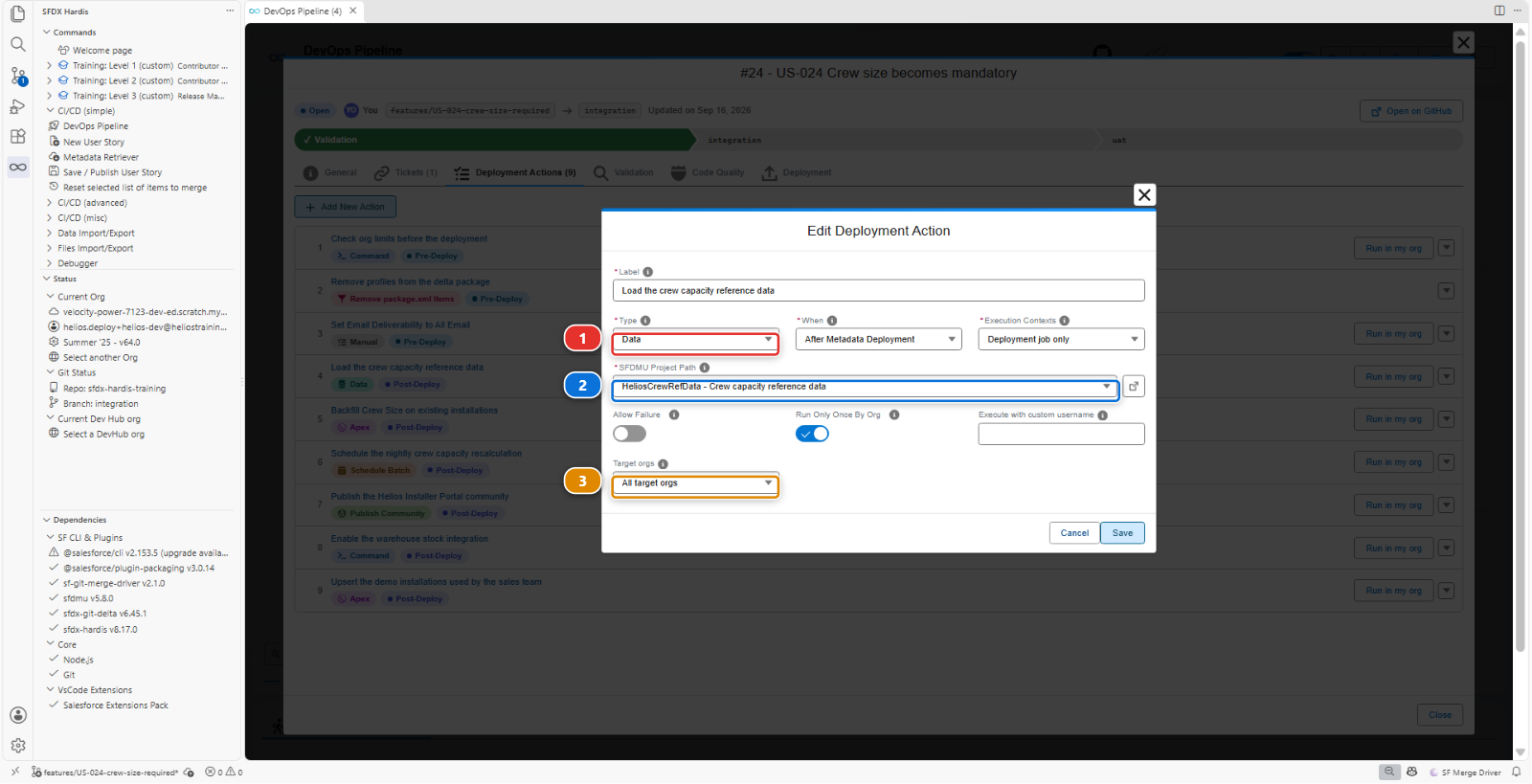
| Field | Value |
|---|---|
| Type | Data |
| Label | Load crew capacity reference data |
| When | After Metadata Deployment |
| SFDMU Project Path | HeliosCrewRefData |
| Execution Contexts | Deployment job only |
| Target orgs | All target orgs |
Deployment job only, not both jobs, because a validation job is a rehearsal: it checks the metadata and changes nothing. An import writes records for real, so it has no business running during a check.
Type (1) decides which fields the rest of the dialog shows. SFDMU Project Path (2)
is a dropdown of the workspaces under scripts/data/, so it names HeliosCrewRefData rather than
its path. Target orgs (3) on All target orgs means every org the pipeline deploys to.
Two: schedule the batch.
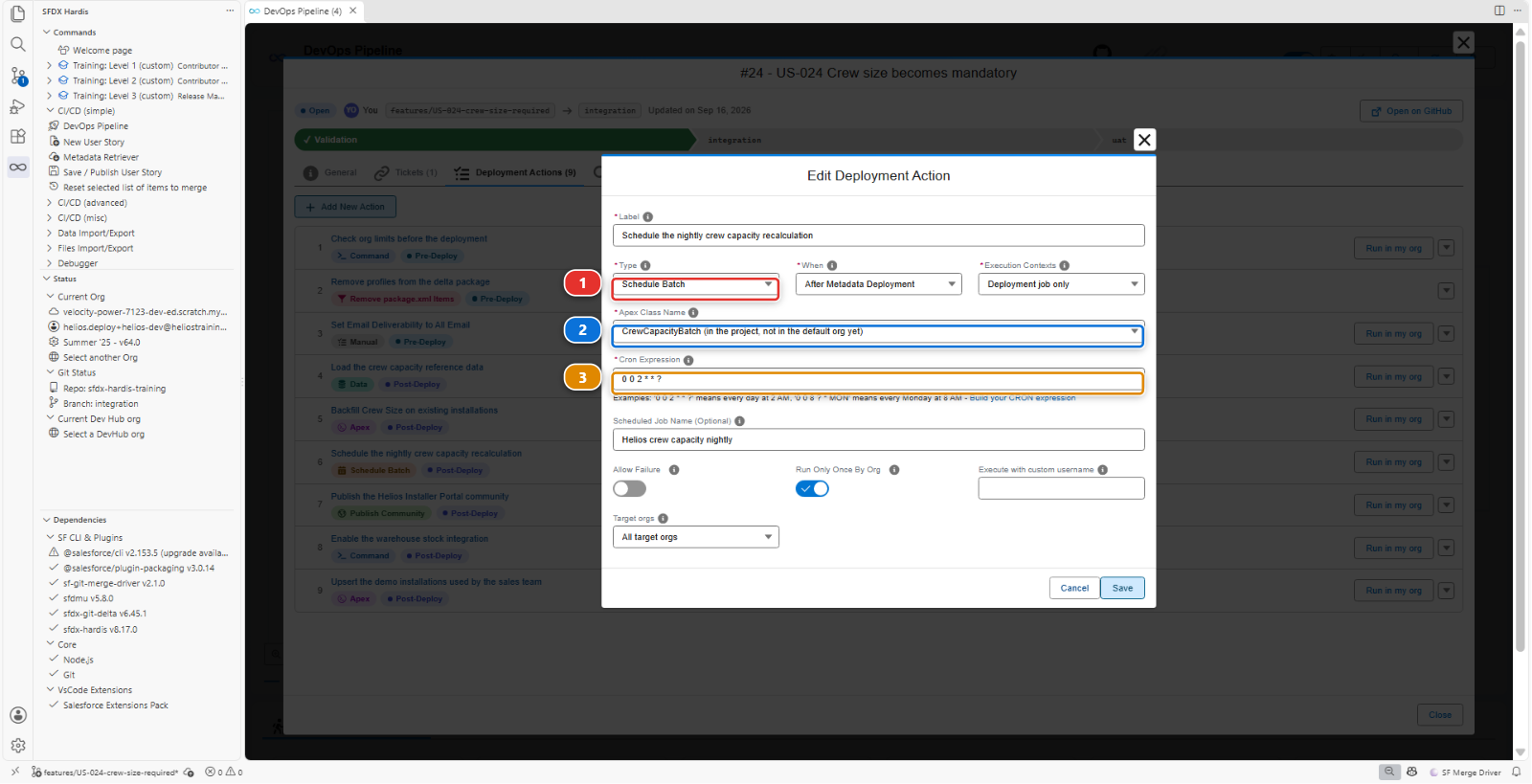
| Field | Value |
|---|---|
| Type | Schedule Batch |
| Label | Schedule the nightly crew capacity recalculation |
| Apex Class Name | CrewCapacityBatch |
| Cron Expression | 0 0 2 * * ? (every night at 02:00) |
| Scheduled Job Name (Optional) | Helios crew capacity nightly |
| Run Only Once By Org | yes |
Schedule Batch (1) replaces the script field with two of its own: Apex Class Name (2), a dropdown of the classes Salesforce can run on a schedule, read from your default org and from the project, and Cron Expression (3), which the dialog explains with examples under the field.
In your list the class reads CrewCapacityBatch (in the project, not in the default org yet).
That is expected, and it is the right one to pick: the class went from the repository to
helios-integration through the pipeline and never to helios-dev, where you did not need it. The
action runs in the orgs the pipeline deploys to, and the class is there before it runs.
Three: the one nobody can automate.
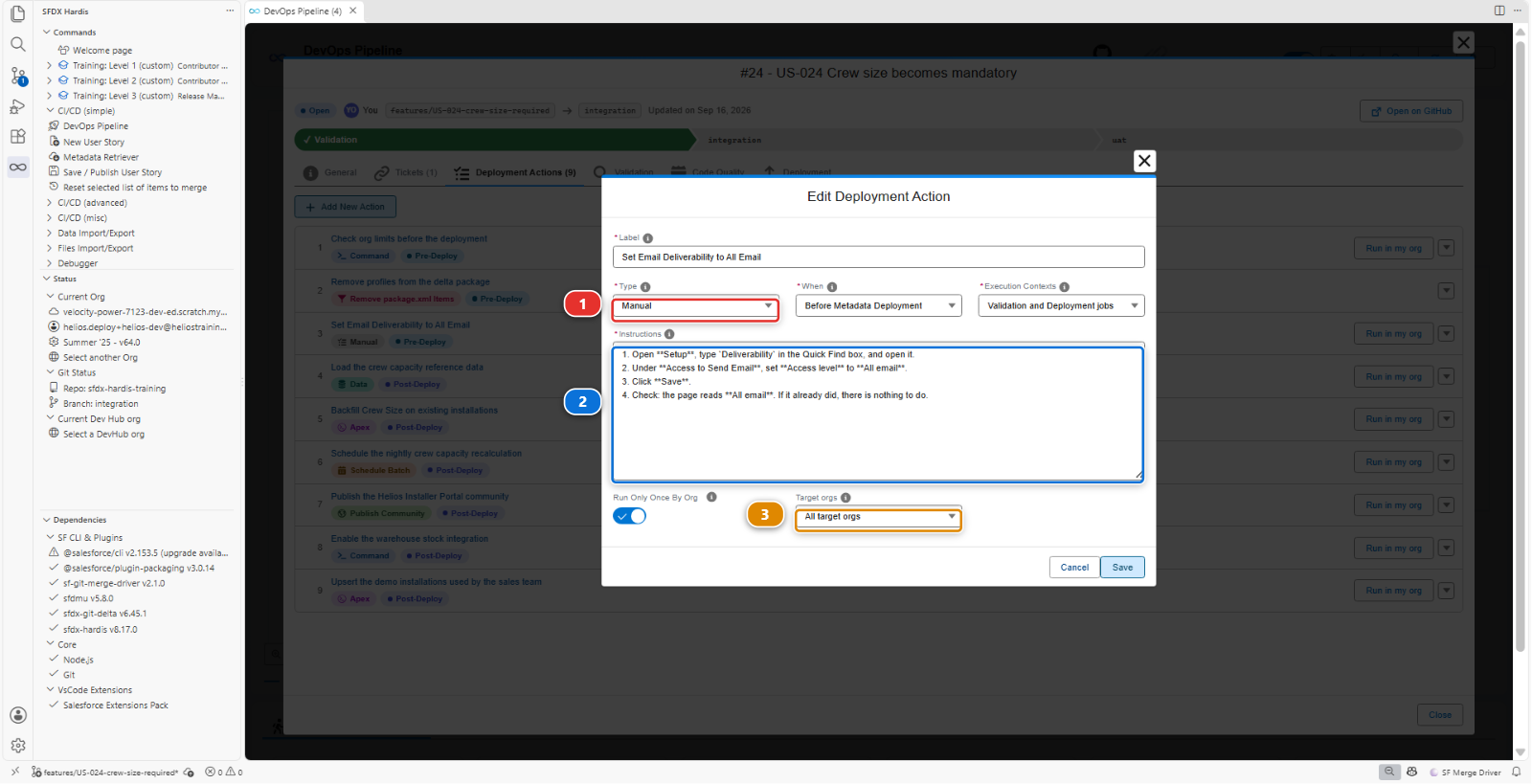
Some things have no API. Email deliverability is the best known one: whether an org may send email at all is a setting in Setup that no deployment can change. The batch emails the planner a summary when it finishes, and in an org where deliverability is not All email, that email is dropped without a word.
| Field | Value |
|---|---|
| Type | Manual |
| Label | Set Email Deliverability to All Email |
| When | Before Metadata Deployment |
| Execution Contexts | Validation and Deployment jobs |
| Instructions | the four numbered lines below |
| Target orgs | All target orgs |
1. Open **Setup**, type `Deliverability` in the Quick Find box, and open it.
2. Under **Access to Send Email**, set **Access level** to **All email**.
3. Click **Save**.
4. Check: the page reads **All email**. If it already did, there is nothing to do.
On your scratch orgs it already reads All email, so the step takes ten seconds. On a real project it is the step people forget: every sandbox refresh puts a sandbox back to System email only, and the first sign of it is a planner asking why the summary stopped arriving.
Manual (1) leaves one field that matters, Instructions (2), a multi-line box that takes Markdown: number the clicks, and finish with what the person should see afterwards. Target orgs (3) stays on All target orgs, because this click is needed in every org.
When is Before Metadata Deployment, unlike the two others. The org must be allowed to send email before anything that sends one arrives in it, so the person merging does this click first, then merges. A manual step declared before the deployment is listed first in the Pull Request comment, which is where they read it.
Execution Contexts is Validation and Deployment jobs, unlike the two others too: the check of the Pull Request has to see the step to ask for it before the merge. Once When reads Before Metadata Deployment, a manual step offers nothing else. If your dialog still lists three contexts, your extension is older: pick this one.
A manual step does not do anything. It appears in the Pull Request comment and in the deployment report, so the person releasing to production is told, in the release itself, that there is a click to make. That is the difference between a manual step that gets done and one that lives in a Confluence page nobody opens.
So write it for somebody who has never seen your story: every click, in order, with the exact names on the screen, and what the page shows when it is done, like the four lines above. The release manager does it in an org you have never opened, often on release day. If they have to guess what you meant, they will guess, and a wrong guess in production is worse than no step at all.
Then update the Pull Request, or none of the three exists for the pipeline.
So far the actions are only on your machine. Each Save wrote the action into a file under
scripts/actions/, named after the number of your Pull Request: .sfdx-hardis.12.yml for Pull
Request 12. VS Code said so each time, in a notification at the bottom right: Deployment action
saved for Pull Request #12. Don't forget to commit and push, followed by the path of the file. Its
Open Git button opens Source Control, where the file waits.
Commit it, then Save / Publish. The Pull Request check and the deployment read the actions from that file in the branch of the Pull Request, not from the panel: an action that was never pushed does not run, and nothing fails to tell you.
5. Read the Pull Request comment
The check starts again on the commit you just published. This time it turns red, and on purpose. The deliverability step runs before the deployment, so it has to be done before the merge, and sfdx-hardis stops the check until somebody says it is. Its log names the step and the three ways to mark it, and sfdx-hardis posts a Deployment Actions comment on the Pull Request:
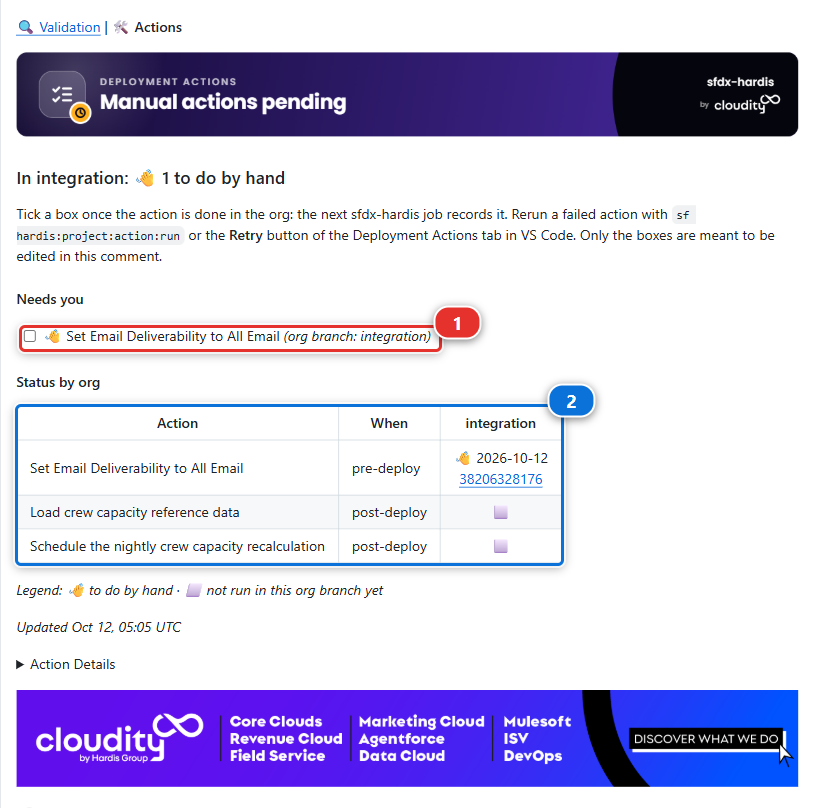
Under its banner, a verdict reads In integration: 👋 1 to do by hand, then:
- Needs you (1): your deliverability step, with a checkbox, marked 👋 and followed by (org branch: integration)
- Status by org (2): one row per action, with its moment. The deliverability step, pre-deploy, is to do by hand; the import and the schedule, post-deploy, read not run in this org branch yet, because the check stopped before them, and a check runs neither anyway
The check comment lists the step too, under 👋 To do by hand in integration before the
deployment, with a checkbox of its own.
Do the click in helios-integration (it already reads All email on your scratch orgs, so it is
a ten-second check), then tick the box (1). In VS Code, Mark as done in integration on the
step, in the Deployment Actions tab of your Pull Request, does the same.
Then run the check again: on the Pull Request, open Checks and click Re-run all jobs. It
reads your tick, records the step as done in integration, skips it, and goes green.
Merge, and watch the deployment job: the data import runs, the batch gets scheduled, and the manual
step is skipped, because it is done in integration already.
Under the hood: why the check stopped
A manual action declared Before Metadata Deployment has to be performed before the merge. The
validation job stops right after its pre-deployment actions while one of them is not marked as
performed in the target org branch. A draft Pull Request (or one with draft in its title) is not
stopped, so you can keep checking a story in progress. sfdx-hardis only lists the step by default:
the Helios project turns the stop on with failValidationOnPendingManualActions: true in
config/.sfdx-hardis.yml.
6. Verify in the integration org
Do not take the green tick for it. Open the org and look:
- The All list view of the Crew Capacity tab, in the Helios Delivery app, has 12 records
- Setup > Scheduled Jobs lists
Helios crew capacity nightly - The manual step reads done for
integrationunder Status by org, with the date of your tick
You did the click before the merge, which is what a real release needs: the person merging does it and ticks the box, and the pipeline does not let the merge through until they have. That is the point: you did it because the pipeline told you to, not because you remembered.
If the records are not there and the job was green
Read the deployment log for the line Listing Post-deployment actions. When it is followed by No post-deployment actions defined, the actions were never found, and the deployment happily carried on without them.
That happened for real while this course was being written. The CI job could not read its own git history, so the tool could not work out which Pull Requests the merge carried, and it reported no actions rather than a failure. It is fixed in this project, and sfdx-hardis now stops instead of carrying on. The habit it leaves behind is the one worth keeping: when a feature arrives empty, read the log for that line before you blame the import.
A data import succeeds when the object is missing
This one is worth knowing for the rest of your career, because it is SFDMU behaving as designed and it looks exactly like success:
[WARNING] Describe failed for {Crew_Capacity__c}: The requested resource does not exist
[WARNING] {Crew_Capacity__c} is missing in the Target.
[WARNING] {Crew_Capacity__c} Object will be excluded from the process.
[WARNING] Object set 1 has no objects to process after validation. Skipping.
===== MIGRATION JOB ENDED =====
Command succeeded.
Exit code 0 (SUCCESS).
Exit code 0. The action is reported as run, the job is green, and not one record was written. If the object never reached the org, for any reason, the import that was supposed to fill it says nothing louder than a warning nobody reads.
That is why the check in this step is the records and not the tick, and it is why those two
WARNING lines are worth searching for in a deployment log when a feature arrives empty.
The habit behind all of this: a green deployment is evidence that the metadata went in, and evidence of nothing else. The org is the only thing that tells you an action ran.
Under the hood: the three action types
All three are entries in the same YAML file under scripts/actions/:
commandsPreDeploy:
  - id: 5b2e8c71-0a3d-4f6e-9c1b-026000000003
    label: Set Email Deliverability to All Email
    type: manual
    parameters:
      instructions: |
        1. Open **Setup**, type `Deliverability` in the Quick Find box, and open it.
        ...
commandsPostDeploy:
  - id: 5b2e8c71-0a3d-4f6e-9c1b-026000000001
    label: Load crew capacity reference data
    type: data
    parameters:
      sfdmuProject: HeliosCrewRefData
    context: process-deployment-only
    runOnlyOnceByOrg: true
  - id: 5b2e8c71-0a3d-4f6e-9c1b-026000000002
    label: Schedule the nightly crew capacity recalculation
    type: schedule-batch
    parameters:
      className: CrewCapacityBatch
      cronExpression: "0 0 2 * * ?"
      jobName: Helios crew capacity nightly
    context: process-deployment-only
    runOnlyOnceByOrg: true
The editor generated each id when it created the action, so yours are different.
The data import runs SFDMU through sf hardis:org:data:import, the same command the Training menu
uses to seed your org. The schedule action runs anonymous Apex that calls System.schedule. The
manual action runs nothing at all and only produces text.
Note what they have in common: they are files in the repository, reviewed in a Pull Request, replayed identically in every org. A colleague can read the diff and see that this story needs data, a job and a click, which is information that otherwise exists only in the head of whoever built it.
Command documentation: hardis:org:data:import
What you should see
- Twelve Crew Capacity records in
helios-integration Helios crew capacity nightlyin Setup > Scheduled Jobs- The manual step listed in the deployment report, ticked off by you
If it goes wrong
The action file is called .sfdx-hardis.draft.yml, or the check stops on Draft deployment actions file found.
You added the action while the panel knew no Pull Request for your branch: the My Pull Request
card read Pull Request not created yet, so the action was kept in a draft. The pipeline only reads
scripts/actions/.sfdx-hardis. followed by the number of the Pull Request and .yml, so a draft, or
a file renamed to a name of your own, is never run. Once your Pull Request exists, open the
DevOps Pipeline panel again and click Refresh: it renames the draft after your Pull Request
and tells you so in a notification. Commit the renamed file, then Save / Publish.
The Crew Capacity tab is missing from the app in helios-integration.
Either the tab or the Helios_Delivery app was not in your Pull Request, or the tab is not
Visible under Tab Settings of Helios_Delivery_Manager. The profile visibility you set in
the wizard stays in helios-dev. Fix it there, retrieve the missing piece, and publish again.
The data import fails on field level security.
The CI user cannot write the fields: the grant of step 1 is missing from Helios_Delivery_Manager,
or never reached the repository. A deployment grants no field permissions to anybody by itself. Add
them in helios-dev, retrieve the permission set, and publish again.
The import creates duplicates every run.
The operation is Insert, not Upsert, or the external id is not set. Open the workspace in the
Data Workbench panel and correct both there.
The schedule action fails with Invalid cron expression.
Salesforce cron has seconds and a day-of-week field: 0 0 2 * * ?, not 0 2 * * *.
The batch is scheduled twice.
runOnlyOnceByOrg is unticked and the deployment ran twice. Delete the duplicate in Setup >
Scheduled Jobs and tick it.
Check your work
Welcome page > Training: Level 2 > Check my work, then pick Lab 2.4.
Go deeper
Next: Lab 2.5 - Pass the code quality gate and Apex test coverage