Lab 1.5 - Retrieve, commit and publish your Salesforce changes
The situation
Your field exists in one org. If your laptop died tonight, so would the story. Publishing is what turns "it works in my org" into "the team has it".
This is the step where most of the thinking happens in a CI/CD project, and the one people rush. Go slowly here once, and every following story takes five minutes.
Before you start
- Lab 1.4 finished: the field exists in
helios-dev, granted to the crew, on the layout - You are still on
features/US-014-panels-required
Steps
1. Bring your changes out of the org
Goal the Metadata Retriever open, ready to look into your org.
Refresher Lab 1.4
Do
-
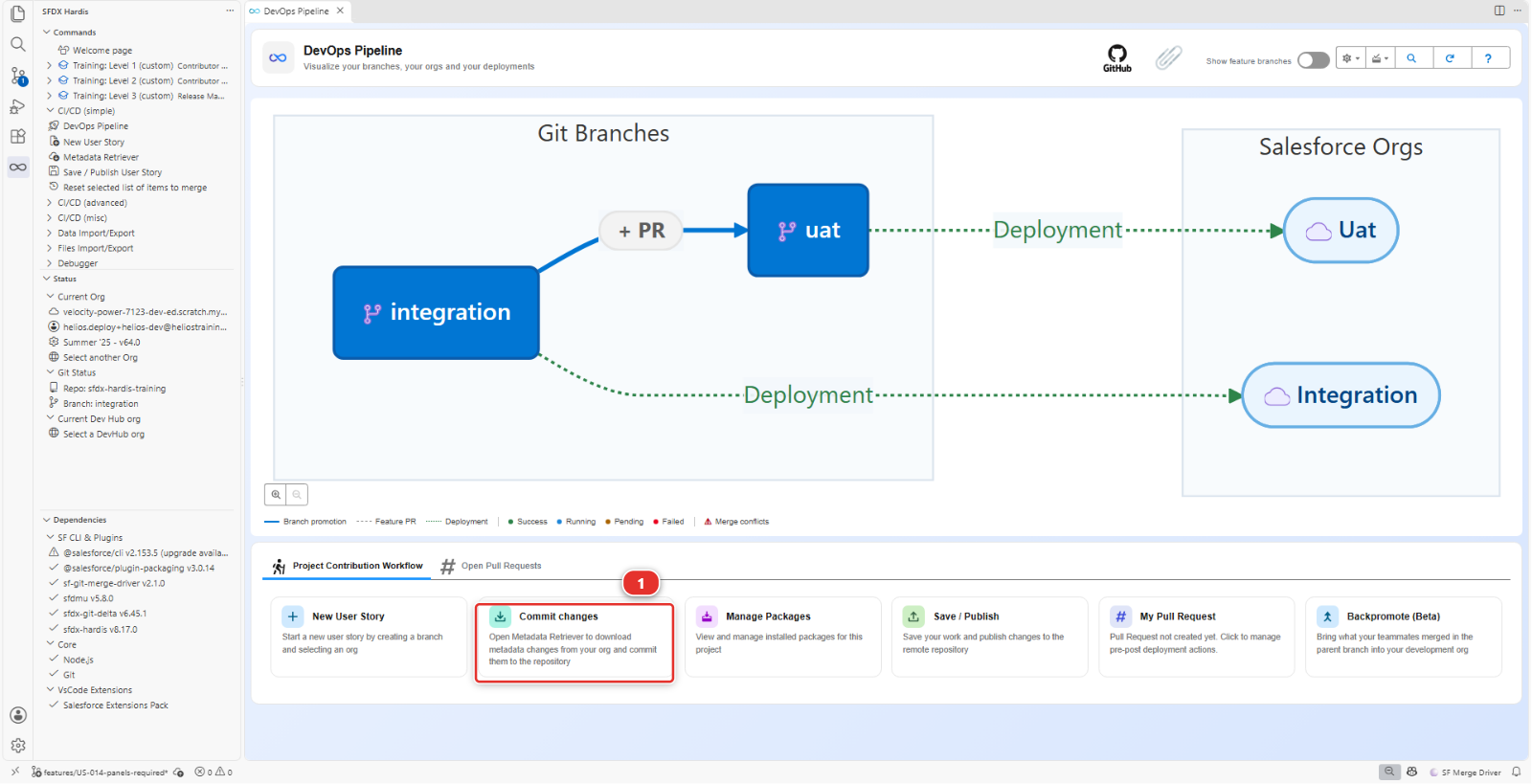
In the DevOps Pipeline panel, under Project Contribution Workflow, click the Commit changes card (1)
Why
Your field is in Salesforce. Nothing of it is on your machine yet, and git only ever sees what is on your machine.
You should now see
- The Metadata Retriever open, which is where every publish starts
2. Ask the org what changed
Goal the list of what changed lately in helios-dev, newest first.
Do
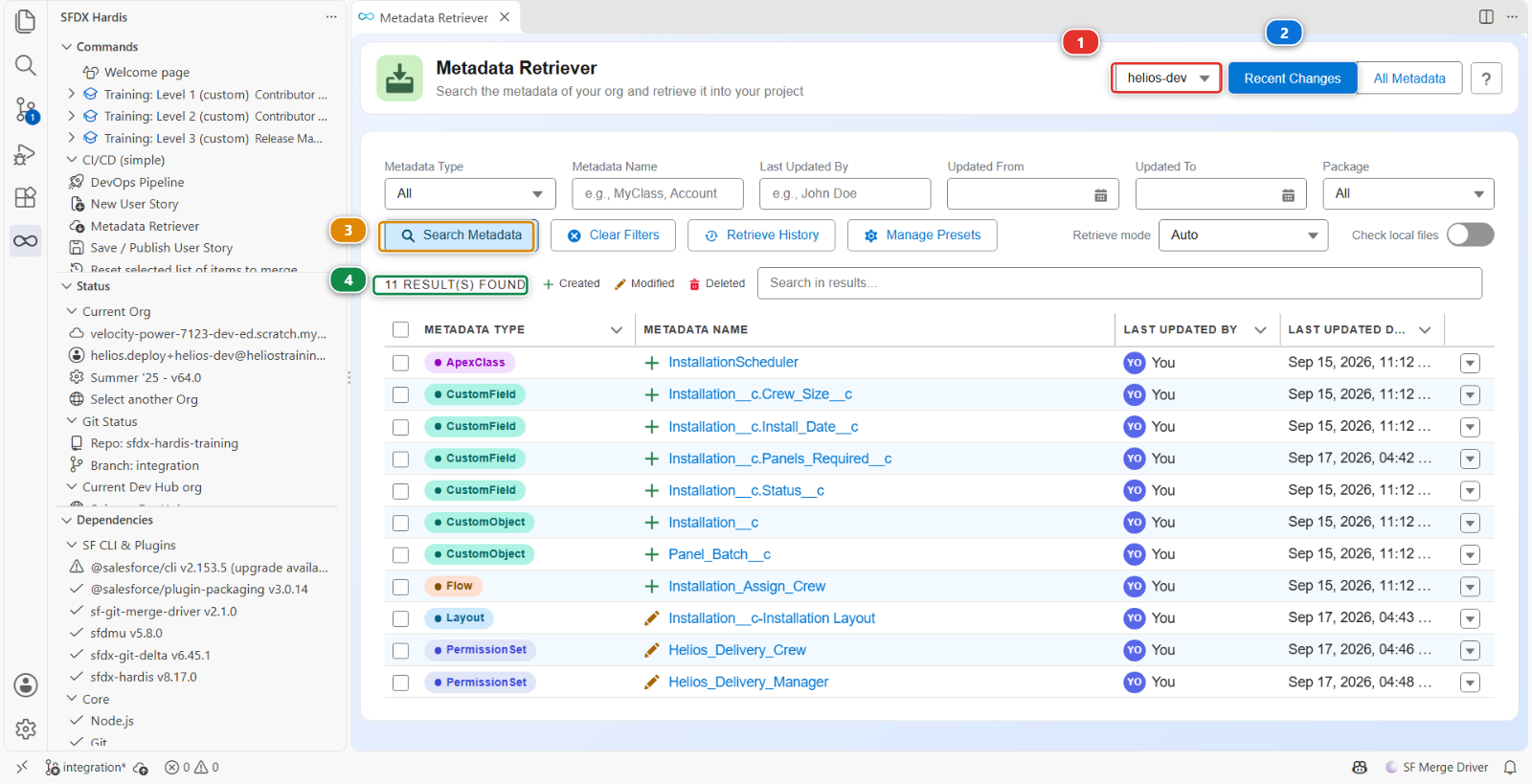
- Check the org (1) reads
helios-dev, the org you built in -
Leave Recent Changes (2) selected, as it already is, and click Search Metadata (3)
-
Click the Last Updated Date column header, twice if needed, so the newest come first
Why the list is longer than your story
Recent Changes asks Salesforce what has been modified lately rather than listing the tens of thousands of components an org contains.
A scratch org remembers every component that arrived in it, however it arrived. In Lab 1.2,
Set up my training environment deployed the whole Helios app into helios-dev under your
user, so every object, field and permission set of the app is in this list, dated Lab 1.2. Your
four changes are the ones dated a few minutes ago.
On a team org the older rows would be your colleagues and Salesforce moving things on its own. Either way it is exactly why the next step is a decision rather than a button.
You should now see
- The count of results at (4): a few dozen on your org, fewer in the picture
- Each row saying what it is, its name, who last touched it and when. Every one of them carries your name, and most of them are not your story
3. Take yours, leave the rest
Goal your four components, and only them, written into force-app/ as files.
Do
- With the list sorted by Last Updated Date, newest first, find your four
-
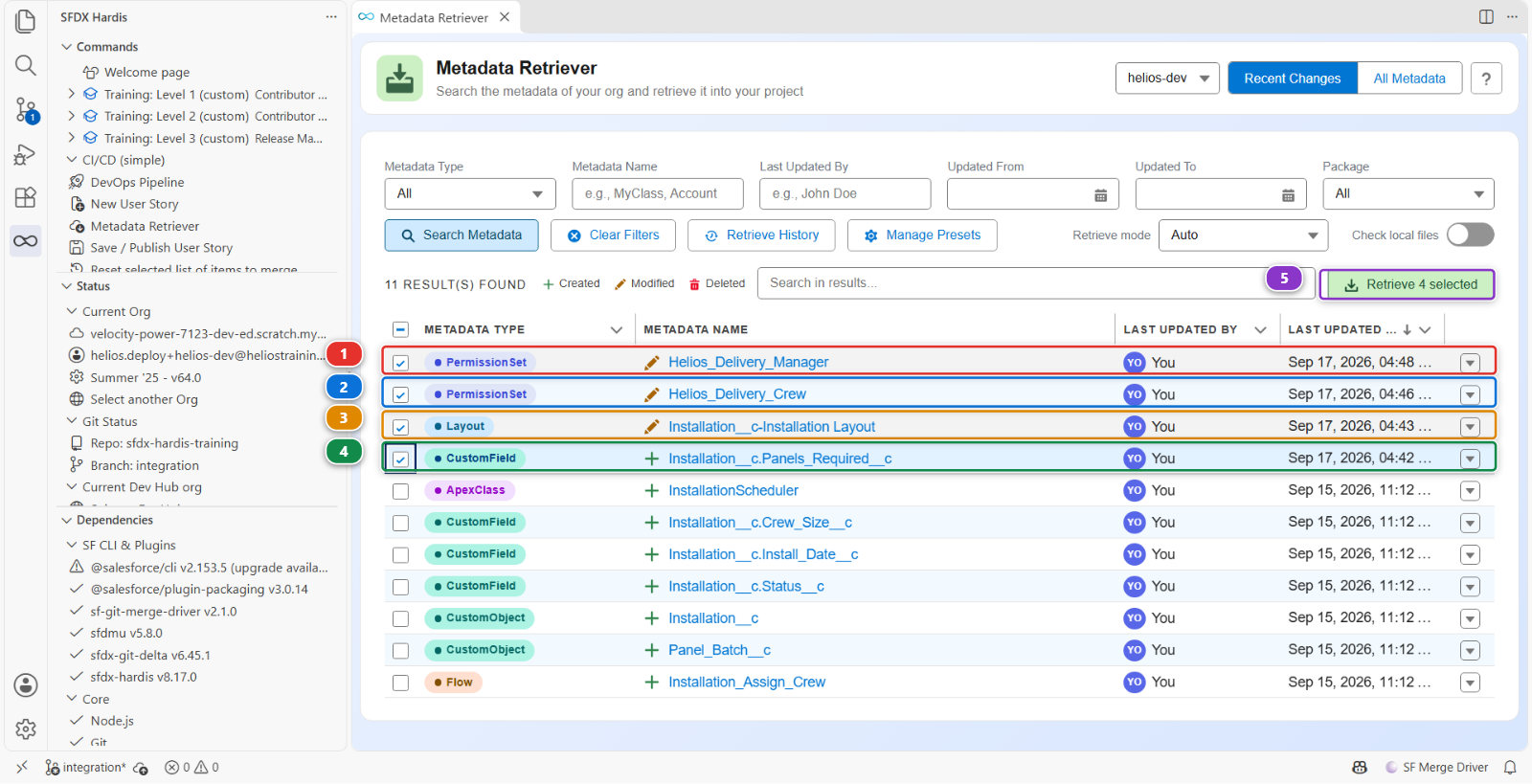
Tick them, and only them, by name rather than by position:
- PermissionSet
Helios_Delivery_Manager(1) - the planners' edit access - PermissionSet
Helios_Delivery_Crew(2) - the crew's read access - Layout
Installation__c-Installation Layout(3) - the placement, changed when you ticked the layout in the field wizard - CustomField
Installation__c.Panels_Required__c(4) - the field
- PermissionSet
-
Click Retrieve 4 selected (5)
Source conflicts?
If the retrieve fails with Failed to retrieve metadata due to source conflicts, take the option that overwrites the local files and retrieve again.
Why
By name, because Salesforce touches components of its own, and one of them landing between yours is exactly the kind of thing this step is about.
Two rules make that decision for you, and they are the whole of this lab:
- If you did not mean to change it, it does not belong in your story. Committing it makes your Pull Request about something other than US-014, and the reviewer cannot tell which part is yours
- If you are not sure, leave it out. Nothing is lost. It is still in your org, and you can publish it in a later story once you know what it is
The retriever writes those four components into force-app/ as files. It changes nothing in
Salesforce and nothing on your branch yet.
A source conflict means the files on your machine and the components in the org both changed since the last time they agreed. Here that is not a conflict, it is the point: you changed the org on purpose and the org is right. It matters on a real project, where somebody else may have written those files; it does not here, where nothing but your own org has touched them.
You should now see
- The retrieve finished, and your four components written into
force-app/as files
4. Commit what came down
Goal your four files committed on your branch, with a message the reviewer can read.
Do
-
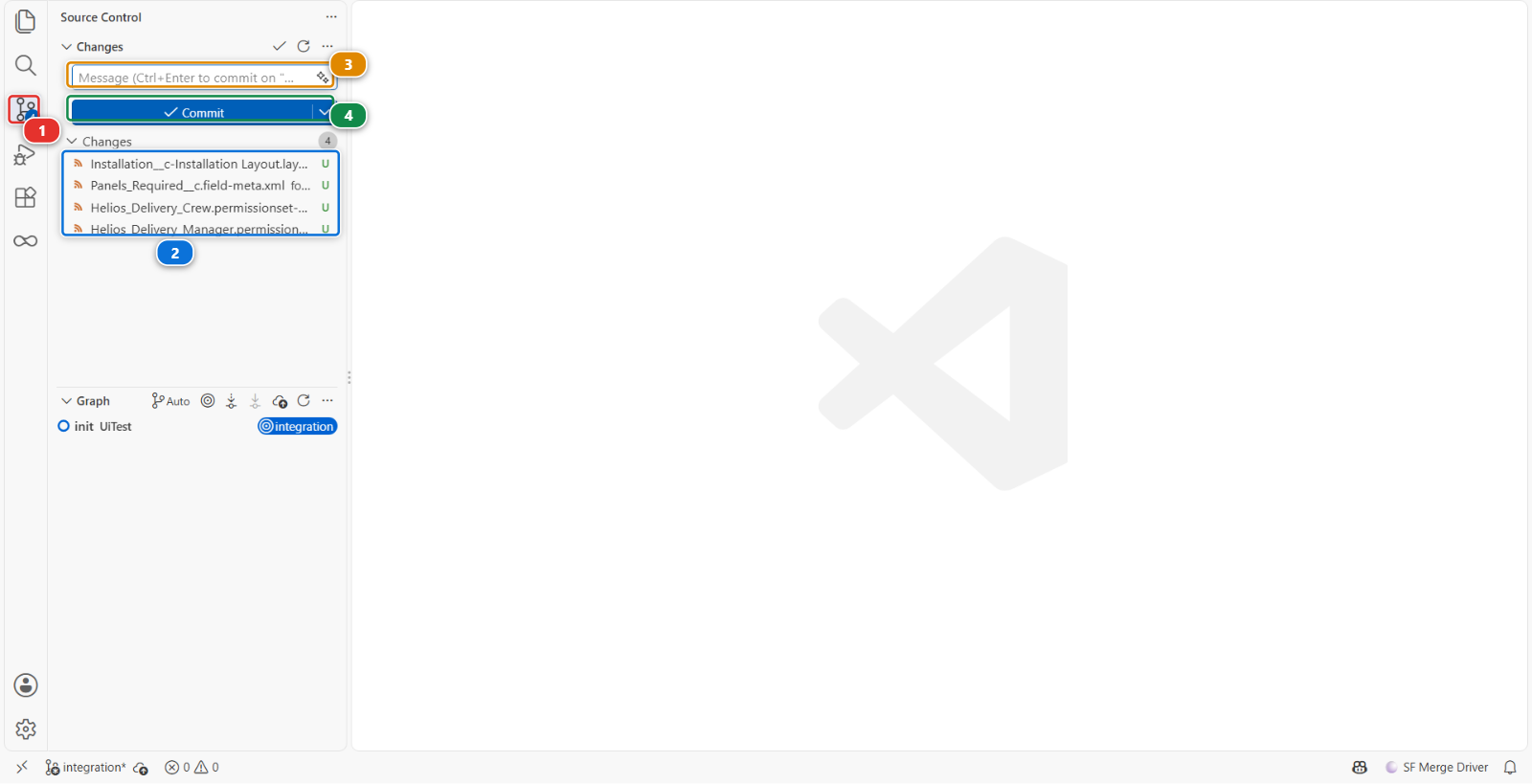
Open the Source Control panel (1): in the left bar, the icon drawn as three small circles joined by lines, like a branch. The four files the retrieve wrote are waiting there (2)
Long paths?
Open the ... menu at the right of the Changes header and pick View as Tree: the same files, folded into the folders they live in. Set it once and VS Code remembers it.
-
Click each file. VS Code opens the file's diff, the before and the after side by side, with the added lines in green and the removed ones in red. Read the four
-
Put them in the commit one at a time. Point at a file: a row of small icons appears at the right of its name. Click the +, Stage Changes. Do it for each of the four, and read the name as you click
A file you did not ask for?
Leave it unstaged. If you know what it is and you know it is rubbish, right-click it and Discard Changes. If you do not know what it is, leave it alone and ask.
-
With the four files staged, type a message (3) for the person reviewing tomorrow, not for yourself today. First line short, then a blank line, then why:
US-014 Panels Required on Installation
Adds Panels_Required__c on Installation__c so the crew knows how many panels to load. Read access for the crew on Helios_Delivery_Crew, edit access for planners on Helios_Delivery_Manager, field added to the Installation layout.
-
Click Commit (4)
Never use Stage All Changes
The + on the Changes group header stages everything the panel can see, including files you have never looked at: a stray log, something an installer left behind, a file another command wrote while you were working. The panel above shows only your four files, and yours will not always be that tidy.
Why
By default the panel lists full paths, and a Salesforce path is long enough to be unreadable.
Reading the four diffs takes a minute, and it is the last moment where a mistake is free.
The + moves that one file into a group called Staged Changes just above. Staging is the only moment where you decide what your story contains. Doing it file by file takes ten seconds and it is the difference between a Pull Request a reviewer can read and one that has to be untangled. On a real project this is the habit people notice.
A file left unstaged stays out of your commit, which is enough for now. A file you cannot explain is a file that does not belong in your story, and deleting it blindly is not better than committing it blindly.
The Commit button commits what is staged and leaves everything else alone. The message follows your branch everywhere: it is what the reviewer sees in the Pull Request, and it is what anybody reading the history of this project in two years will find.
You should now see
- The four files gone from Changes, in a commit on your branch
Your work is now in the repository, on your branch, on your machine. What is left is to prepare it for the team, and that is what Save / Publish does.
5. Publish it
Goal Save / Publish running, told that your commits are ready.
Do
-
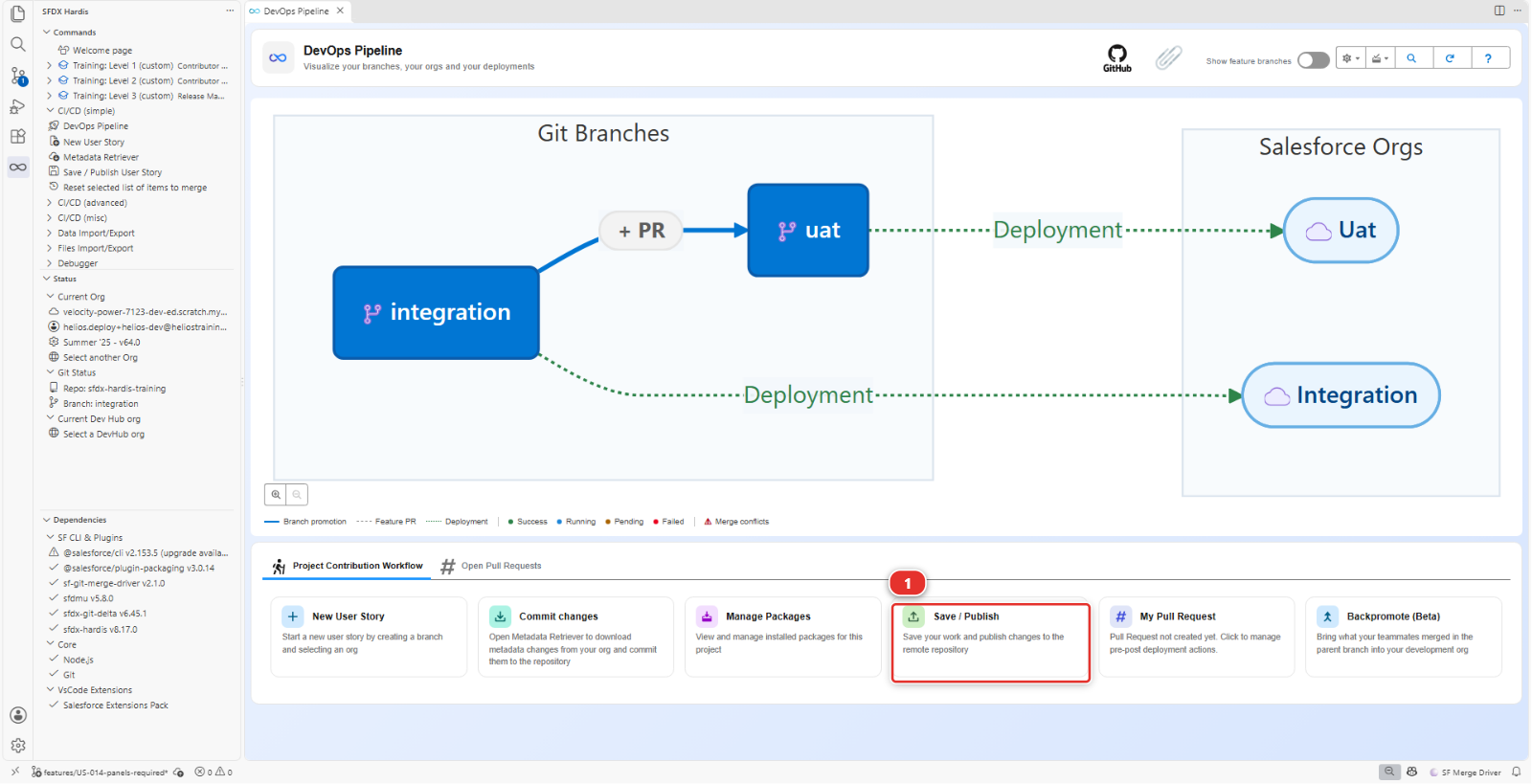
In the DevOps Pipeline panel, click the Save / Publish card (1)
-
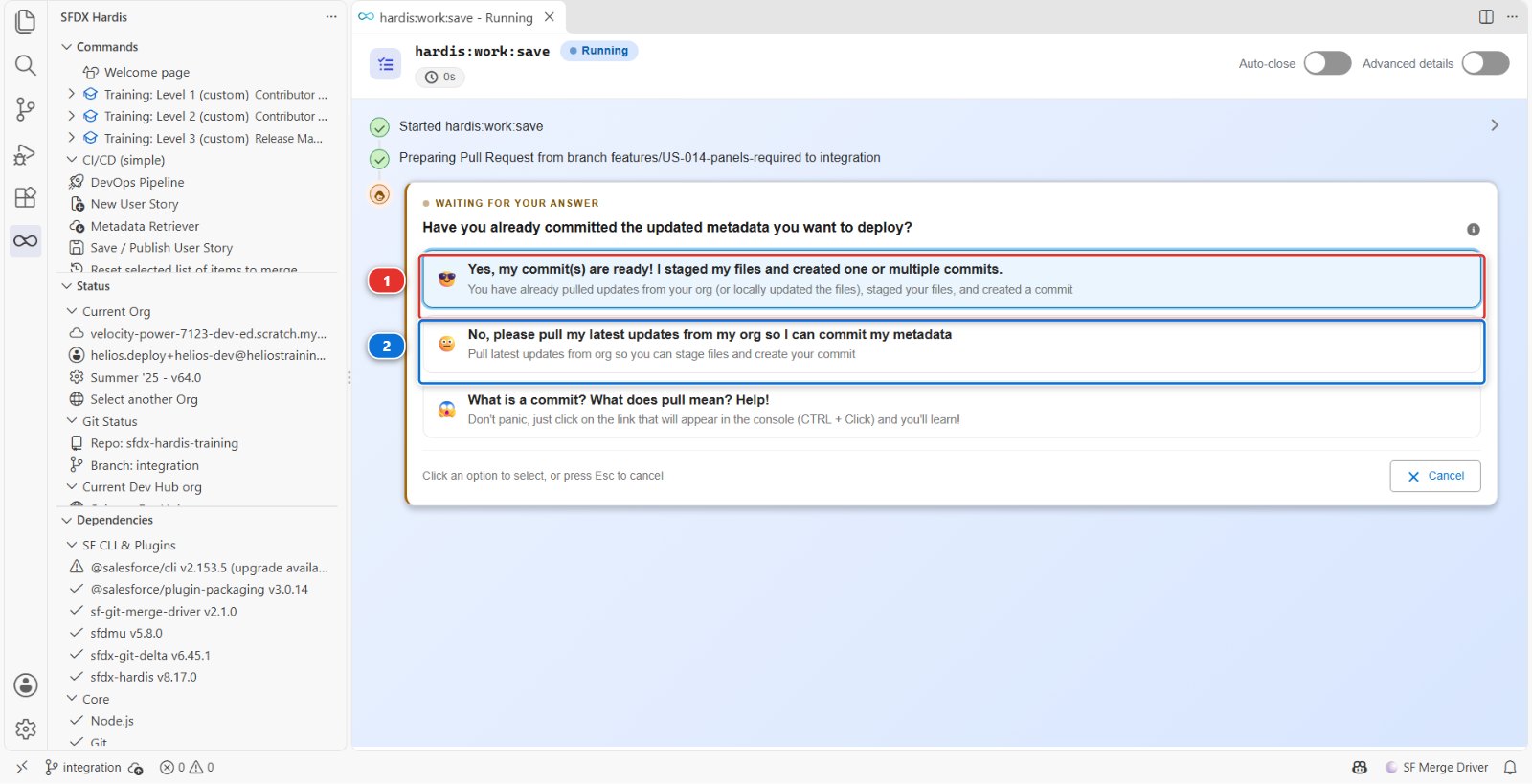
Read the first question: it is the one that catches everybody out
-
Answer (1), Yes, my commit(s) are ready!, because they are: you retrieved and committed in the steps above
Why commit first, every time
(2) asks the command to pull the org for you instead, and the third answer explains what a commit is, which costs nothing to read.
(2) exists for the day you forgot to retrieve and commit. This course never needs it, because the habit it teaches is the one above: retrieve with the Metadata Retriever, read the diff, stage file by file, commit. Keep that habit and the answer is always (1).
You should now see
- The command going on past the first question
6. Read the package before you push
Goal your story read as the pipeline sees it, in the report and in manifest/package.xml, before it leaves your machine.
Do
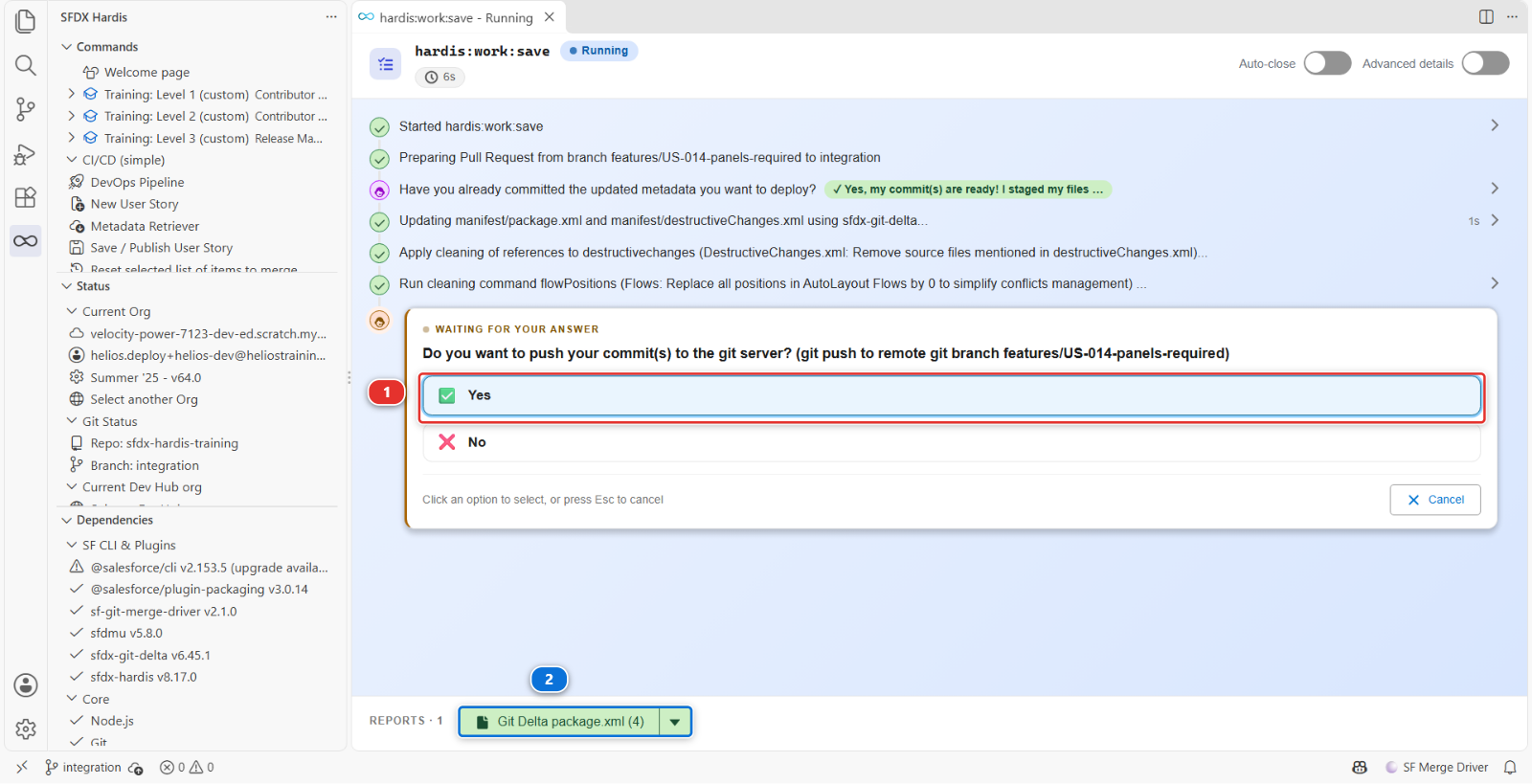
- When the command pauses before pushing and asks you to confirm (1), do not answer yet: this is the last look you get at your story before it leaves your machine
-
Click the Git Delta package.xml report at the bottom of the command's panel (2). The number on the button is how many components it holds: 4
-
Look for one block per kind of thing you changed, each naming what it holds. Check your four are all there: the field
Installation__c.Panels_Required__c, the layoutInstallation__c-Installation Layout, and the permission setsHelios_Delivery_CrewandHelios_Delivery_Manager -
Open the whole manifest,
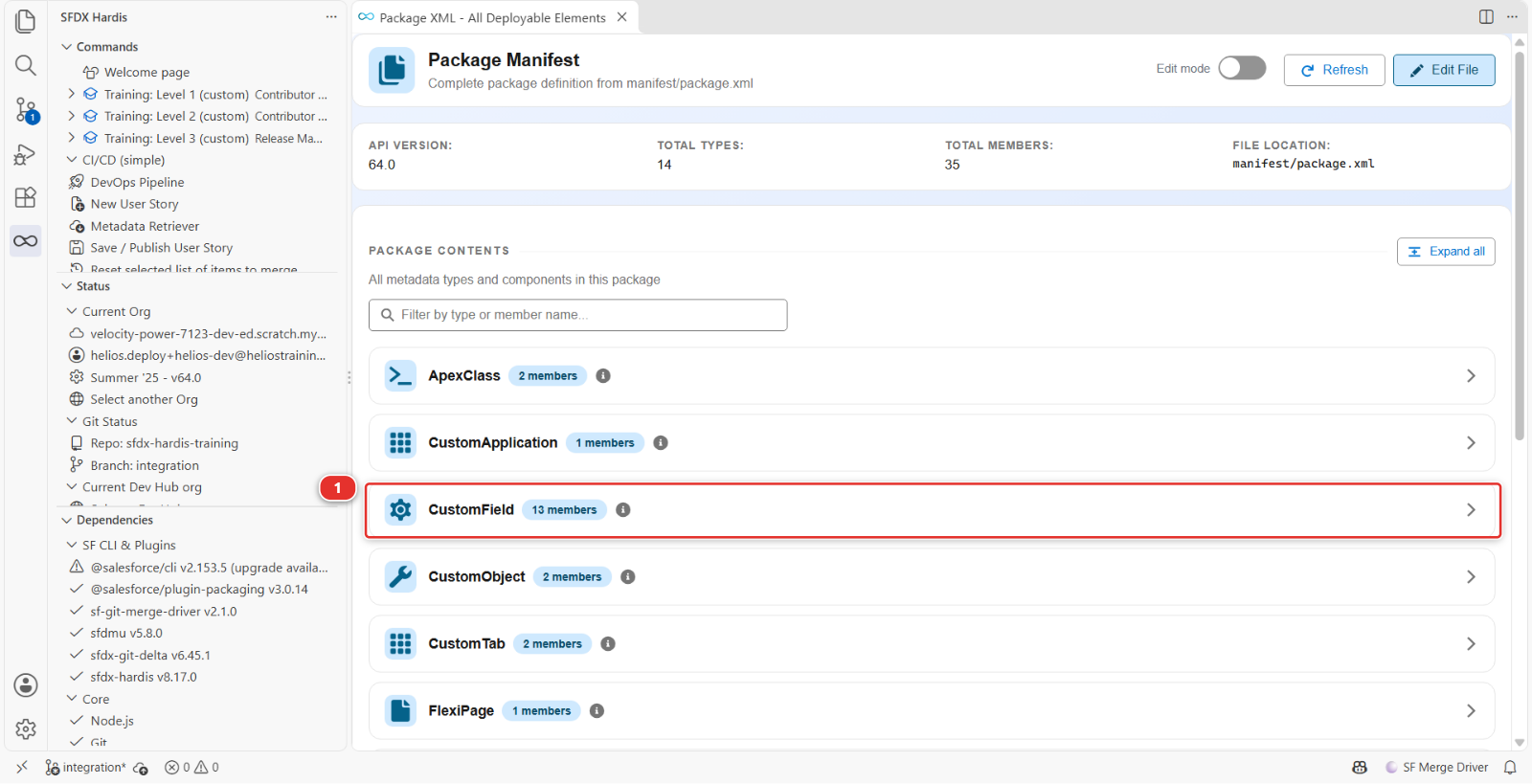
manifest/package.xml: in the DevOps Pipeline panel, click the Deployment packages menu (1) in the header, the icon of a box with an arrow, then Package XML (2)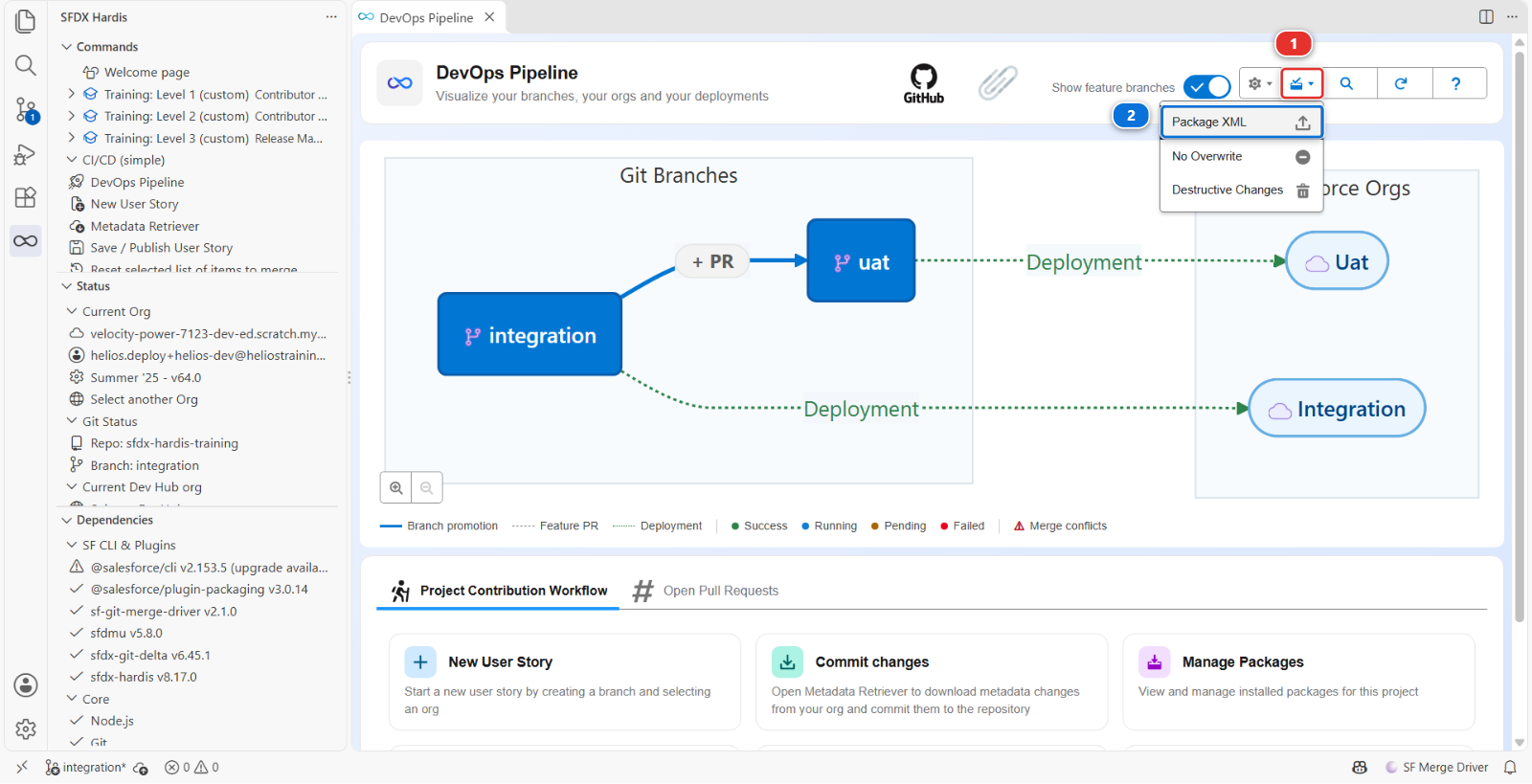
-
The package viewer opens on the file. Each row is one kind of component, with how many the file lists. Expand CustomField (1)
Careful
If a component you expected is missing from the report, git does not know you changed it, and it will be missing in integration too: the deployment will either fail or, worse, succeed while doing half of what you meant.
Why
The report is the list of what your commits changed compared with integration, worked out from
git. This list is your story, as the pipeline sees it. Reading it before every push is the single
habit that separates a contributor who has trouble with deployments from one who does not.
manifest/package.xml is much longer than the report, and that is correct: it is the list of
everything this project deploys, the whole Helios app, and every story adds its new components to
it. Save / Publish just merged your delta into it, which for US-014 means one new line,
Installation__c.Panels_Required__c: the layout and the two permission sets were listed already,
because the app has always had them. Every deployment of integration sends that whole file, and
Salesforce works out what actually changed.
Under the hood: what those blocks look like
The viewer reads and writes a plain file, manifest/package.xml, and Edit File in its header
opens it as text. The file is XML, and every block pairs a list of members with the name of what they are:
<types>
    <members>Installation__c.Panels_Required__c</members>
    <name>CustomField</name>
</types>
<types>
    <members>Installation__c-Installation Layout</members>
    <name>Layout</name>
</types>
<types>
    <members>Helios_Delivery_Crew</members>
    <members>Helios_Delivery_Manager</members>
    <name>PermissionSet</name>
</types>
Salesforce calls this a manifest, and every deployment tool on the platform reads the same format. The counter on the report button counts entries rather than blocks, so it can read one more than you expect when a change pulls its parent object in with it.
manifest/package.xml has the same shape, with every component of the app. A project can ask the
pipeline to deploy only the delta instead, with useDeltaDeployment, and this one does not: a
full deployment is slower and never forgets anything, which is the right trade for a course.
You should now see
- The report naming your four components, its button reading 4
Installation__c.Panels_Required__cunder CustomField in the package viewer
7. Read what the command did to your files
Goal you know what the automated cleaning did to this story.
Do
-
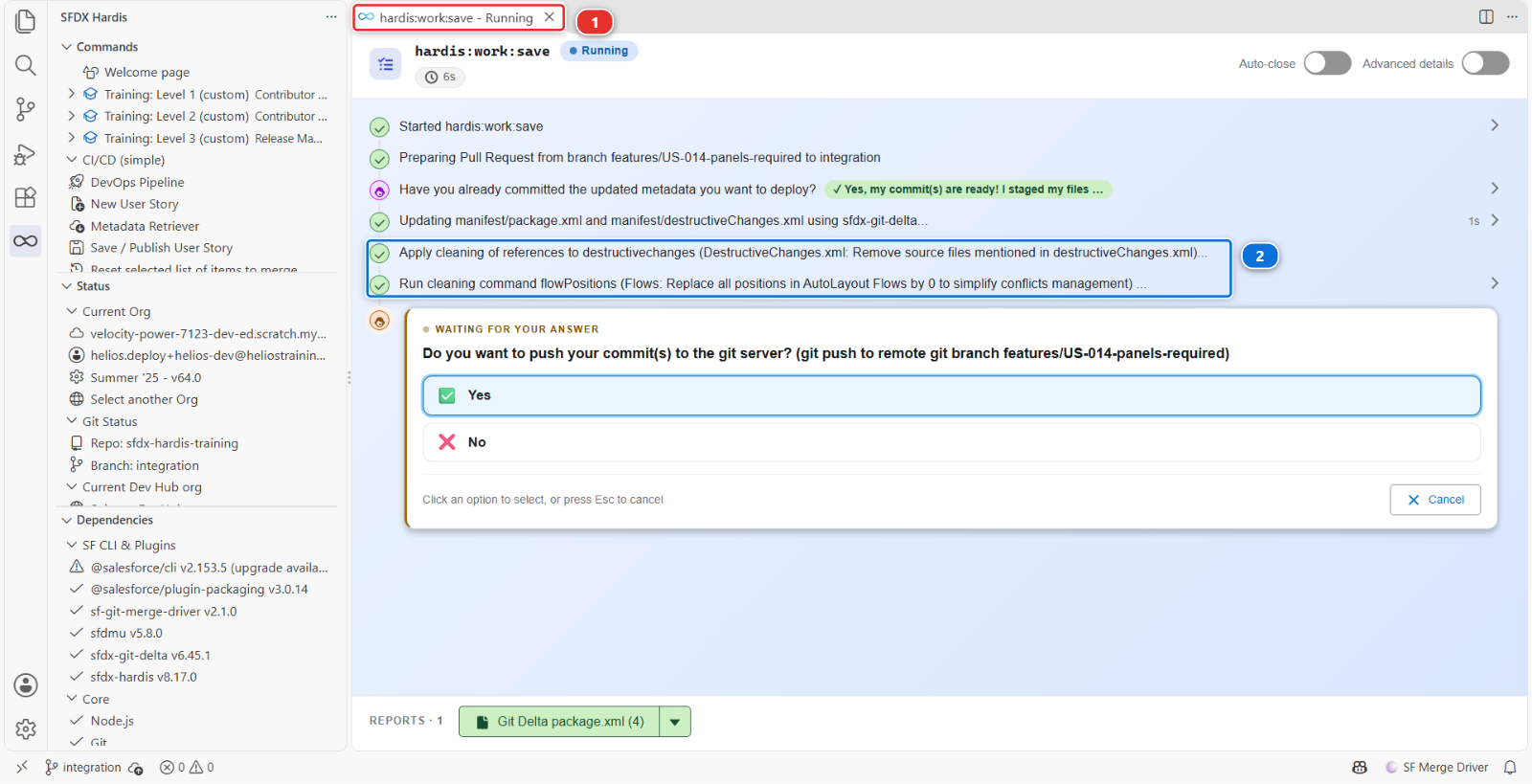
Go back to the tab of the command, hardis:work:save (1). It is still open next to the package viewer, waiting for your answer
-
Read the cleaning lines (2) it printed between your answers, one per cleaning rule of this project: references to deleted components, local fields, ProductRequest, and Profiles. The picture shows two of them. The rule for the pixel positions inside Flows only runs, and only prints a line, when your story changed a Flow
Why
Save / Publish runs in a tab of its own. Those lines are the project's automated cleaning, and it runs on every publish, on everybody's work, so that nobody has to remember the house rules.
On this story it has almost nothing to do, because you changed a field, a layout and a permission set, and the rules here are aimed at Profiles and Flows. It also committed what it changed, on top of your own commit. Level 2 has a whole lab on the day cleaning takes away something you wanted.
Under the hood: what "Save / Publish" just did
The panel ran:
sf hardis:work:save
which performed, in order:
- Worked out the delta, the Git Delta package.xml, from the git diff between your branch and
integration, and merged it intomanifest/package.xml. Not from what you ticked in the retriever: from what your commits actually changed. Those are usually the same thing, and the minute you spend reading the report is the minute you find out when they are not -
Applied the cleaning rules declared in
config/.sfdx-hardis.yml:autoCleanTypes: - destructivechanges - localfields - productrequest - flowPositions - minimizeProfilesflowPositionsstrips the pixel coordinates of flow elements, which change every time anybody opens a flow and produce conflicts that mean nothing.minimizeProfilesremoves from Profiles everything that a Permission Set should carry -
Removed from Profiles the user permissions listed under
autoRemoveUserPermissions, which are permissions this project has decided must never travel between orgs through a deployment. Profiles only: a Permission Set keeps everything it was given - Committed what it changed, as
chore(sfdx-hardis): update package content, and aschore(sfdx-hardis): clean sfdx projectwhen the cleaning changed a file. On this story it did not, so your branch gains one commit. Those commits are the tool's, not yours: yours is the one you wrote at step 4 - Pushed the branch to your fork
Every one of those steps is configuration, not magic. Everything it did is in
config/.sfdx-hardis.yml, and a project that wants different behaviour changes that file.
Command documentation: hardis:work:save
You should now see
- The cleaning lines above the question, and the question still waiting for your answer
8. Push
Goal your branch on your fork on GitHub.
Do
-
Answer Yes to the question the command asks before it pushes, the one marked (1) in the picture at step 6
If you answered No
Open the Source Control panel and click Publish Branch.
You should now see
- The branch pushed to your fork (
github.com/my-username/sfdx-hardis-training)
What you should see
- The Git Delta package.xml report naming your four components and nothing you did not touch: the field, the layout and the two permission sets
-
manifest/package.xmlgaining one line, the new field, in a commit the tool made - Your branch on GitHub, in your fork (
github.com/my-username/sfdx-hardis-training), under Branches - The DevOps Pipeline panel still without your branch: it draws a branch once it has a Pull Request, and yours gets one in Lab 1.6
If it goes wrong
Recent Changes lists things I never touched. Normal on any org: the deployment Lab 1.2 made into this org counts as a change too, and so does Salesforce's own internal churn. Tick only your four. The Last Updated Date column is the fastest way to tell: sort on it, and yours are on top.
The retrieve fails with "Failed to retrieve metadata due to source conflicts". A scratch org keeps track of what it last exchanged with your project. When the files on your machine changed behind its back, after Reset this level or a branch you threw away, it refuses to overwrite them without asking. Click I don't care, overwrite!: what you want is the org's version, and git still shows you the diff before anything is committed.
Recent Changes finds nothing at all.
You are looking at the wrong org. Check the selector at the top right reads helios-dev, and that
the Status section of the sfdx-hardis panel agrees.
manifest/package.xml is empty.
You have no commit on this branch, so there is no difference for it to describe. Go back to step 4:
retrieving writes files, committing is what puts them on the branch.
A file you did not touch shows deletions you do not understand. That is the automated cleaning doing its job, and Profiles are where you meet it most. Read the cleaning rules in the Under the hood block above. Nothing is lost in your org: cleaning changes what is committed, never what is in Salesforce.
Push is rejected. Your fork moved, usually because you reset a level. Pull first: Source Control panel, ... menu, Pull.
Check your work
Welcome page > Training: Level 1 > Check my work, then pick Lab 1.5.
It reads the copy of your branch in your fork, the one Save / Publish pushed: the field, the permission set granting it, and the layout carrying it. A commit that stayed on your machine does not count, because nobody else can see it.
Go deeper
Next: Lab 1.6 - Open a Pull Request, pass the deployment check, merge