Lab 2.7 - Resolve a Git merge conflict with a teammate
The situation
Mariia Pyvovarchuk has been working on US-018 - Cap the crew size a planner can assign, in the same flow and the same permission set as you. She merged this morning. You did not.
Git conflicts on a Salesforce project are almost always one of two shapes: a Permission Set where two people added different entries, and a Flow where two people changed the logic. The first is mechanical. The second requires you to understand both changes.
Before you start
- Lab 2.6 finished and merged
- Nothing waiting in the Source Control panel that you still care about
- SF Merge Driver, at the bottom right of VS Code, shows a grey circle: the driver is off. If the circle is green, click it to turn the driver off, or it solves the conflicts this lab is about before you see them
Steps
1. Start your own change
Goal your flow rule and your field grant committed on US-034-crew-override, not published yet.
Refresher Lab 1.5
Do
-
New User Story (2), under Project Contribution Workflow (1). Name
US-034-crew-override, orghelios-dev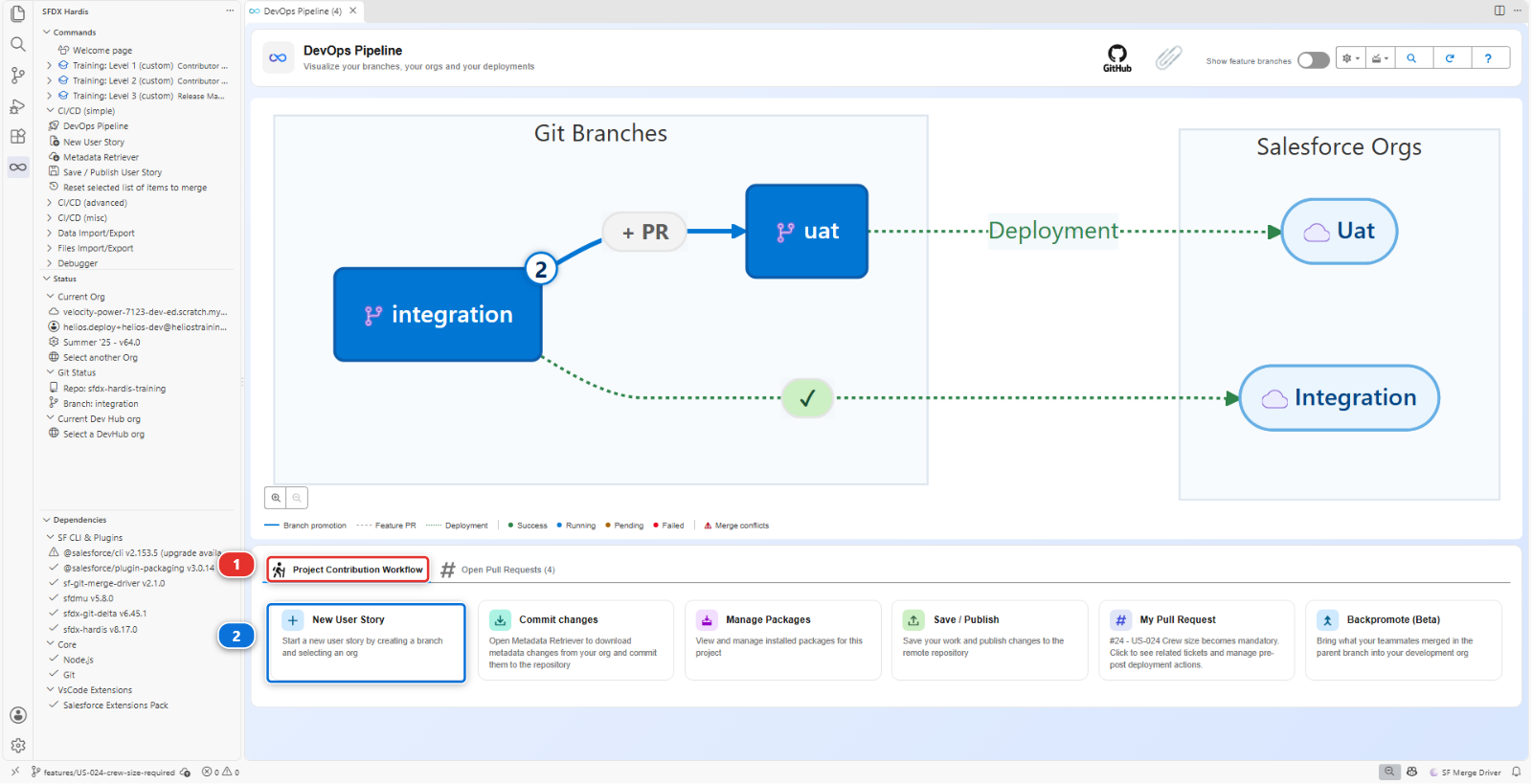
-
In
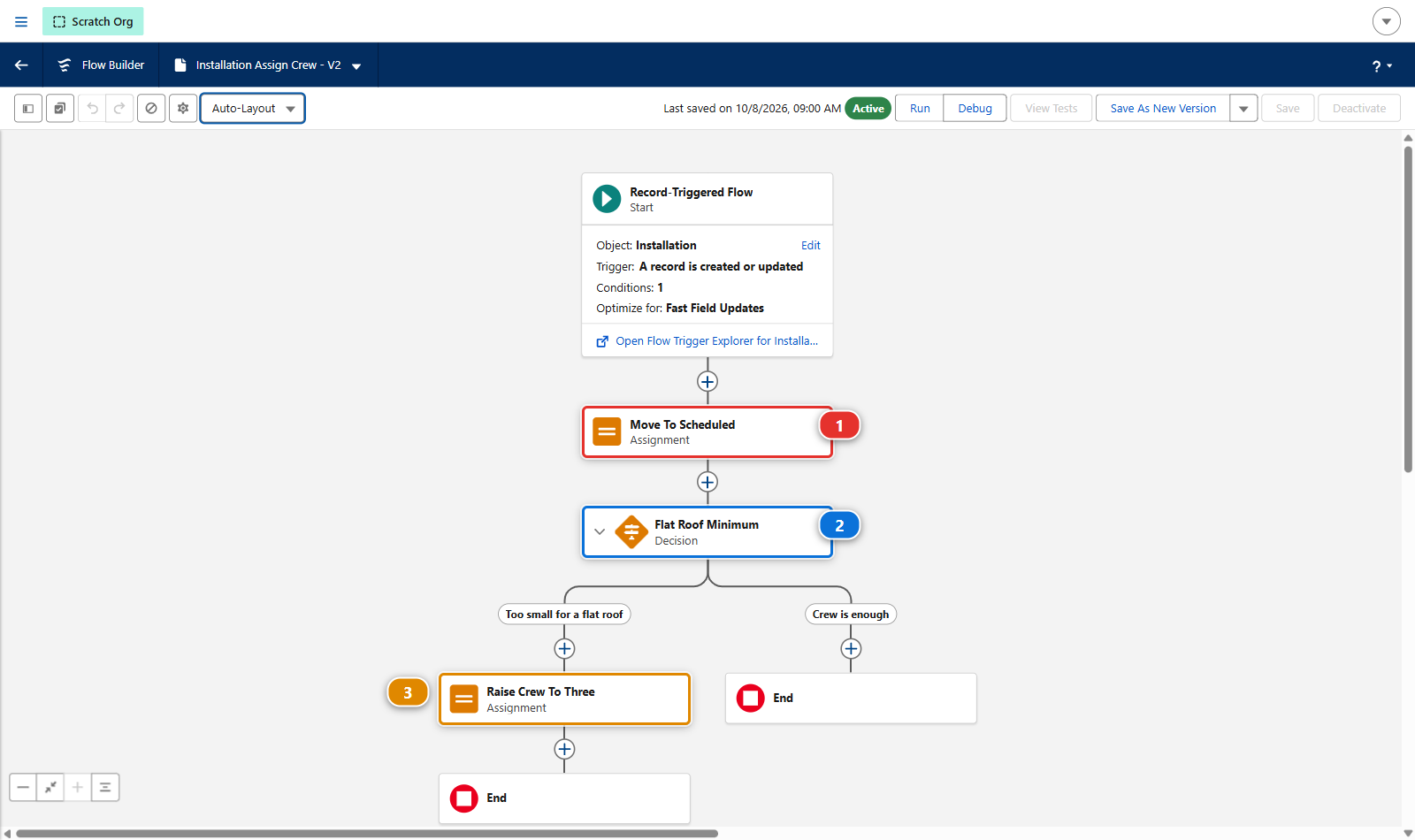
helios-dev, open Setup > Flows, then Installation Assign Crew. The flow ends on one assignment, Move To Scheduled, the (1) of the picture under You should now see. The rule you add: an installation whose roof type isFlatgets a crew of at least 3, whatever else the flow decided - Click the + on the line below Move To Scheduled, and pick Decision
-
Fill the decision in:
Field Value Label Flat Roof MinimumLabel of the first outcome Too small for a flat roofFirst condition Roof Typeof the triggering Installation, Equals,FlatSecond condition, with Add Condition Crew Sizeof the triggering Installation, Less Than,3When to Execute Outcome All Conditions Are Met Label of the Default Outcome Crew is enough -
The canvas now shows two branches under the decision. On the Too small for a flat roof branch, click the + and pick Assignment. Label
Raise Crew To Three, then one line:Crew Sizeof the triggering Installation, Equals,3 - Save As New Version, then Activate: the flow is active, so each save is a new version, and only the active one runs
- On the permission set
Helios Delivery Manager, grant edit access onInstallation__c.Crew_Notes__c, so a planner can say why a crew was raised: Setup > Permission Sets > Helios Delivery Manager > Object Settings > Installations > Edit, tick Edit Access onCrew Notes, Save - Retrieve the flow and the permission set the usual way: Commit changes, Recent Changes, tick both, retrieve, then stage the two files and commit them from Source Control
Careful
Stop there: do not publish yet. The next step needs your change to exist before Mariia's work lands.
You should now see
- In Flow Builder, with the canvas in Auto-Layout, the flow reads: the assignment it already ended on, Move To Scheduled (1), your new decision (2), and on its flat roof branch the assignment that raises the crew to three (3)
- Your commit on the branch, and nothing published
2. While you were building it, Mariia merged
Goal Mariia's US-018 merged into integration, and your branch behind it.
Refresher Lab 2.1
Mariia does not exist. Her work does, and the training reproduces it inside your own fork so you can genuinely review and merge it.
Do
-
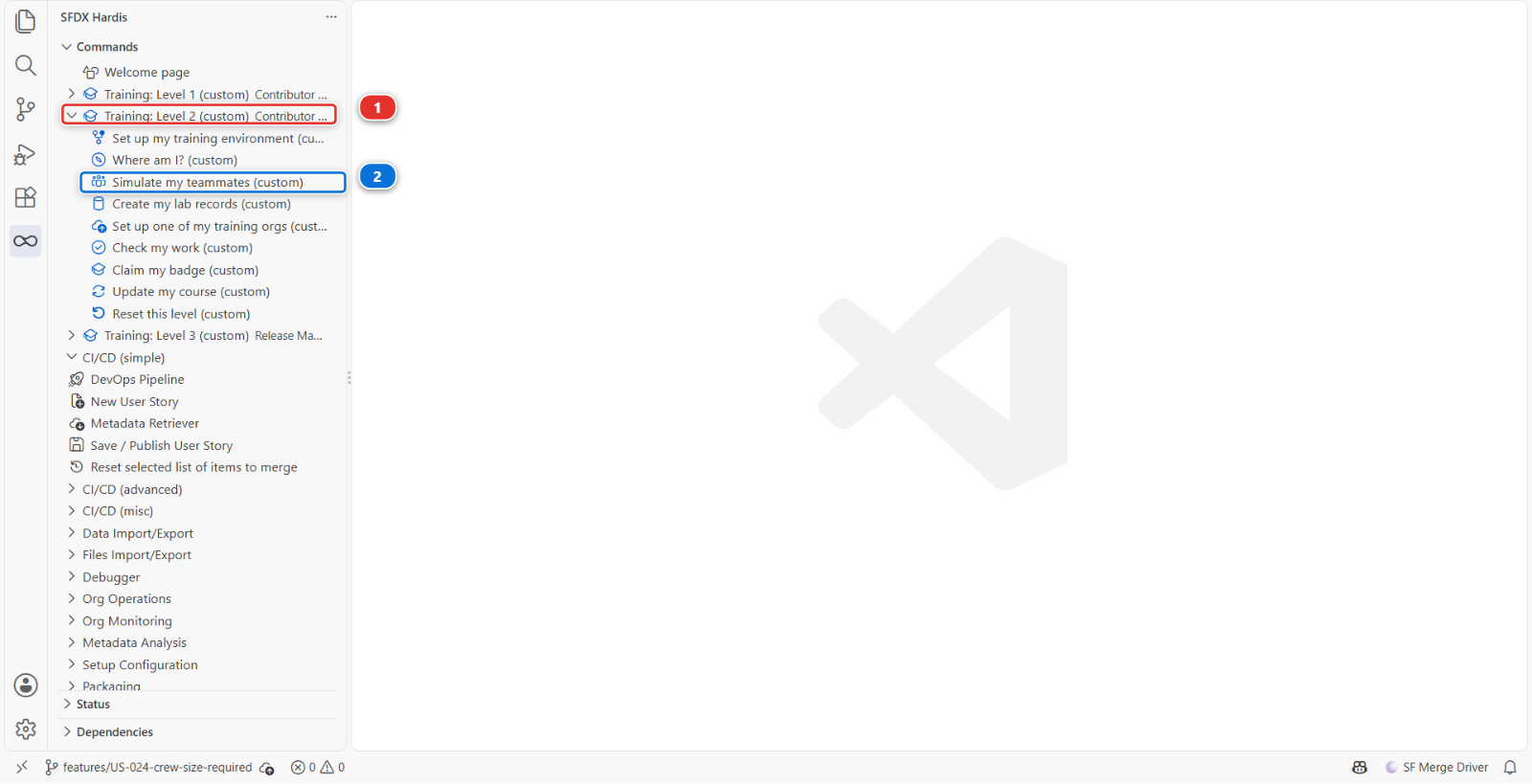
Once your own change exists, open Training: Level 2 (1) > Simulate my teammates (2), from the Welcome page or from the sfdx-hardis command list
-
The command panel asks three questions. Answer them as below
Question Answer Which teammate work do you need? US-018 Cap the crew size a planner can assign Create it? Yes Merge it for you once its checks pass? Yes, unless you want to merge it yourself on GitHub -
With Yes, let the panel wait for the checks, two to four minutes: it merges the Pull Request and writes Pull Request merged into its base branch. If you merge it on GitHub while the panel is still waiting, it notices and stops
- With No, click Open the Pull Request at the bottom of the panel, have a look at Files changed, and merge it with Squash and merge once the checks are green: the same clicks as Lab 2.1, step 1b, where each one has its screenshot. The panel shows that button whatever you answered: after Yes, it opens the merged Pull Request, if you want to read what Mariia changed
Why after your change
Do this after your own change exists, because that is the situation the lab is about: you branched, she merged, and neither of you knew about the other.
The command creates the branch training/mate-us-018-crew-capacity from your current
integration, commits Mariia's changes under her name, pushes it to your fork (your own copy of the
course repository on GitHub, for example github.com/my-username/sfdx-hardis-training), opens the
Pull Request and prints its address.
Under the hood: why the teammate is replayed rather than pre-existing
The command ran:
node scripts/training.mjs simulate
which copied the files from scripts/simulate/us-018-crew-capacity/files/ over your working tree,
committed them with Mariia's name and email, pushed the branch to your fork and opened the Pull
Request there with gh pr create.
It has to work this way. A Pull Request lives in one repository: you cannot review one that exists
in somebody else's. And a branch shipped in the repository months ago would not share a sensible
ancestor with the integration you have built up over five labs, so the conflict would be either
absent or absurd.
The same patch set produced the real teammate Pull Requests on the public training repository, so what you are reviewing is byte for byte what the screenshots show.
You should now see
- Either way, Mariia is now in
integration, and you are behind
3. Publish, and watch the Pull Request refuse to merge
Goal your Pull Request open into integration, and GitHub naming the two files that conflict.
Do
- Now publish your own change: Save / Publish, push, and open the Pull Request into
integration
Why
Two files, two completely different kinds of problem.
Neither of them is git being awkward. Both changes are real, both are wanted, and in both files the two of you wrote in the same place: Mariia granted a field on the permission set one line from where you granted yours, and she connected the same assignment element in the flow to a decision of her own. A merge tool cannot know which of two connectors should win. You can.
You should now see
-
GitHub showing:
This branch has conflicts that must be resolved
force-app/main/default/flows/Installation_Assign_Crew.flow-meta.xmlforce-app/main/default/permissionsets/Helios_Delivery_Manager.permissionset-meta.xml
4. Merge integration into your branch
Goal the merge of origin/integration in progress on your branch, with two files in conflict.
Do
- Open the Source Control panel, the icon of three small circles joined by lines in the left bar
-
Open the Command Palette: View > Command Palette in the menu bar, or
Ctrl+Shift+P(Cmd+Shift+Pon a Mac). TypeGit: Fetchand pick Git: Fetch (1)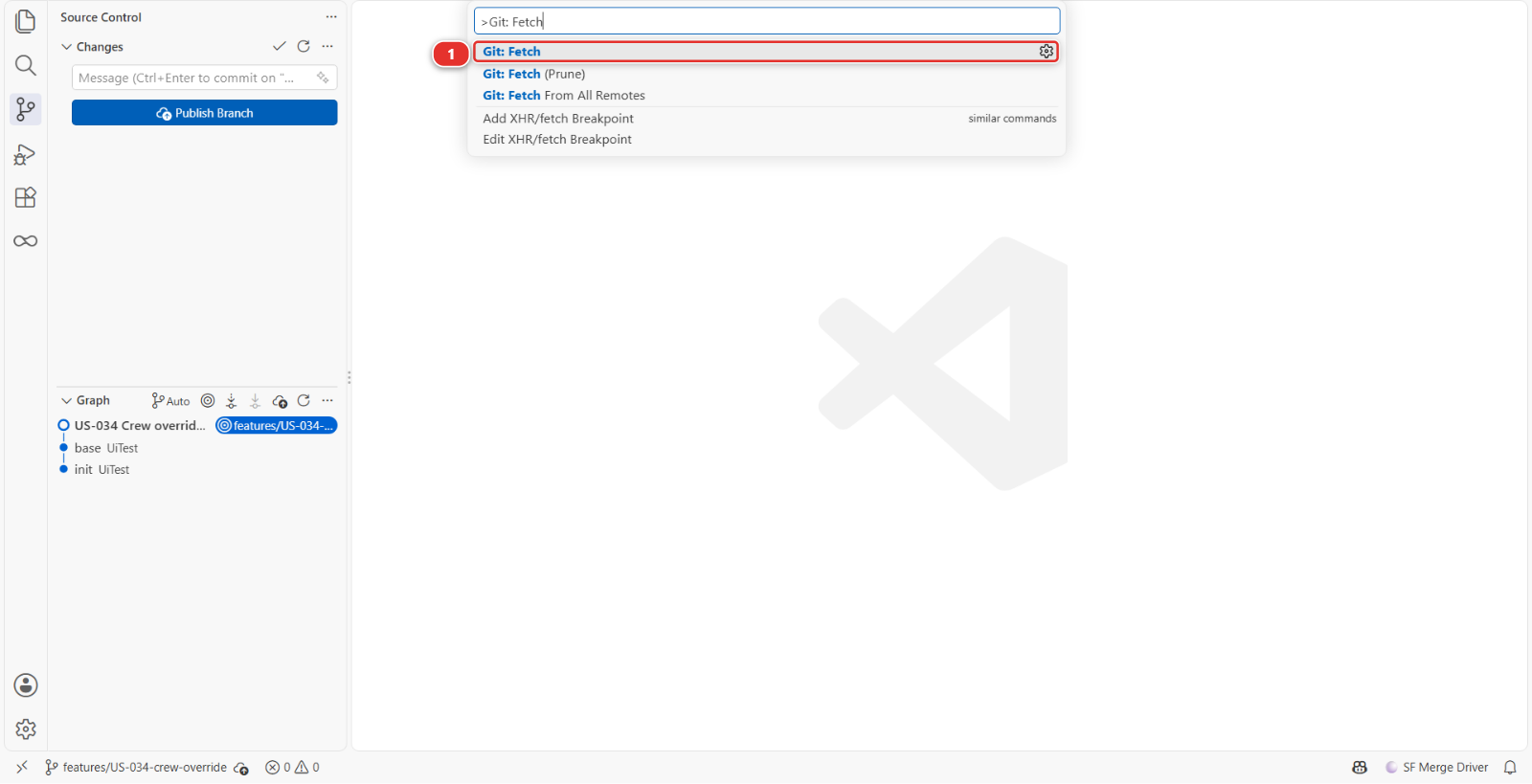
-
Then the Command Palette again, type
Git: Merge, and pick Git: Merge... (1). The same command is in the ... menu at the top of the Source Control panel, under Branch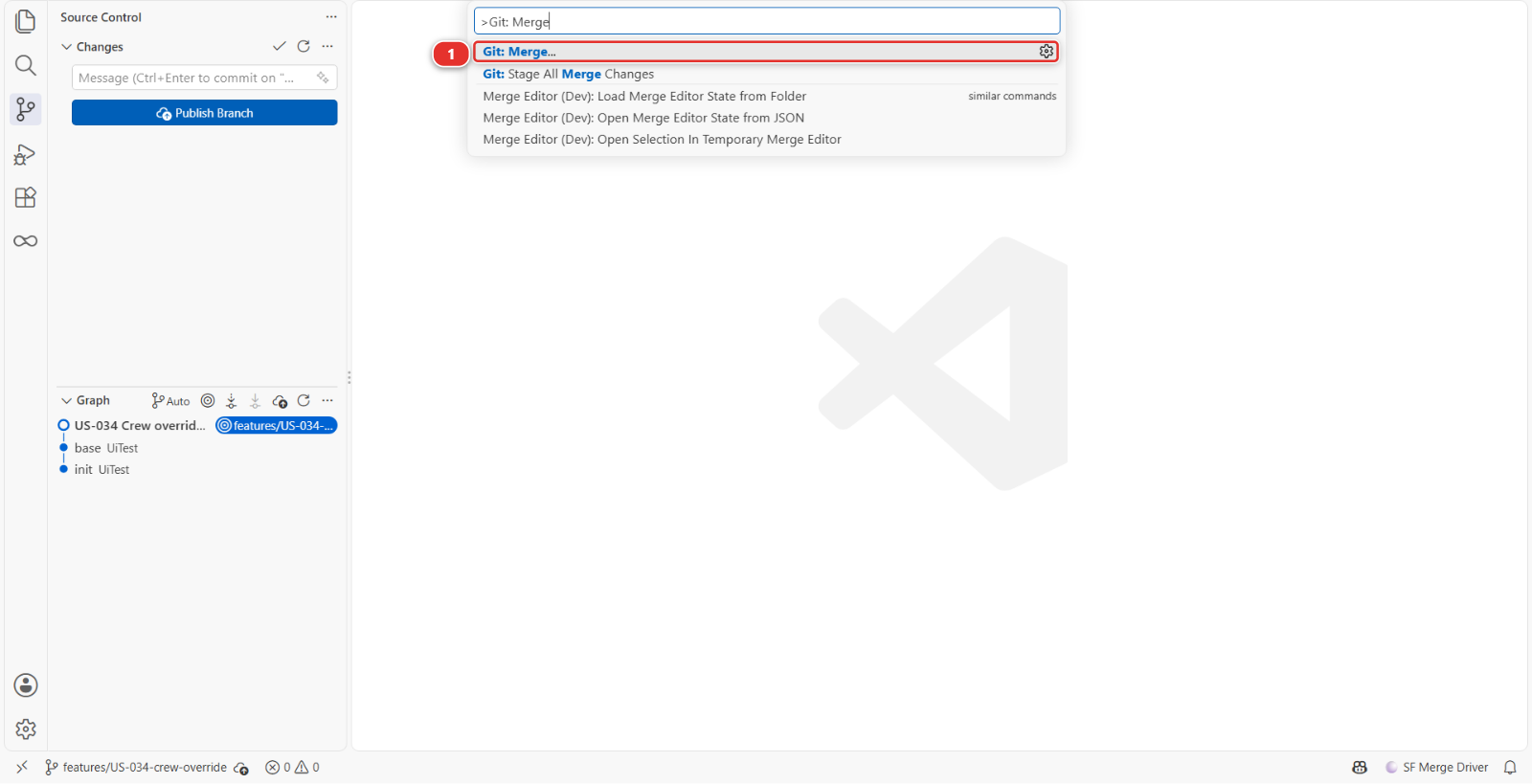
-
VS Code asks which branch to merge. Type
integrationand pick origin/integration (1), listed under remote branches. Not the plainintegrationif it is listed too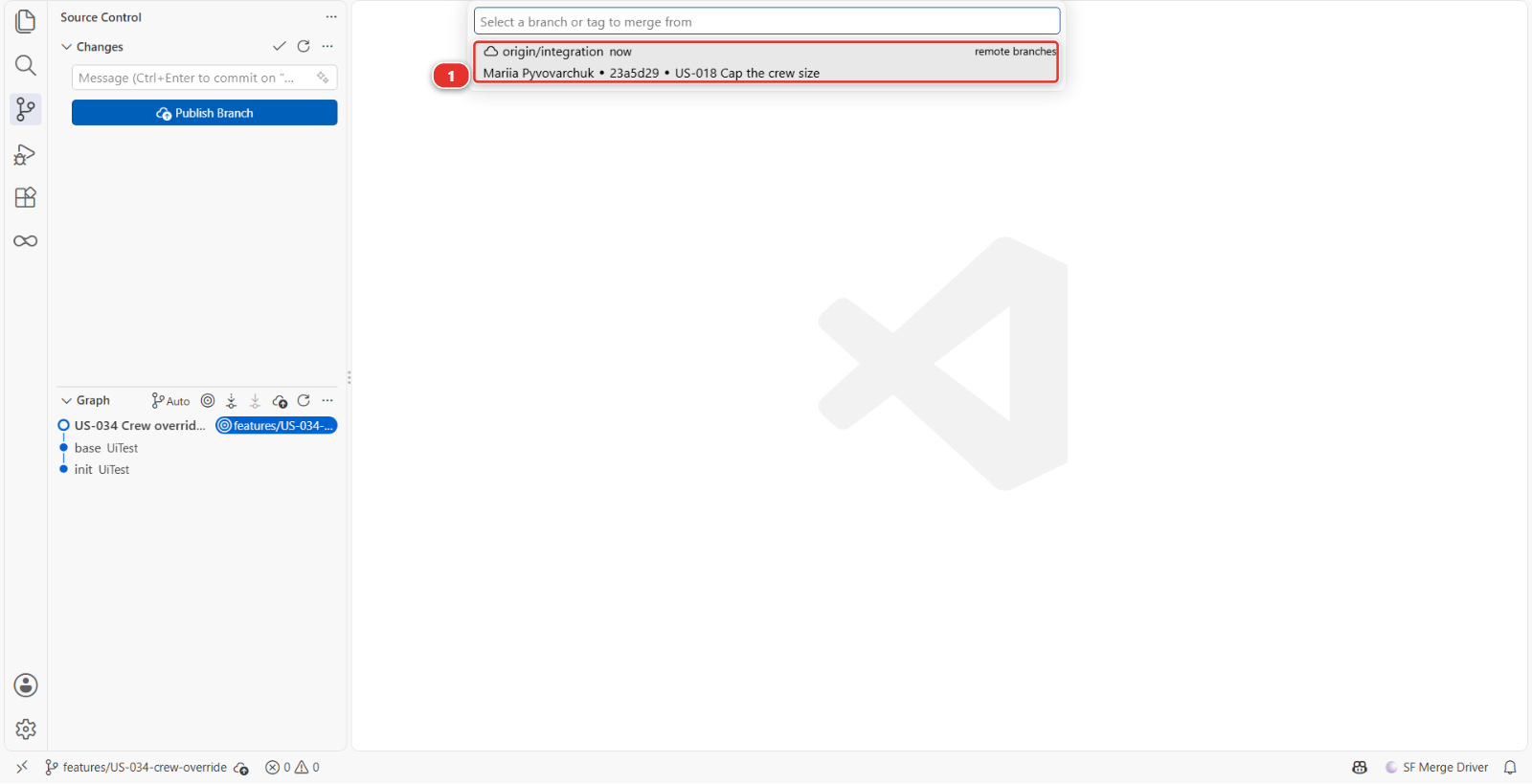
-
Leave the files under Staged Changes where they are: they are part of the merge
Why fetch, then origin/integration
The fetch first makes sure your machine knows what Mariia merged. Nothing changes in your files: fetching only downloads what is new on GitHub.
origin/integration is the copy of integration that is on GitHub, with Mariia's work in it. The
plain integration is the copy on your machine, which you have not updated since you branched.
Under Staged Changes, two more files wait, the field Mariia created and the layout she changed: git merged those on its own.
Under the hood: what Merge Branch ran
git fetch origin
git merge origin/integration
A conflict is not an error. It is git saying that two people wrote in the same place and it will not guess which one meant it.
You should now see
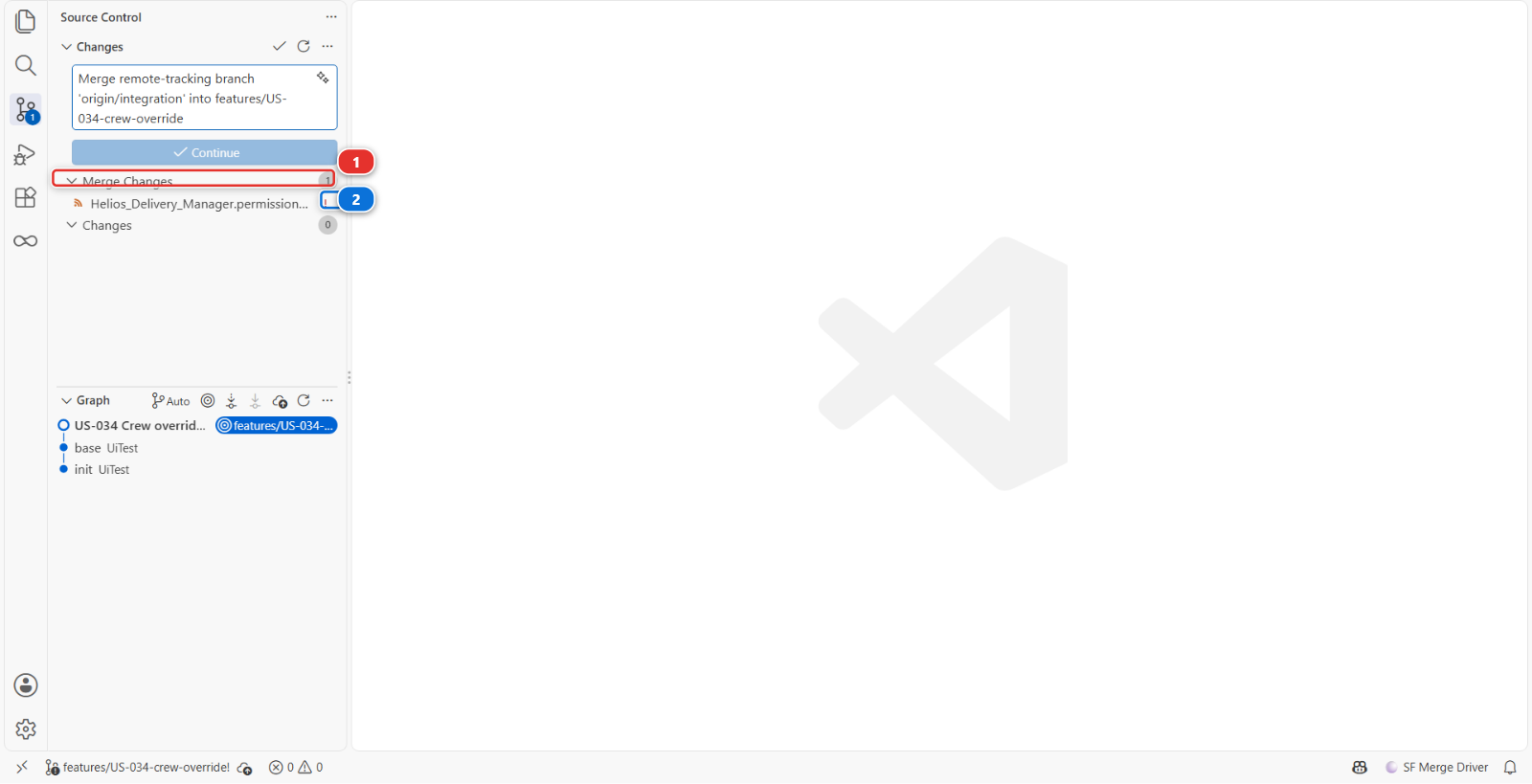
- Two files come back marked as conflicting. They appear in the panel under Merge Changes (1), each with an exclamation mark (2), and the status bar says a merge is in progress
- The picture lists only the permission set. Yours also lists the flow
Installation_Assign_Crew, with its own exclamation mark: two files, as GitHub said - Under Staged Changes, the field Mariia created and the layout she changed
5. Resolve the permission set: take both
Goal both grants in the permission set, as two complete blocks, and the file out of Merge Changes.
Do: take both sides
-
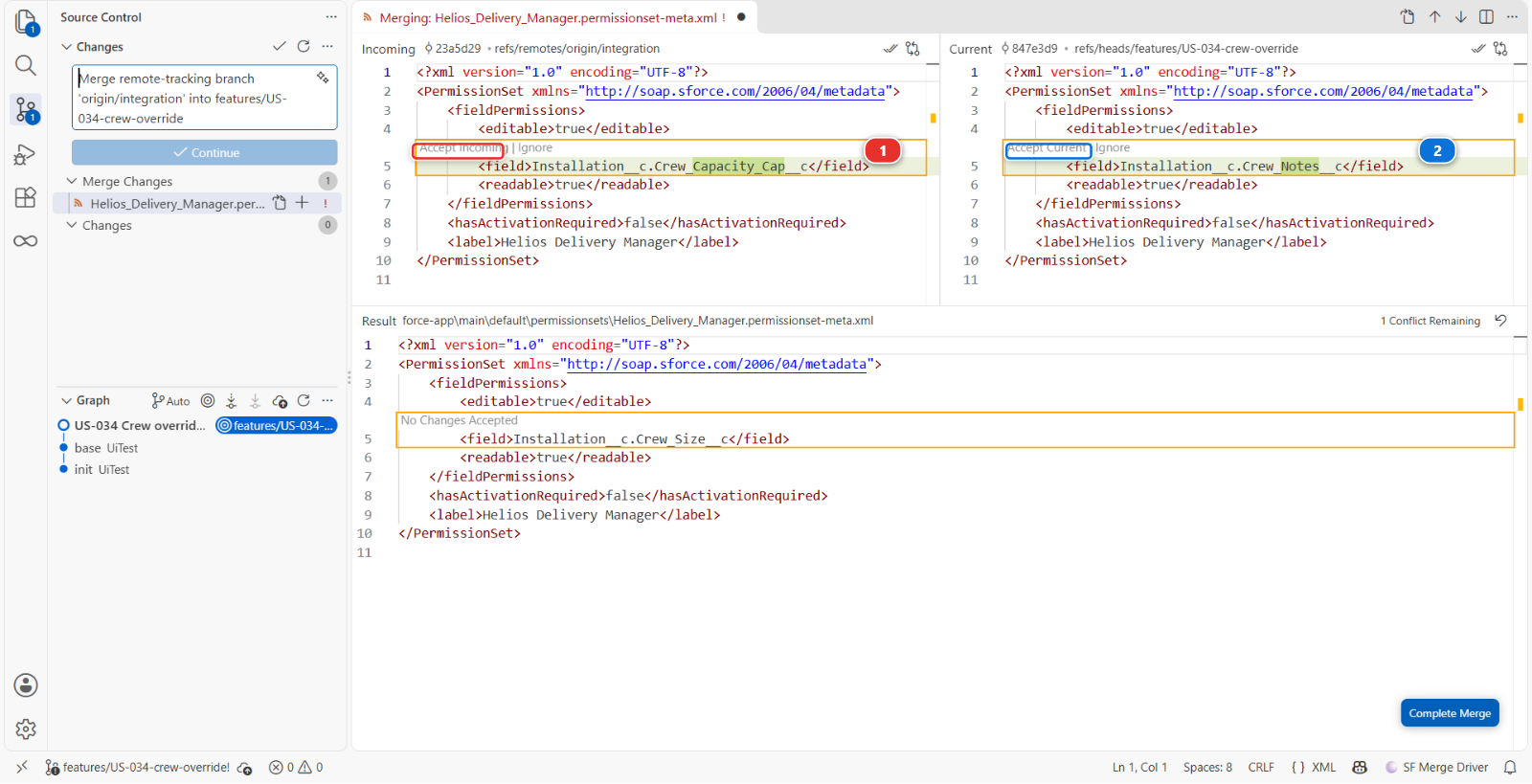
Click the permission set file under Merge Changes, then Resolve in Merge Editor at the bottom right of the file. VS Code opens its merge editor: Incoming (1), Mariia's version from
integration, on the left, Current (2), yours, on the right, and the Result (3) you are building at the bottom, which starts from the version you both branched from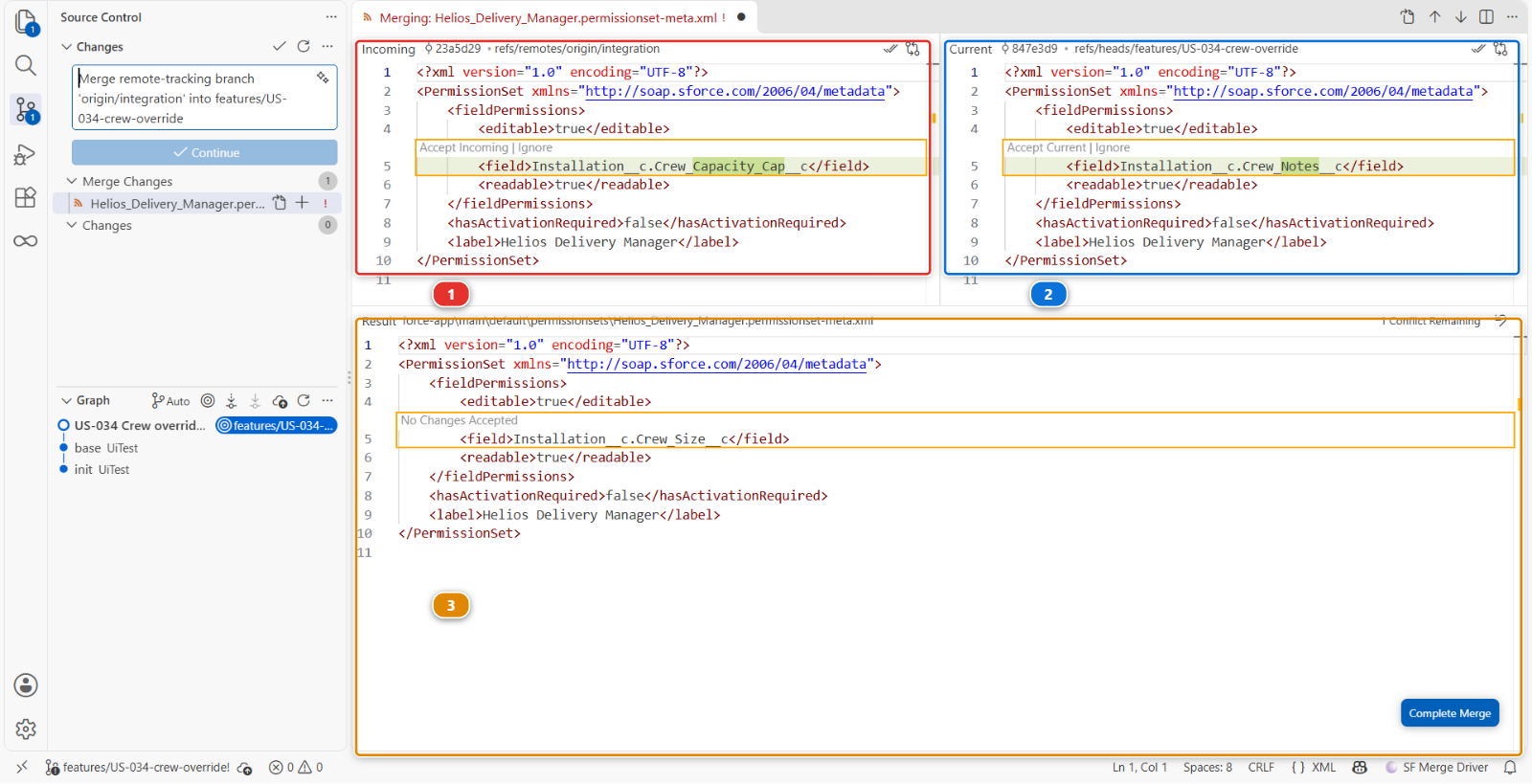
-
Click Accept Incoming (1) above the highlighted line of the Incoming pane
-
Click Accept Current (2) above the one of the Current pane
Why both
This one is mechanical, and you can decide it without understanding the XML: both entries belong. Mariia granted one field, you granted another, and a permission set holds as many as it needs.
Do: read the result, then complete the merge
-
Read the Result (1) before anything else: it holds two complete
<fieldPermissions>blocks, Mariia'sCrew_Capacity_Cap__cfirst and yourCrew_Notes__csecond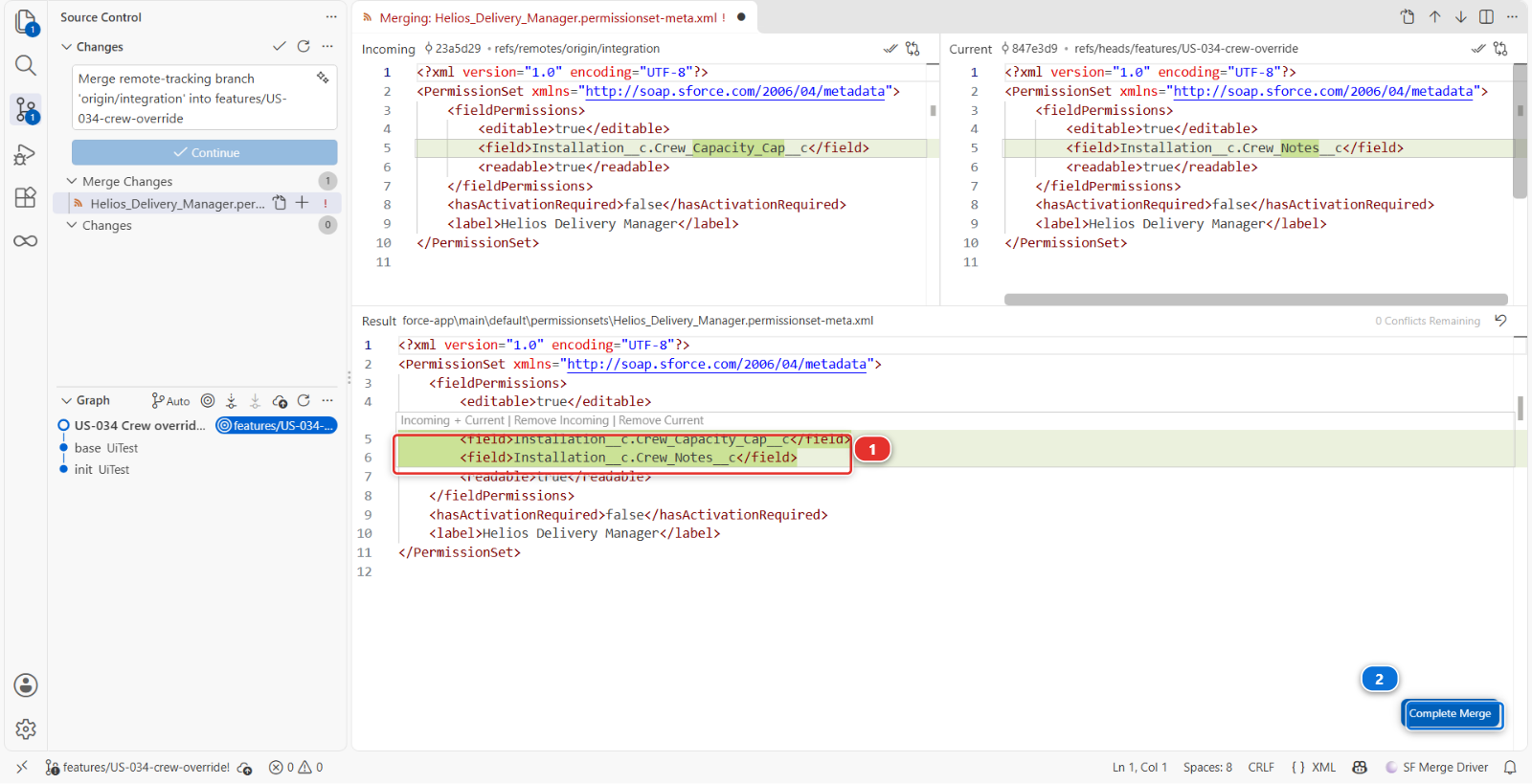
-
Click Complete Merge (2)
Why read it
Each of you added a whole block, and the merge editor compares each side with the version you both
started from, so taking both gives two blocks with nothing to type. Read it anyway: one
<fieldPermissions> block names one field, and Salesforce refuses a block with two <field> lines.
If your Result looks like that, If it goes wrong at the end of this lab has the fix.
Take both is the right answer for almost every permission set conflict. Choosing one side is how a teammate's permission quietly disappears, and nobody notices until somebody cannot see a field.
Under the hood: what the conflict actually looked like
Git conflicts on lines, not on XML, so the markers it writes in the file landed inside one block rather than around two:
    <fieldPermissions>
        <editable>true</editable>
<<<<<<< HEAD
        <field>Installation__c.Crew_Notes__c</field>
=======
        <field>Installation__c.Crew_Capacity_Cap__c</field>
>>>>>>> origin/integration
        <readable>true</readable>
    </fieldPermissions>
The merge editor does not show you those markers. It compares each side with the version you both started from, finds a whole block added on each side, and taking both keeps the two blocks, in alphabetical order, which is how Salesforce writes them anyway:
You should now see
- The permission set under Staged Changes, with two complete
<fieldPermissions>blocks:Crew_Capacity_Cap__cfirst,Crew_Notes__csecond
6. Resolve the flow: understand both, then decide
Goal the flow rebuilt in Flow Builder, your minimum first and Mariia's cap last, retrieved and staged next to the permission set.
Refresher Lab 2.5
This one you cannot resolve by taking both, because the two changes are in the same decision path.
- Mariia's change caps the crew at what the installation allows: never more than N
- Your change raises the crew to at least 3 on flat roofs: never fewer than 3
Read on their own, both are correct. Together, they can contradict each other on a flat roof whose cap is 2.
This is the moment that matters, and the answer is not technical: go and ask Mariia. On a real project, a conflict in business logic is a conversation, not a merge strategy.
For this lab, the decision has been made for you: the cap wins. A crew larger than the installation allows is a safety problem; a crew of 2 on a flat roof is a slow day. Resolve so that your minimum applies only when it does not exceed Mariia's cap.
Careful
Do it in Flow Builder, not in the file. A flow is stored as XML that nobody can read reliably, developers included, and a flow that deploys but behaves wrongly is worse than one that fails.
Do
- Open the flow file under Merge Changes in the merge editor, the same way. Click Accept Incoming above each conflict of the Incoming pane, then Complete Merge: Mariia's whole version wins for now
-
Save / Publish User Story is not what you want yet. First send what the merge brought in to your dev org, so
helios-devhas Mariia's field, her grant and her cap: in the Explorer, right-click theforce-appfolder, then SFDX: Deploy This Source to Org, the same command Lab 2.5 used on one classIt deploys every file of the folder as it is on your machine, and nothing else. The sfdx-hardis Push from local files to Salesforce org command would send your org every change git has seen since the last sync, deletions included, which is more than this step needs
-
Open Mariia's version of the flow, which is the latest one: in Setup, Flows, open the menu at the end of the
Installation Assign Crewrow, View Details and Versions, and open the version at the top of the list. Opening the flow from its name can land on an older version, without her Crew Over Cap decision -
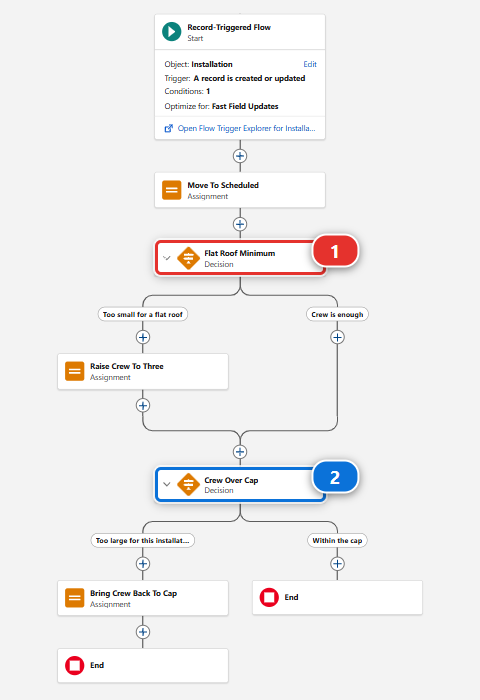
Add your flat-roof rule again, before her cap: click the + between Move To Scheduled and her Crew Over Cap decision, and build the same decision and assignment as in step 1, with the same names. Your decision (1) comes first, her Crew Over Cap decision (2) last
-
Save As New Version, then Activate
- Come back to VS Code, retrieve the rebuilt flow with Commit changes, and stage it in Source Control, next to the permission set. Do not commit yet: a merge ends with one commit, and the next step makes it
Why this order
The flow raises a flat roof crew to three first, and her cap, which now runs last, has the final word.
Slower to describe, much faster to do, and you can see what you are building.
Under the hood: resolving it in the file instead
If you can read flow XML and want to: take Mariia's version of the element and its connectors as the base, re-add your flat-roof decision before her cap, and delete every conflict marker. Then publish, which re-runs the cleaning rules over what you wrote by hand.
The risk is not that it fails. The risk is that it deploys and the decisions run in an order you did not intend, which no check catches and no test in this project covers.
You should now see
- In
helios-dev, the active flow with your flat roof decision first and Crew Over Cap last - The flow and the permission set both under Staged Changes, nothing committed yet
7. Finish the merge and re-validate
Goal the merge committed and pushed, your branch published again, and the Pull Request merged.
Do
- When both files are under Staged Changes, the message box already reads
Merge
   remote-tracking branch 'origin/integration' into features/US-034-crew-override
, and the blue button under it reads Continue while a merge is in progress: click it - Then Sync Changes to push
- Then re-publish: Save / Publish User Story
- Watch the check go green, then merge
Why publish again
Complete Merge moved each file from Merge Changes to Staged Changes.
Publishing again matters. The merge produced XML by hand, and publishing re-runs the cleaning rules
over it and rebuilds manifest/package.xml from what your branch now changes. Skipping it is how a
stray conflict marker reaches a deployment.
You should now see
- A green check on your Pull Request, then the Pull Request merged into
integration
8. Verify both changes survived
Goal Mariia's rule and yours both working in helios-integration.
Do
- In
helios-integration, open the flowInstallation Assign Crewand the permission setHelios Delivery Manager
You should now see
- The flow caps the crew, Mariia's rule
- The flow raises flat-roof crews, your rule, without breaking the cap
- The permission set grants both fields
If either side is missing, the resolution lost work, and the badge audit will say so.
What you should see
- No conflict markers anywhere: search the repository for
<<<<<<< - Both field permissions in
Helios_Delivery_Manager - Both behaviours in the flow
If it goes wrong
Error parsing file: Element assignments is duplicated at this location in type Flow.
Your resolution left the flow with its elements out of order. A flow file groups every element of
the same kind together: all the assignments, then all the decisions. If your merge dropped a kept
element between two blocks of another kind, move it back up next to its own kind. The order inside
each group does not matter, the grouping does.
The Result of the permission set shows one block with two <field> lines.
Before you click Complete Merge, type in the Result pane: after the first <field> line, add
the four lines that close the first block and open the second. Copy them from here:
        <readable>true</readable>
    </fieldPermissions>
    <fieldPermissions>
        <editable>true</editable>
Element field is duplicated at this location in type PermissionSetFieldPermissions.
You kept both sides inside a single grant instead of keeping both grants. One <fieldPermissions>
block names one field: the fix is two blocks, not one block with two <field> lines.
The flow will not deploy after the merge: "duplicate element name". You kept both sides of an element that can only exist once. Flow element names are unique. Rename or remove one.
Merge Changes lists no permission set, or no file at all. The SF Merge Driver merged them for you: its item at the bottom right of VS Code shows a green circle. Open the permission set and check that it holds the two blocks of step 5. If the flow merged too, open it in Flow Builder and check it against step 6: the driver merges the XML, it does not decide which rule wins. Then click the item to turn the driver off, before Lab 3.10 needs the conflicts too.
You lost your change entirely. You accepted Mariia's side on the whole file. In the Source Control panel, the ... menu > Branch > Abort Merge, then start step 4 again.
The check fails on a conflict marker.
Search the whole repository for <<<<<<<, ======= and >>>>>>>. A marker in an XML file is
sometimes syntactically tolerated by git and always fatal to Salesforce.
You cannot untangle it at all. Training: Level 2 > Reset this level, then redo from step 1. Losing twenty minutes is better than merging something you do not understand.
Check your work
Welcome page > Training: Level 2 > Check my work, then pick Lab 2.7.
The check asserts outcomes, not procedure: both changes present and correct on integration,
no markers left. However you got there, including resolving in the GitHub web editor or redoing the
work in the Flow Builder, passes.
Go deeper
Next: Lab 2.8 - Recover from committing the wrong metadata