Lab 2.2 - Fix a deployment error caused by a missing dependency
The situation
US-021 - Warn the planner when a crew is too small
As a planner, I want one warning on the installation when the assigned crew is smaller than the panels need, so that I fix it before the van leaves, and not a new task every time I save.
The flow already exists. Installation Crew Warning came with the Helios app when you set up your
orgs in Level 1: it creates a task for the planner whenever fewer than two people are assigned, and
it does so on every save, which is what the planners complain about. You update it, you
publish it, and the check fails with an error about a field that is right there in front of you in
the org.
This lab is about the gap between "it exists in my org" and "it is in the package".
Before you start
- Lab 2.1 finished
-
helios-devlevel withintegration
Steps
1. Take the story
Goal the User Story US-021-crew-size-warning started, on helios-dev.
Refresher Lab 1.3
Do
-
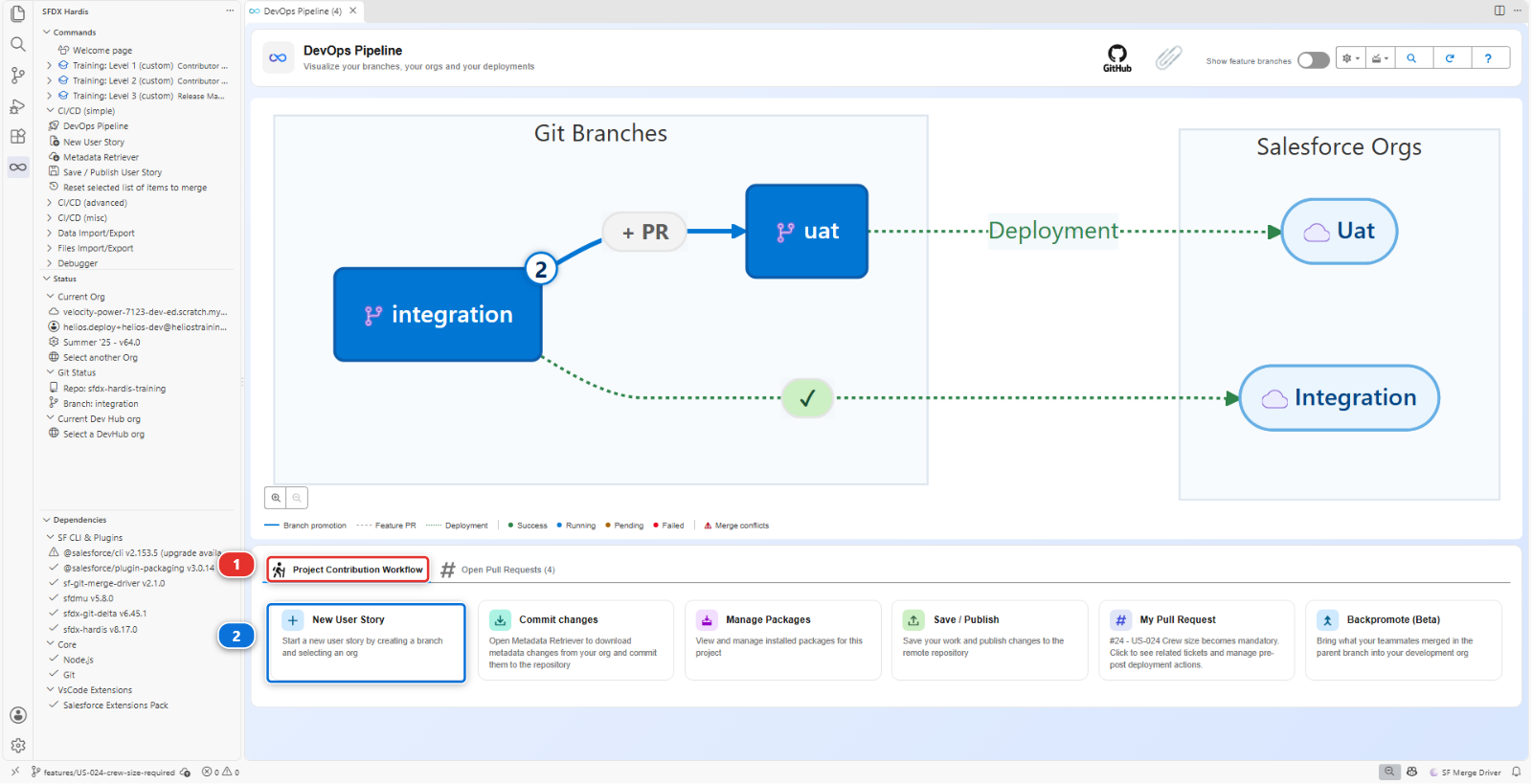
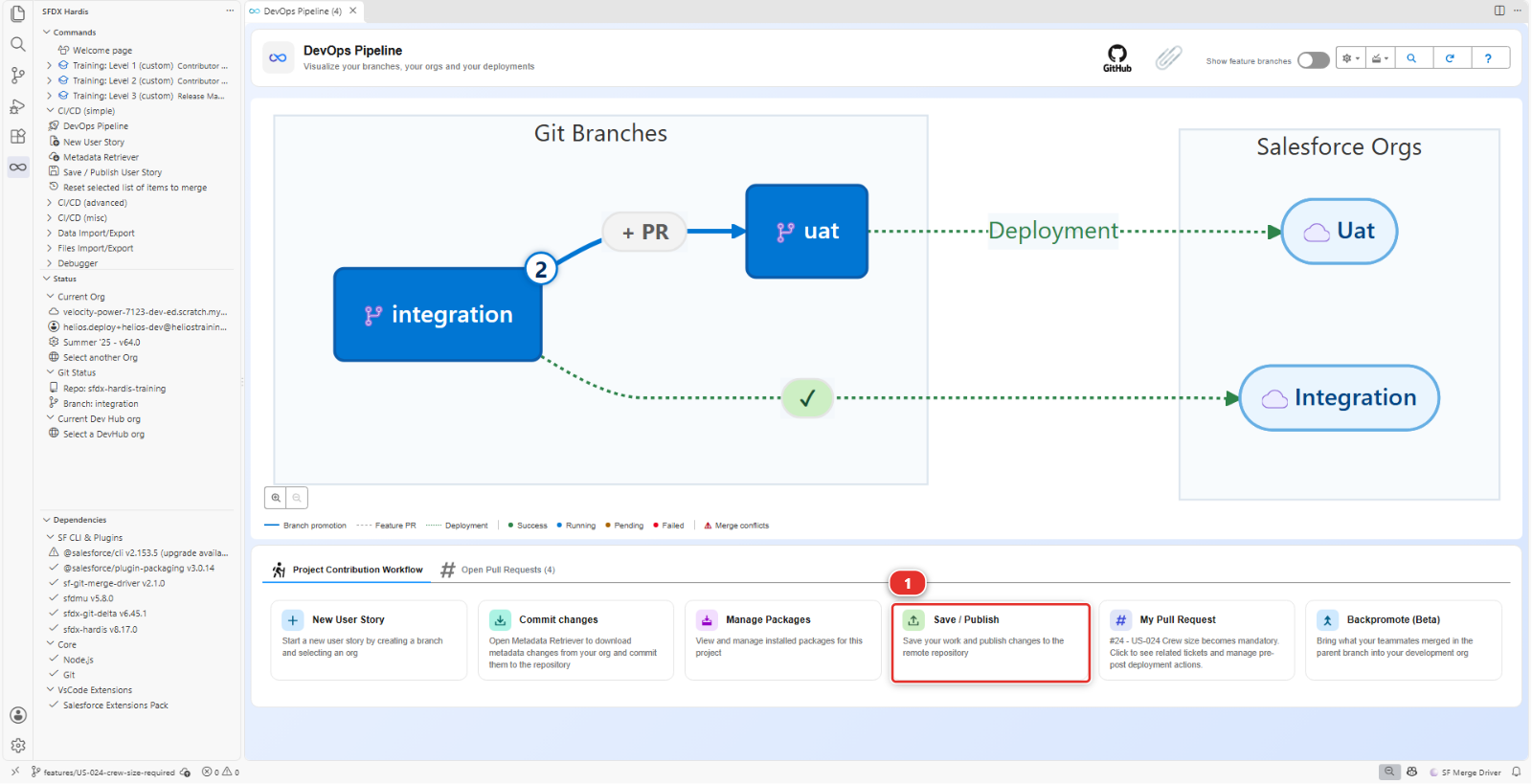
In the DevOps Pipeline panel, under Project Contribution Workflow (1), click New User Story (2), the same card as Lab 1.3
-
Answer: type Feature, name
US-021-crew-size-warning, orghelios-dev
Why
The target is integration without asking, as in Level 1.
You should now see
- The User Story
US-021-crew-size-warningstarted, withhelios-devas its org andintegrationas its target
2. Update the warning flow
Goal the new version of Installation Crew Warning active in helios-dev, warning the planner once.
Refresher Lab 1.4
First, the field the flow needs so it does not warn twice:
| Setting | Value |
|---|---|
| Data Type | Checkbox |
| Field Label | Crew Warning Sent |
| Field Name | Crew_Warning_Sent__c |
| Default Value | Unchecked |
Do: create the field
- In
helios-dev, open Setup > Object Manager > Installation > Fields & Relationships > New, and fill it in with the table above - The field-level security screen arrives with Visible ticked for nearly every profile, as in Lab 1.4: clear the column with the checkbox in its header
- Tick Visible for System Administrator only
- On the last screen untick Installation Layout
Why
Nobody but the flow needs this checkbox, so it goes on no page.
The one Visible tick is for you, not for the flow: Flow Builder only offers the fields the person editing the flow can read, and without it Crew Warning Sent is missing from the lists of Flow Builder below. The flow itself runs in system mode and needs no grant.
Do: update the flow
-
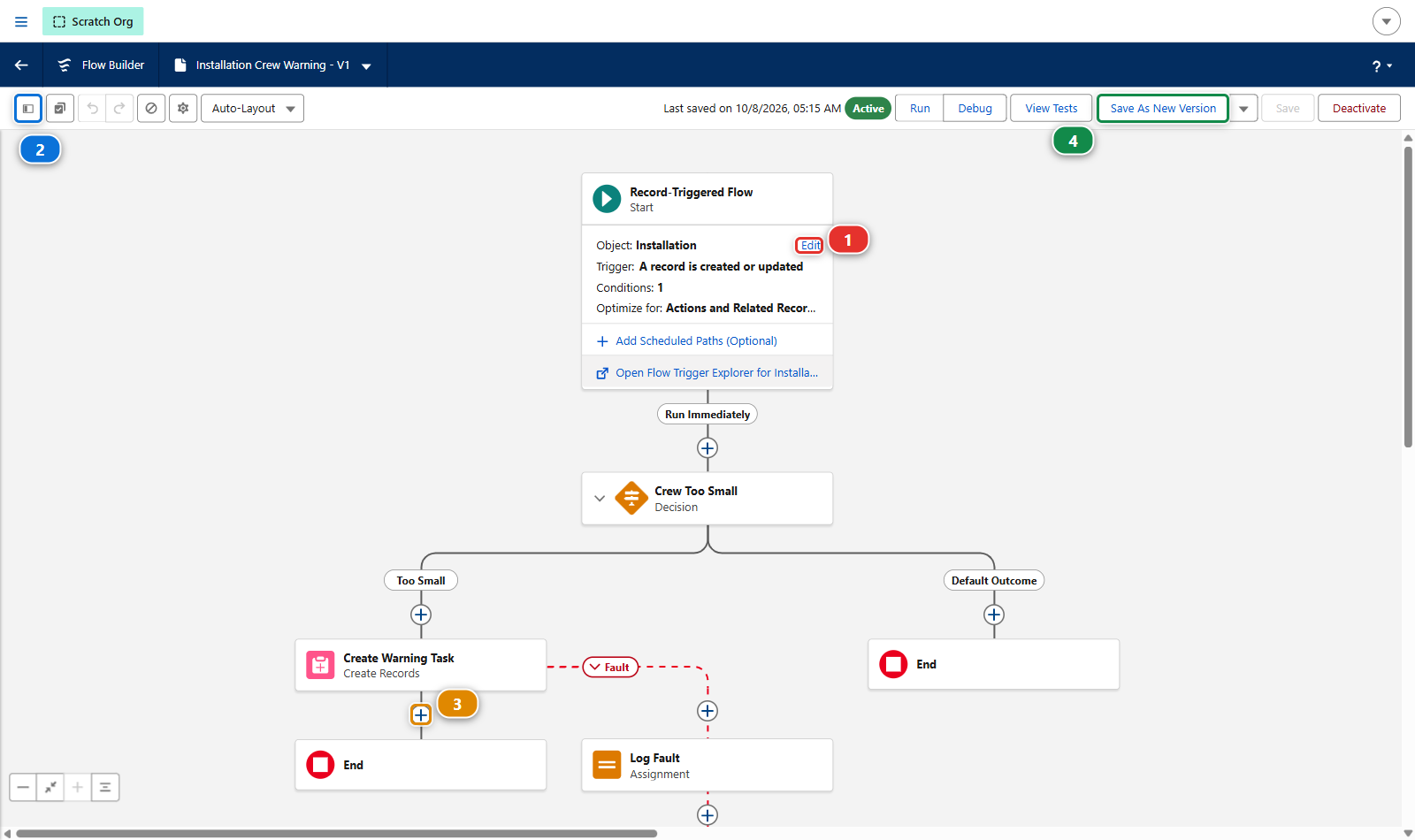
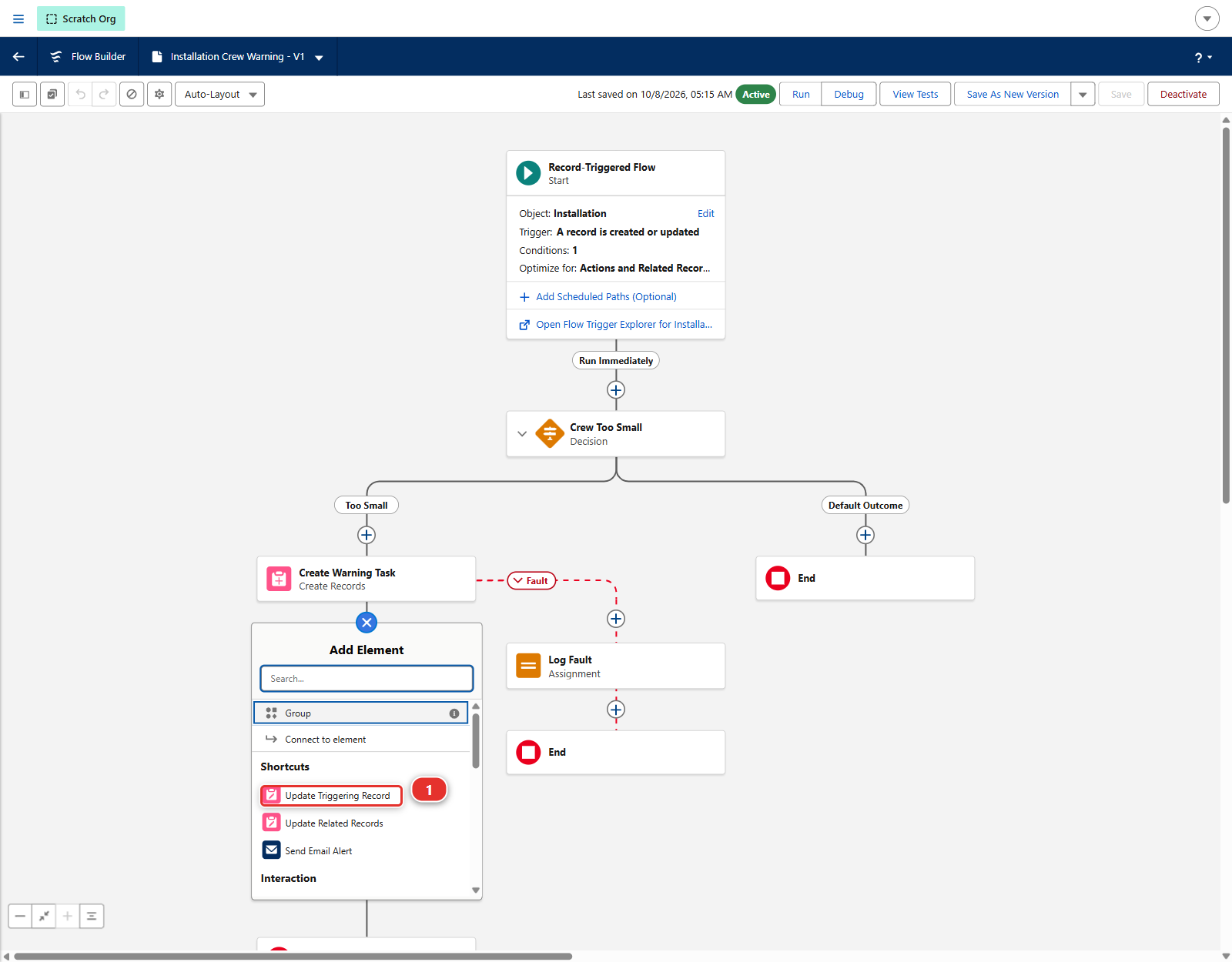
Open Setup > Flows, then Installation Crew Warning. Three changes follow, and the picture shows where each one starts
-
Start element: click Edit (1) on it. A panel opens, the one of the next picture, and its numbers are its own: under Set Entry Conditions, the flow already runs when
Crew Sizeis not null (1). Click Add Condition (2) and add the second one,Panels Required, Is Null,False. This panel has no Done button: the condition is kept as you fill it in, and the X (3) at the top right closes the panel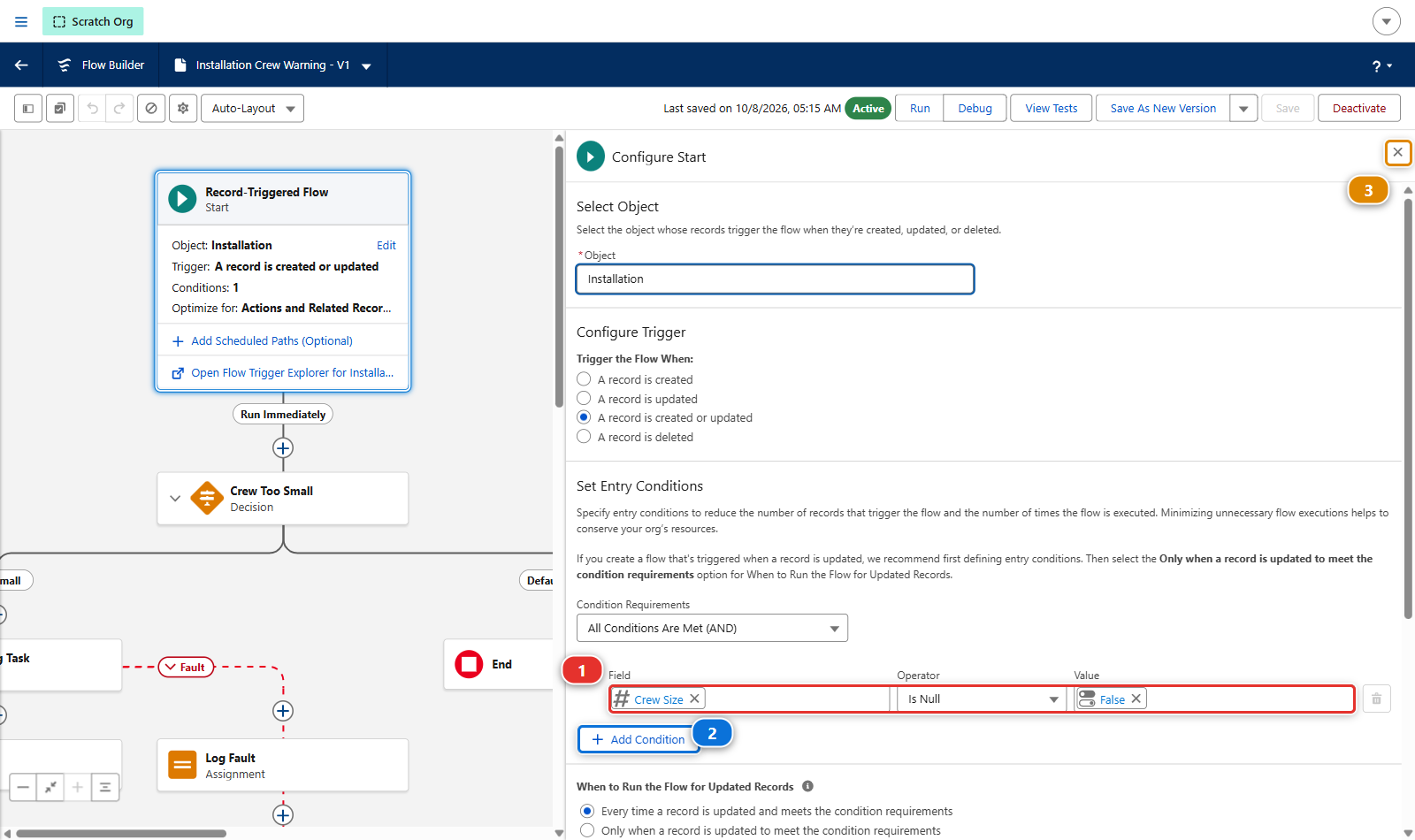
-
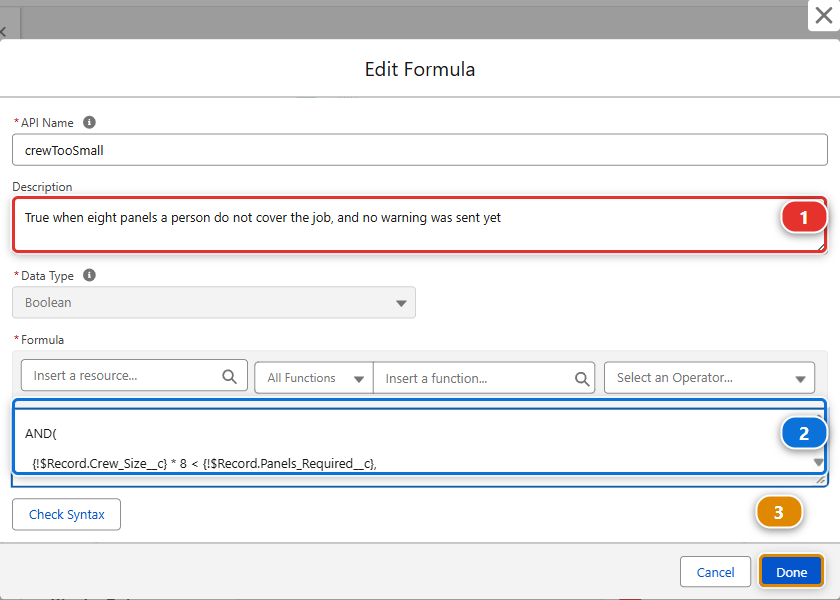
The Crew Too Small decision reads a formula resource,
crewTooSmall. Open the Toolbox (2) at the top left of the canvas, and clickcrewTooSmallunder Formulas - Update its Description (1),
True when eight panels a person do not cover the job, and no warning was sent yet -
Replace its Formula (2) with the one below, then Done (3). Copy it rather than typing it
-
After Create Warning Task, click the + (3) on the line below it, and pick Update Triggering Record (1) under Shortcuts
-
Call the element
Mark Warning Sent, give it a description, and setCrew Warning SenttoTrue - Connect its fault path to the existing
Log Faultelement, like the task element - Save As New Version (4). The window it opens holds the description of the flow: replace it
with
Warns the planner when the crew assigned to an installation is too small for the panels it needs. - Activate, the button that replaces Deactivate on the new version
Why a new version
The flow is active, so Flow Builder opens the running version: every change you make is saved as a new version, and the old one keeps running until you activate yours.
One person lays about eight panels a day: the crew is too small when eight panels each do not cover the job, and the warning goes only if it was not sent yet. The description of the flow changes since the flow no longer warns on every save.
Why the flow has a fault path at all
A record element without one fails silently: the flow stops, the user sees nothing, and the Task that was supposed to warn the planner never appears. On a real project the fault path sends the message somewhere a person reads. Here it only keeps it, because what the pipeline checks is that a fault path exists. The original flow already had one, and your new element follows it.
Do: test it
- Open an installation, set
Panels Requiredto 40 andCrew Sizeto 2, save. If the task is slow to show, click Refresh in the activity panel - Save again
Why you cannot see the checkbox
That is the story working, in your org. The checkbox itself stays out of sight: no permission set grants it, because nobody but the flow needs it, and the only person who can read it is the administrator who built the flow.
You should now see
- A task on the right of the record, in the activity panel under the Panel delivery timeline, in its Upcoming & Overdue section
- No second task after the second save
3. Publish the flow, and watch the check fail
Goal the flow on a Pull Request into integration, and its deployment check red.
Refresher Lab 1.5
Do: publish
- Retrieve the flow the way Level 1 taught you: DevOps Pipeline > Commit changes, Recent Changes, Search Metadata
- The story is about the flow, so tick the flow
Installation_Crew_Warning, and retrieve it - Commit it from Source Control
-
Then Save / Publish (1)
-
At the bottom of the panel, click Create Pull Request, as in Lab 1.6: it opens the Pull Request into
integrationin your fork (your own copy of the course repository on GitHub, for examplegithub.com/my-username/sfdx-hardis-training). Create it, and wait
Look at what you did not retrieve
The retriever also listed Installation__c.Crew_Warning_Sent__c, the field you created first.
You left it unticked, and nothing said anything. Carry on and publish anyway: the point of this
lab is to meet the failure that follows, and to learn to read it.
Do: read the comments
-
The check fails. Open the sfdx-hardis comment on the Pull Request: it opens on ❌ Cannot merge into
integration: 1 deployment error, and names the component under ❌ Deployment errors (1)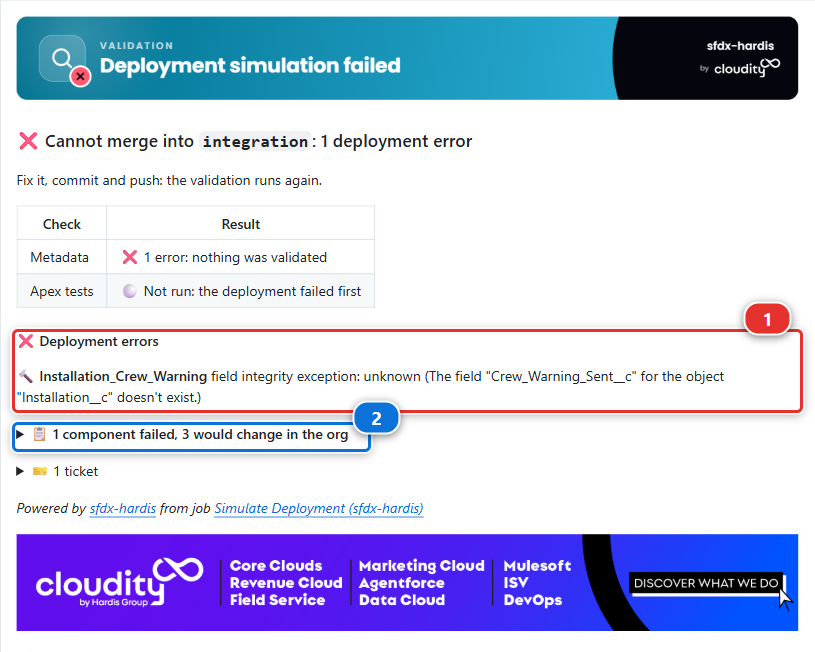
-
Further down, open the folded line 📋 1 component failed, ... would change in the org (2): a table of the components, per type, with your flow in its ❌ Failed group
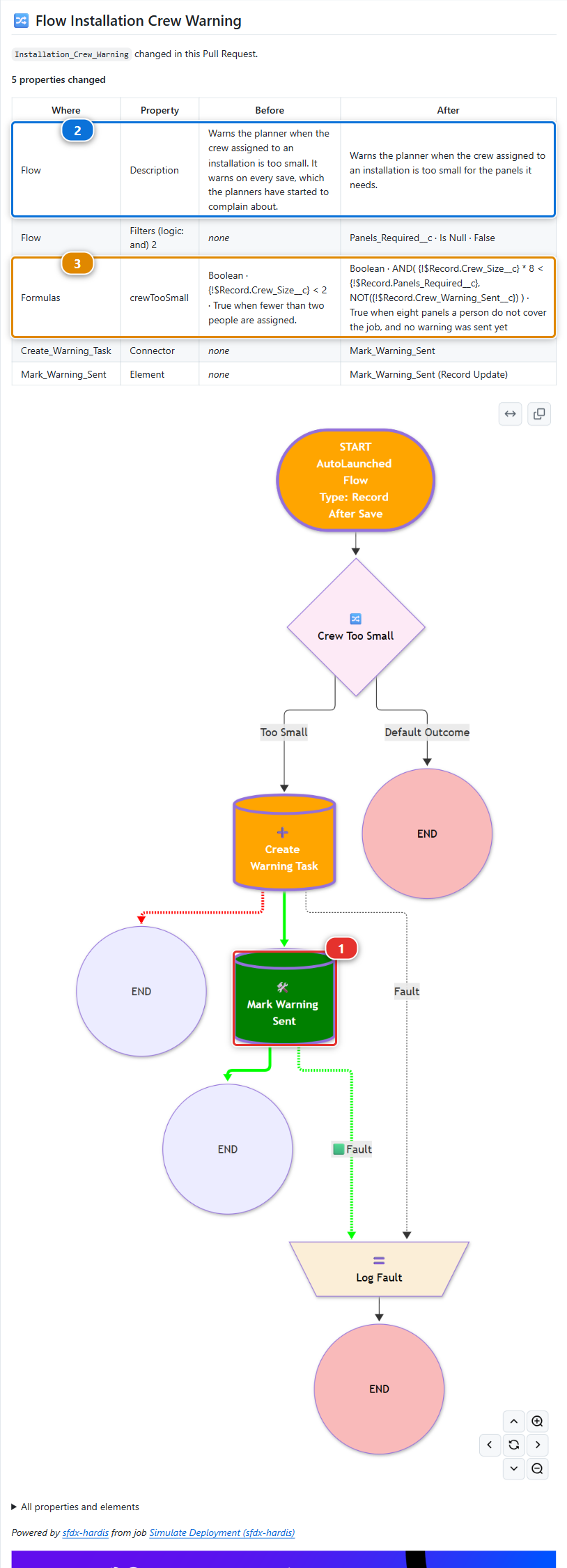
- Open the second comment, posted right below: 🔀 Flow Installation Crew Warning, the visual diff of the flow. It draws the flow, and colours what your story changed. The new Mark Warning Sent element is green (1)
-
Above the diagram, read the properties changed table: every changed property with its value before and after, the description (2), the formula (3). The full tables of the flow are folded under All properties and elements
Why
A flow is metadata like any other in this comment. What it gets on top is a second comment of its own, the visual diff. A reviewer reads your flow change there, without opening Flow Builder or its XML.
Your Pull Request cannot be merged while that check is red: integration refuses it, for you as
for anybody.
You should now see
- A red check on the Pull Request, and an error saying
Crew_Warning_Sent__cdoesn't exist
Read that twice. The field does exist. You can see it in the org. You created it ten minutes ago and the flow you just tested reads it.
4. Read the package before you read anything else
Goal you know why the deployment failed: the package does not carry the field.
Refresher Lab 1.5
When a deployment says something does not exist, the first question is never "is it in the org". It is "is it in the package".
Do
-
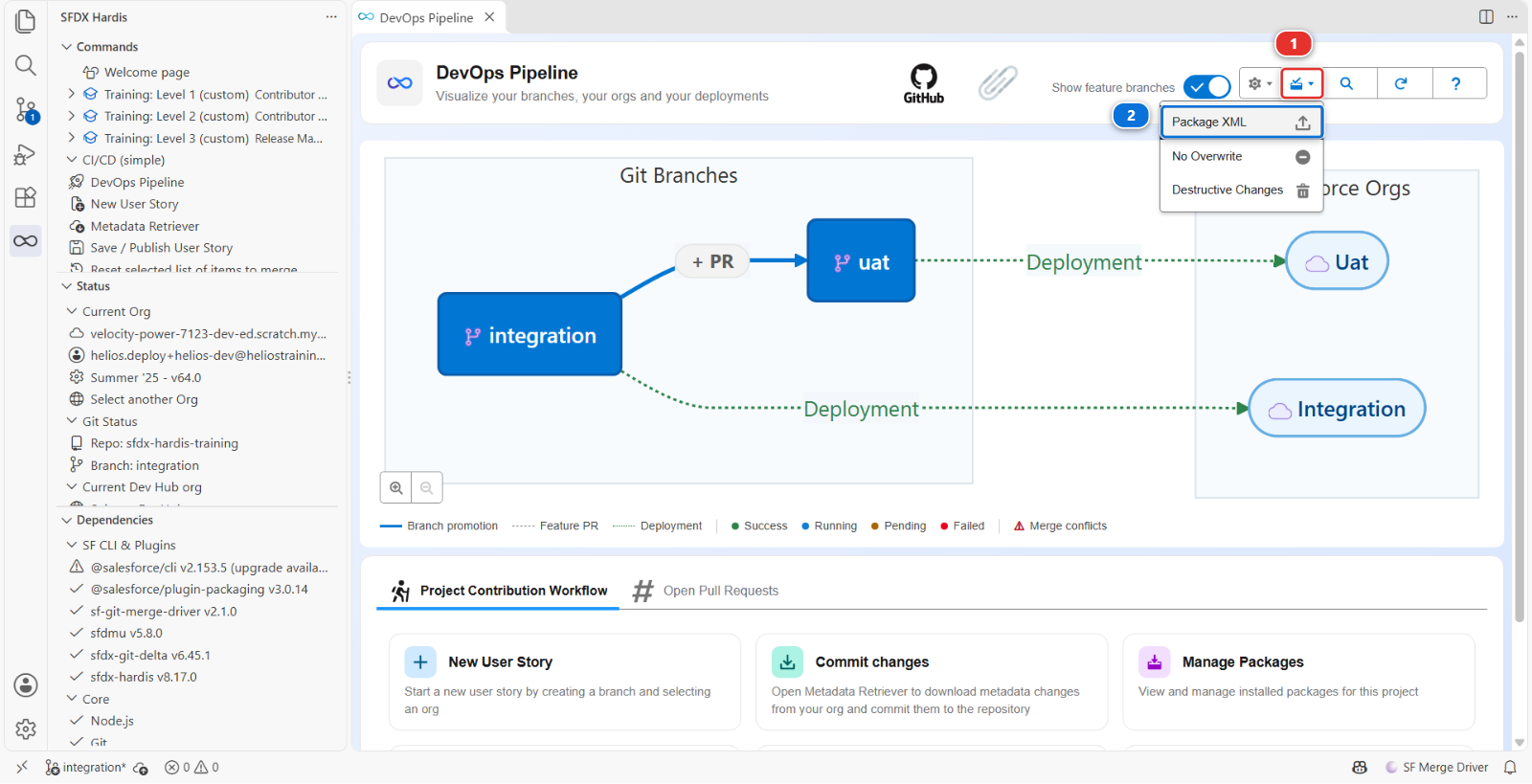
Open the package: in the DevOps Pipeline panel, the Deployment packages menu (1), then Package XML (2), as in Lab 1.5
-
Type
crew_warningin its filter box (1)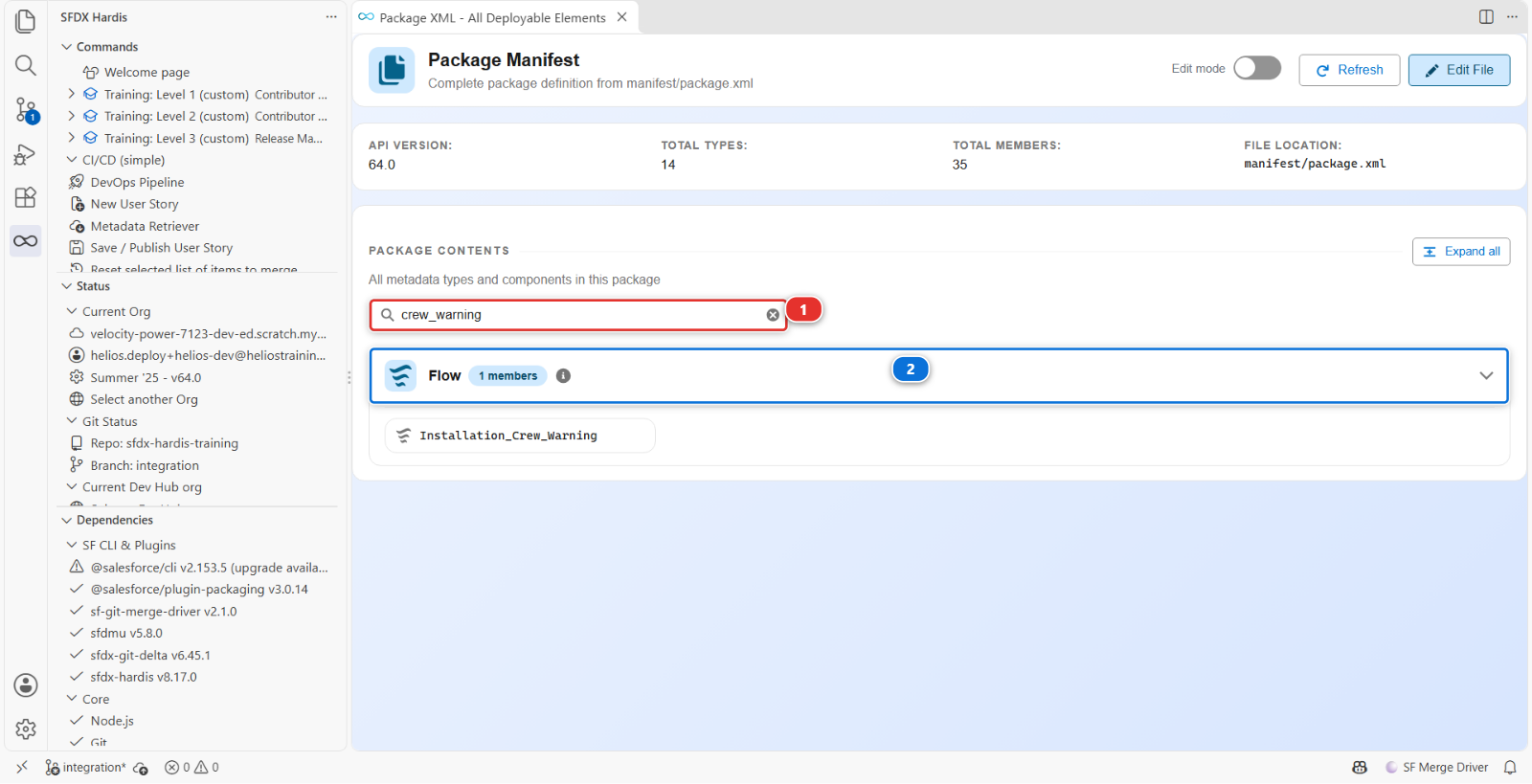
-
Look where the fields live,
force-app/main/default/objects/Installation__c/fields/: the field is not there
Why
The integration org is being sent a flow that reads a field the package does not carry, and the integration org does not have that field either. From Salesforce's point of view the error is exactly right.
The package is built from what your commits changed, and the field was never committed. It
exists in one place only, helios-dev, and a pipeline never reads a developer's org.
You should now see
- One row left, Flow (2): the package carries your flow
- No CustomField row at all: the package does not carry
Installation__c.Crew_Warning_Sent__c
5. Retrieve what the flow depends on
Goal the field Crew_Warning_Sent__c in your project, next to the flow.
Do
-
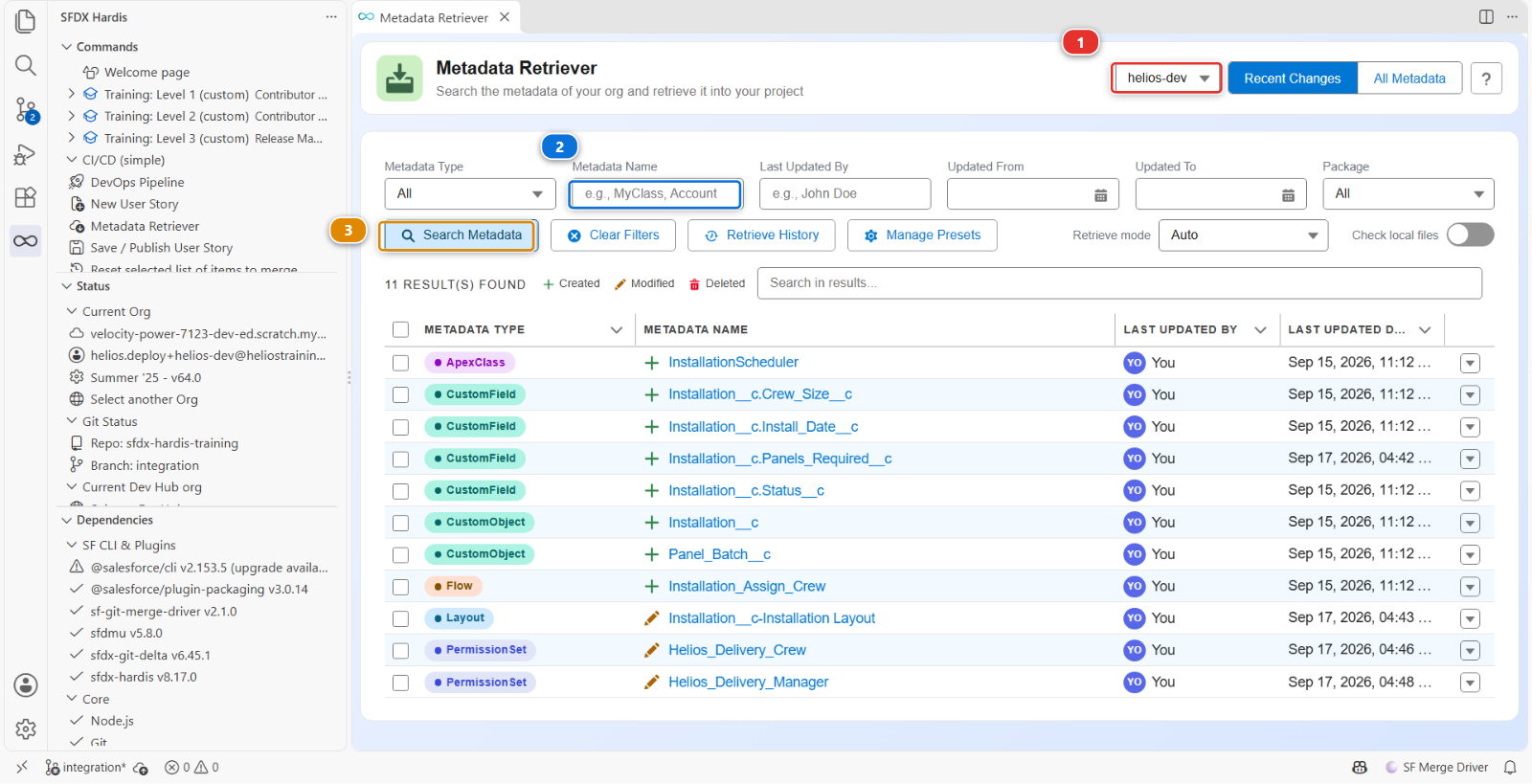
Open the Metadata Retriever panel
-
Check that the org at the top right (1) is
helios-dev - Type
Crew_Warning_Sent__cinto Metadata Name (2) - Click Search Metadata (3)
- Tick the field in the results and retrieve it
Why
The habit to take away: when you change something that reads another component, retrieve that component too. A flow reads fields, a layout shows them, a permission set grants them. Anything new among them travels with the story, or the story does not deploy.
You should now see
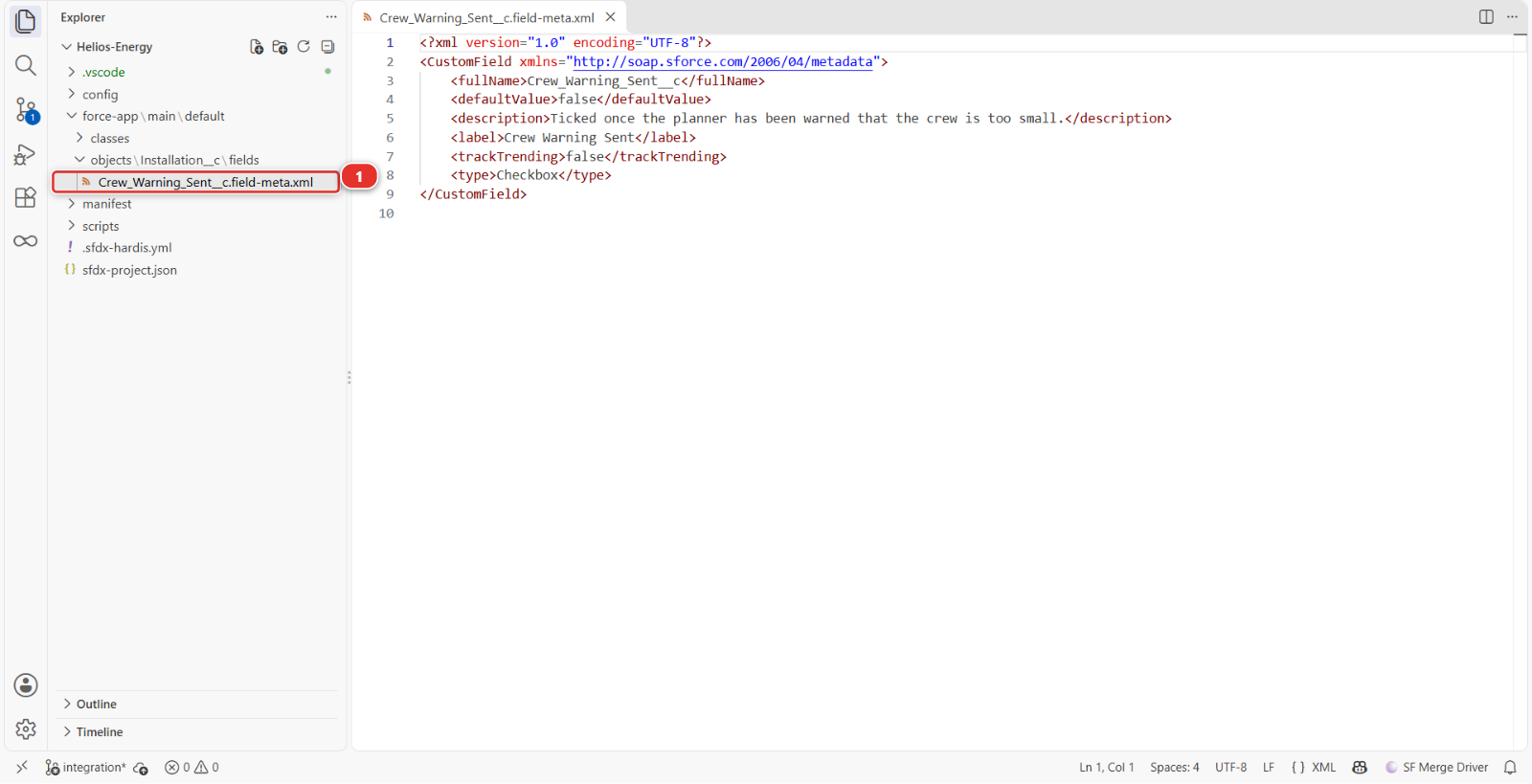
- The field under
force-app/main/default/objects/Installation__c/fields/(1), in the Explorer view of VS Code
6. Publish again
Goal the check green, and the Pull Request merged into integration.
The field is in force-app/ now.
Do
- Commit it from Source Control
- Save / Publish again
- Push, and wait for the check
- Merge it
Under the hood: why the error said what it said
The check job ran:
sf hardis:project:deploy:smart --check
which handed manifest/package.xml to Salesforce as a validation deployment: the list Save /
Publish keeps up to date from the git diff between your branch and integration. Salesforce compiled the flow, looked for
Installation__c.Crew_Warning_Sent__c in the package and in the target org, found it in
neither, and refused.
The important part is the order of the two questions:
- Is it in the package?
manifest/package.xml, and behind it the git diff: what you retrieved and committed - Is it in the target org? Only ask this once the answer to the first is yes
Most deployment errors that say "does not exist" are question 1, and most people spend twenty minutes on question 2 first.
The flow went up as a new version. A flow is versioned in the org: Flow Builder saved yours as
version 2, and the deployment sends its definition. The integration org keeps its version 1 as
history, inactive, exactly like helios-dev does.
Command documentation: hardis:project:deploy:smart
You should now see
manifest/package.xmllisting both the field and the flow- The check green
What you should see
-
manifest/package.xmllistingInstallation__c.Crew_Warning_Sent__candInstallation_Crew_Warning - The Pull Request check green
- After the merge, the flow present and active in
helios-integration
If it goes wrong
Flow Builder does not offer Crew Warning Sent.
You created the field with Visible unticked for every profile, so you cannot read it, and Flow
Builder only lists the fields you can read. Setup > Object Manager > Installation > Fields &
Relationships > Crew Warning Sent > Set Field-Level Security, tick Visible for System
Administrator, Save. Then reload Flow Builder: the field is in the list of Update Triggering
Record, and the crewTooSmall formula accepts it.
The retrieve brings nothing.
The org selector of the Metadata Retriever points at another org. It must read helios-dev, where
you created the field.
The check now fails on the flow being inactive. Salesforce will not deploy an active flow over an active flow of the same version in some configurations. Deactivate the old version in the target org, or bump the flow version in your org and retrieve again.
The check fails on a Task field. Your Create Records element sets a field the integration org does not have, because you picked something specific to your org. Simplify: subject and WhatId are enough.
Check your work
Welcome page > Training: Level 2 > Check my work, then pick Lab 2.2.
Go deeper
Next: Lab 2.3 - Fix broken records with an Apex deployment action