Lab 3.2 - Review and merge a contributor Pull Request
Level: 3 Release Manager
Time: ~25 min
You will: review somebody else's work, find the thing the robot did not, ask for a change, and merge.
The situation
Mariia has a new story, US-052 - The Installation layout in two columns: planners scroll the Information section of every installation while its second column sits empty. Her Pull Request is open, its checks are green, and it waits for you.
Green checks mean "this will deploy". They do not mean "this is right". Deciding the second is your
job now, before the merge, and it is the part of release management that cannot be automated.
A review after the merge is an audit: the change is already in integration, and on its way to
every org after it.
Before you start
- Lab 3.1 finished: four major branches, and JWT authentication on
preprodandmain - A clean working tree
Steps
1. Receive Mariia's Pull Request
Training: Level 3 > Simulate my teammates, from the Welcome page, and pick US-052 The Installation layout in two columns.
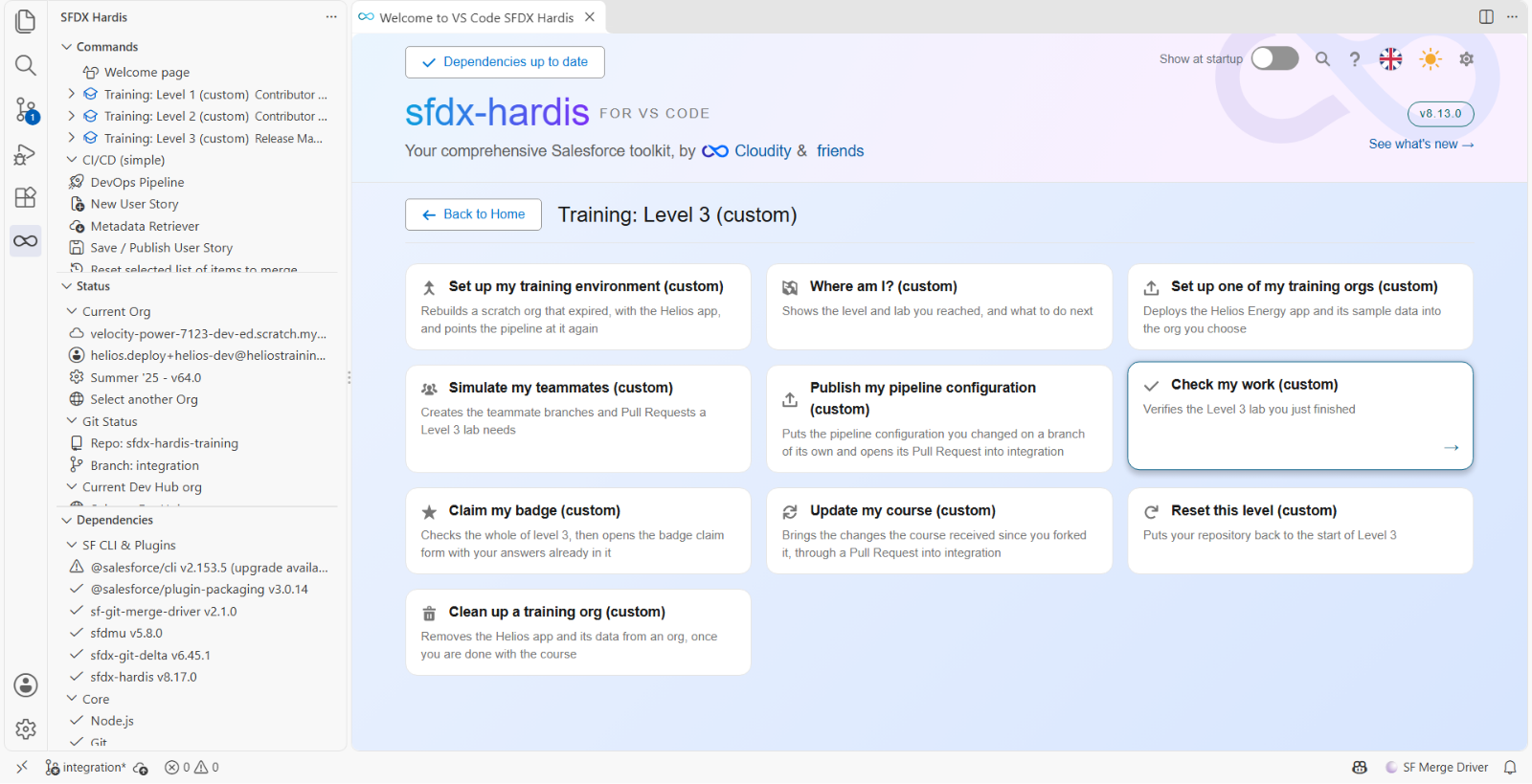
It opens her Pull Request into integration in your fork (your own copy of the course repository on
GitHub, for example github.com/my-username/sfdx-hardis-training). Open it from Pull requests,
and wait for its two checks.
2. Read the robot first
Read the sfdx-hardis comment, top to bottom. Four things, in this order:
- Did it deploy? The comment opens on a banner, Validation on a check job and Deployment
on a merge job, then a verdict: ✅ Ready to merge into
integration, or ❌ Cannot merge intointegrationfollowed by the reason, such as1 deployment error. The Salesforce deployment id is not printed anywhere: it is carried as an invisible HTML marker, so that a merge job can reuse the validation as a Quick Deploy - How much does it deploy? The Metadata row of the Check | Result table under the verdict counts how many components would change, split into created, updated and deleted, and how many were validated against the org. Further down, the folded 📋 ... components would change in the org gives the changes per type of component. If the counts do not match the size of the story, that is your cue to go and read the diff
- What does it delete? A
deletedcount in that same row, shown only when something goes, and the 🗑️ Deleted column of the table, which says what kind of component goes: a field, a class, a layout. Flows are counted there like any other component, and get one thing more: a diff comment of their own, 🔀 Flow and its label, posted below for each changed Flow. A Flow whose only change is its status, activated or deactivated, gets no diff comment and is named nowhere, so read the diff for those. A Flow deletion section appears when versions are being removed. The comment names no other deleted component: the list, one row per component, is in the files the check kept, and the end of this step opens it - Tests and coverage. The Apex tests row: the coverage against the target every time it was measured, or why the tests did not run, and a folded 🧪 Apex test classes block when the job ran named test classes. Failures only when there are failures
Reading it in that order takes two minutes. On US-052 it reads green, a small number of components
updated and nothing deleted, and it is right about all of it. The exact counts are yours, not
the lab's: they compare your branch with what your helios-integration holds today, so a story that
touches one file can still update a few components when your org is behind. No deleted in the
Metadata row is what matters here, and it is what step 4 is about. The comment also tells you what it
cannot do for you, which is step 3.
The list of components, without leaving VS Code. The comment gives counts, and the check kept the list. Open the DevOps Pipeline panel and turn Show feature branches (1) on: Mariia's branch appears, with the number of her Pull Request next to it (2). Click the number.
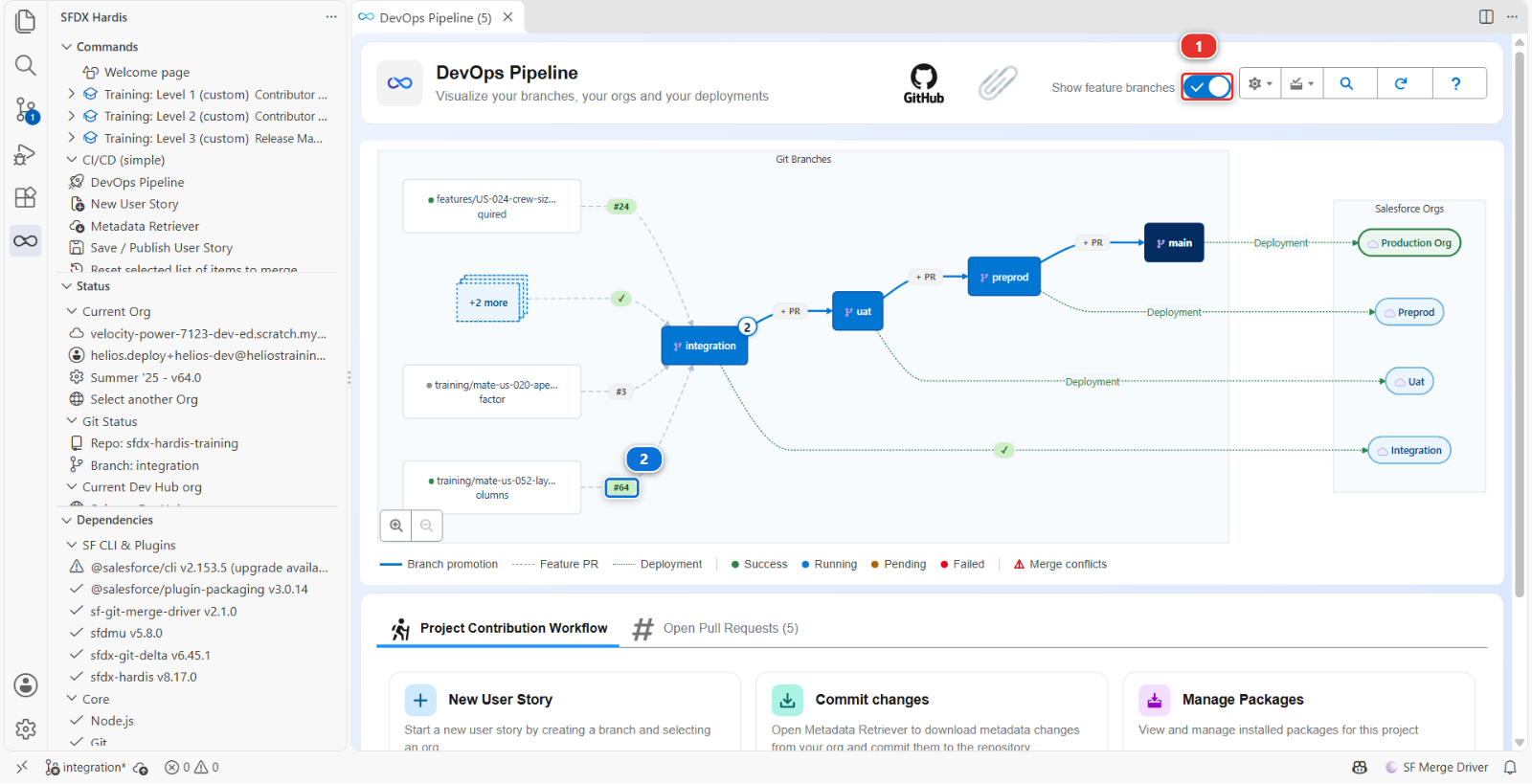
The window of the Pull Request opens. On its Validation tab, click Files (1), then
deployment-components.csv (2). It opens in VS Code: one row per component of the package,
with its Status, Created, Updated, Deleted or Unchanged. A deleted component would
be named there. xls/deployment-components.xlsx, on the next row, is the same list for a
spreadsheet.
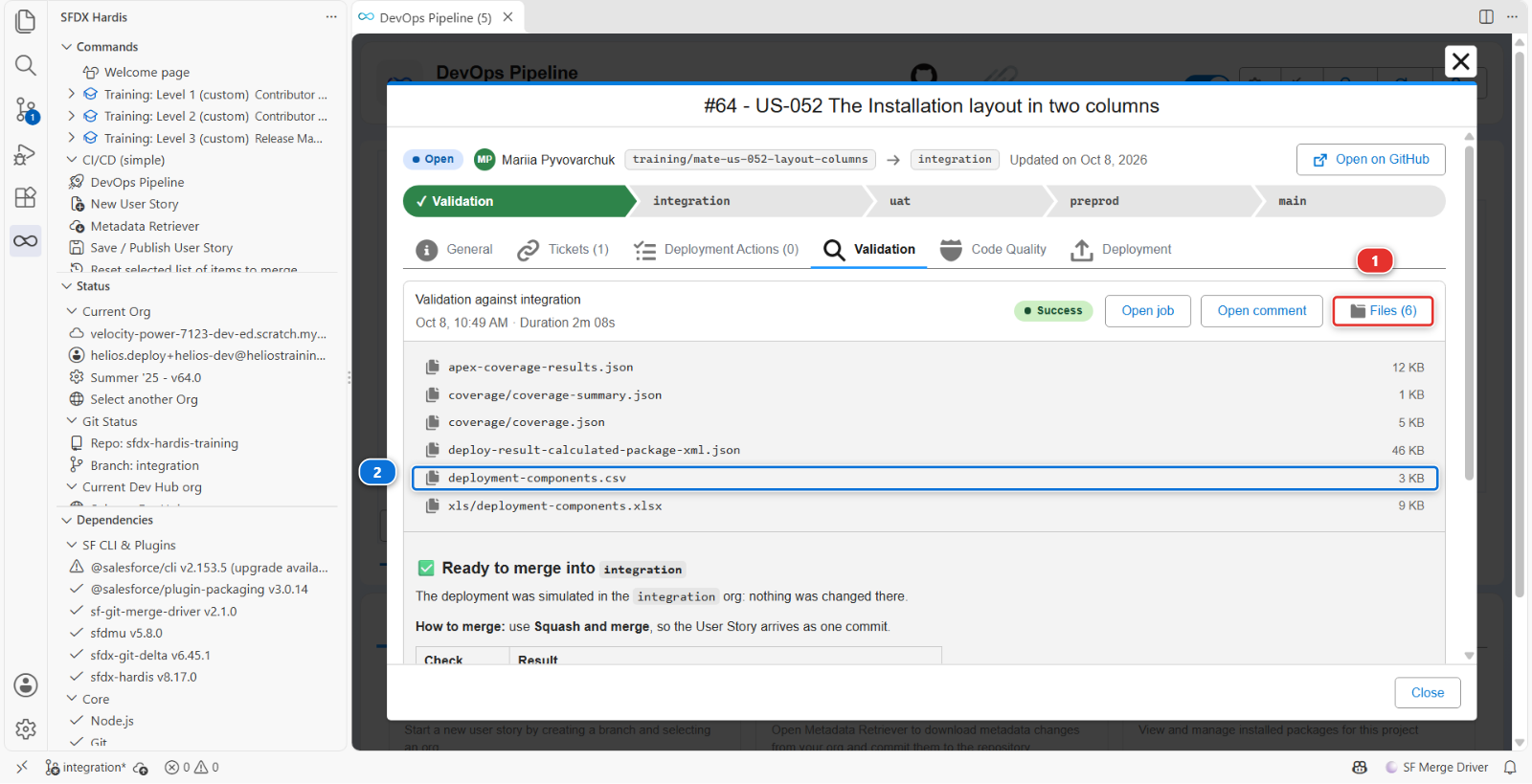
Your number is not #64. If the window has no Files button, your sfdx-hardis is older than
the feature: Open job leads to the same files on GitHub, in the Summary of the run, under
Artifacts, sfdx-hardis reports.
3. Read the diff, looking for what the robot cannot see
The robot checks that the deployment works. It cannot check that the deployment is a good idea.
Click Files changed (1). The file tree on the left lists what the story touched: one file, the layout (2). One removed line is marked (3): leave it for now, step 4 is about it.
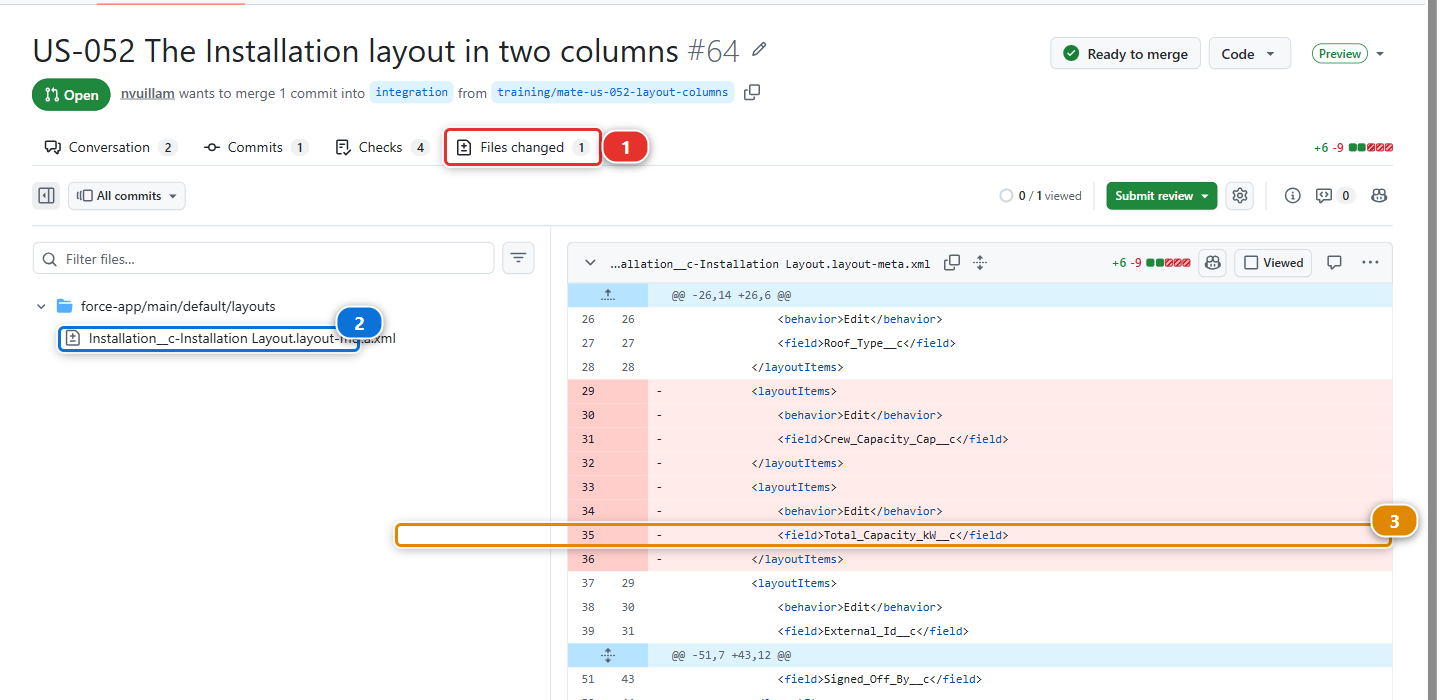
Go through the diff with four questions:
| Question | Why it matters |
|---|---|
| Does this match the story? | Compare with US-052 in the backlog. Extra changes are either scope creep or an accident, and both are worth a comment |
| Does anything disappear? | A removed field, a removed picklist value, a removed permission. Salesforce will happily deploy a deletion |
| Are permissions on a Permission Set? | A Profile carrying field permissions means somebody bypassed the convention |
| Would this be reversible? | If this turns out wrong in production on Friday, what is the path back? |
4. Find the one the robot missed
The layout diff has three changes. Two go together: Crew_Capacity_Cap__c leaves the first column,
and comes back in the second. That is the story.
The third is a removed block (3) in the picture of step 3, and nothing adds it back:
Total_Capacity_kW__c. Read fast, it looks
like part of the move. Read again: the installed capacity did not move to the second column, it
left the layout.
Nothing fails. The field still exists, the deployment check is green. But once this is merged, nobody sees a capacity on an installation record any more, and the first person to notice will be whoever reads that number on a Monday morning.
Then compare with what Mariia wrote. The description says the crew capacity cap moves to the second column. It says nothing about a field going. That is the gap a review is for: the diff says one thing, the description another, and only one of them is what gets deployed.
Nothing in the pipeline can catch that. A layout with one field fewer is a valid deployment, the
Metadata row counts the layout as one more component updated, and only somebody who knows the org can see what is missing.
5. Ask for the change, on the line
Hover the line where Total_Capacity_kW__c is removed, click the blue + that appears, and
comment:
Total_Capacity_kW__ccomes off the layout with this change, and the description does not say so. I think it went missing with the move: can you put it back in the second column, under the cap, read only?
Then Review changes at the top right of the tab, Comment, Submit review. On a real project you would choose Request changes, which keeps the Merge button honest until the author answers. GitHub hides it here because the teammate Pull Requests of this course are opened from your own account, and nobody requests changes from themselves.
Two things about that comment worth copying:
- It says why, so the reader can judge rather than take your word
- It says what happens next, so nobody has to ask
Do not merge. The Merge button is green, and it is wrong.
6. Review the fix, then merge
The fix is Mariia's to make: a release manager reviews and merges the contributors' Pull Requests, and does not write their features. She answers the next morning, on the same branch. Training: Level 3 > Simulate my teammates, and pick US-052 Mariia puts Total Capacity back, beside the cap.
It adds one commit to her branch, so the same Pull Request updates, and its checks run again. Open
Files changed again: GitHub offers to show only the changes since your review, and there is one,
Total_Capacity_kW__c added in the second column, read only, under the cap. The whole diff of the
Pull Request now moves two fields to the second column, the cap and the installed capacity, now read only,
and removes nothing.
When the checks are green, merge with Squash and merge, as for every feature Pull Request (Lab
1.6): the two commits become one line in the history of integration, titled like the Pull Request.
On a real project, this is where you click Approve first.
7. See the branch go
The line under the merge says the branch was deleted: your fork does it for every merged Pull Request, and so should your real project (Settings > General > Automatically delete head branches). The major branches are safe from it, because a protected branch cannot be deleted.
Under the hood: what produced the comment you just read
The check job ran:
sf hardis:project:deploy:smart --check
and then posted the comment through the GitHub API with the token the workflow already has.
The comment is updated in place on every push rather than added again, which is why the Pull Request does not fill up with twenty robot comments. It finds itself again through a hidden marker carrying a message key, and there are in fact two such comments, each updated independently: one for the check job, one for the merge job. A third one collects the deployment actions, and Flows get one each, except a Flow whose only change is its status, which gets none. A comment is capped at 50,000 characters on GitHub: above that, it says what it shortened.
The counts it prints come from what Salesforce reported back about the deployment, not from the git diff. The two can differ, and when they do the deployment is the truth: it is what the org received, or would have received.
Deletions are the weak spot. hardis:work:save writes manifest/destructiveChanges.xml when a
contributor removes something, and a contributor can produce one without meaning to, by
unticking something in the selection screen after it was committed. The comment gives that a number
in the Metadata row, and a table only when Flows are involved. If a Pull Request's counts show
anything deleted, the comment has told you everything it is going to: the rest is the diff.
Command documentation: hardis:project:deploy:smart, hardis:work:save
What you should see
- Your review comment on Mariia's Pull Request, on the line that removed
Total_Capacity_kW__c - Her fix in the same Pull Request, and the Pull Request squash merged into
integration - The Installation layout in
integrationwith the cap andTotal_Capacity_kW__cin the second column
If it goes wrong
Simulate my teammates says "Nothing to commit". The scenario already ran: each one is used once. The Pull Request is in your fork, open or merged.
The checks never run after Mariia's fix.
Actions are disabled, or SFDX_AUTH_URL_INTEGRATION, the secret integration still logs in with, is
missing. Training: Level 3 > Set up my training environment writes it again.
You merged before the fix.
Then Total_Capacity_kW__c is off the layout in integration, and the merge deleted Mariia's
branch, which her fix starts from. Click Restore branch at the bottom of the merged Pull
Request, then run the fix scenario: it opens the fix as a new Pull Request from the same branch, and
you review and merge that one.
Check your work
Welcome page > Training: Level 3 > Check my work, then pick Lab 3.2.
Go deeper
Next: Lab 3.3 - Deploy to integration and read the deployment log