Lab 2.1 - Backpromote: catch your dev org up with the team
The situation
You were away for two weeks. While you were gone, Romain merged a story into integration and it
was deployed. Your helios-dev org still looks like the day you left.
Build your next story on top of that and you will produce a diff full of things that look like deletions, because your org does not have what everyone else's has. This is the most common way a contributor accidentally undoes a teammate's work.
Before you start
- Level 1 finished, or Training: Level 2 > Reset this level on level 2
-
helios-devconnected in Orgs Manager - No uncommitted changes you care about
Steps
1. Bring your teammate's work in
Goal Romain's story merged into the integration of your fork, and your Level 1 stories in helios-dev.
Refresher Lab 1.6
The two weeks you were away have to exist before you can catch up on them. Romain does not exist, but his work does: the training replays it in your own fork, as a Pull Request you merge.
Do 1a: run Simulate my teammates
-
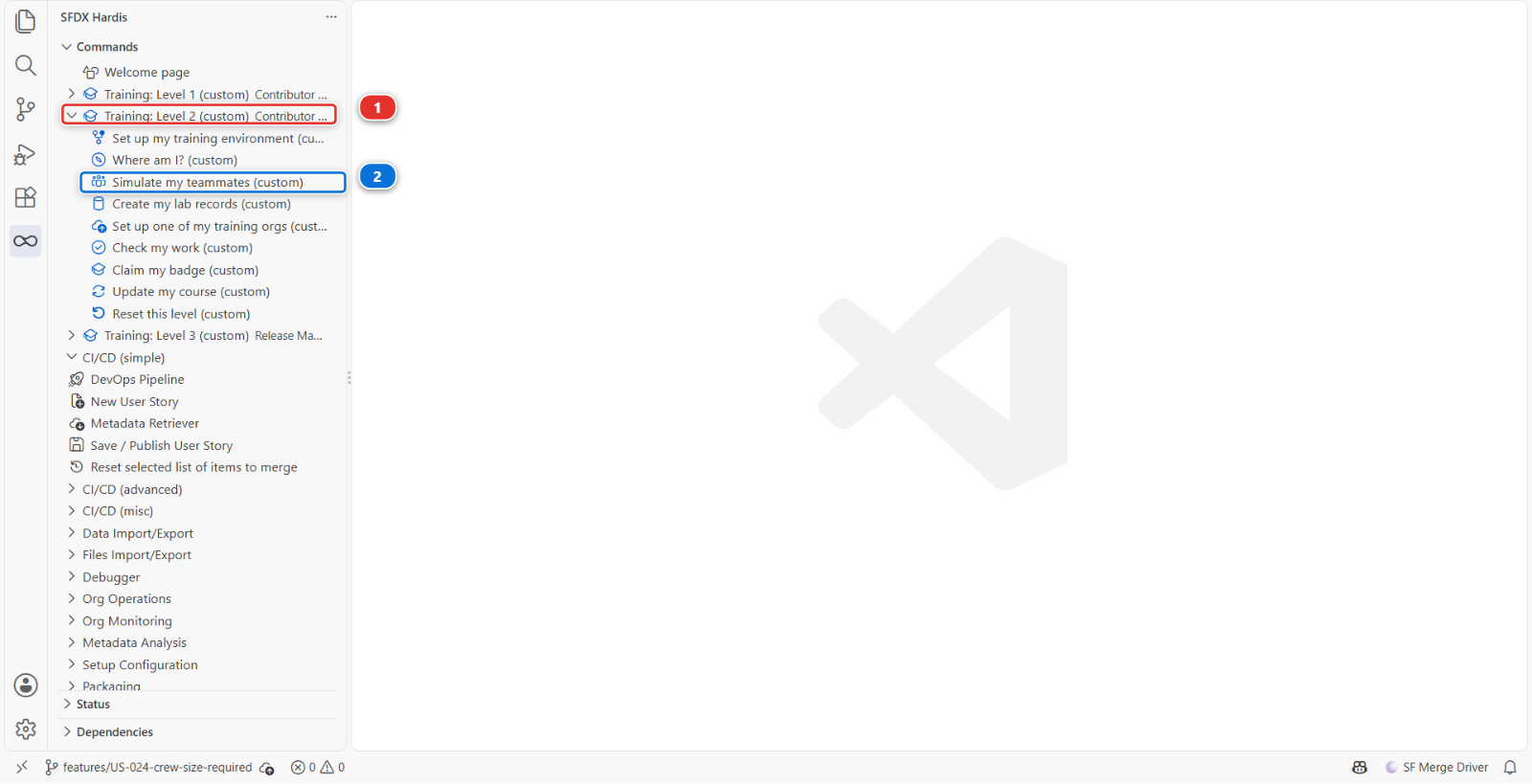
In the sfdx-hardis command list, expand Training: Level 2 (1) and click Simulate my teammates (2). The same entry is on the Welcome page, under Training: Level 2
If VS Code asks how to allow it
If VS Code first asks how to allow the Training command, choose Always allow, as in Lab 1.2.
-
A command panel opens and asks three questions. Answer them as the table below says
- Keep the address of the Pull Request the panel prints: you need it in step 1b
- With Yes to the last question, wait until the panel writes Pull Request merged into its base branch, then Done. You can then skip step 1b and go straight to step 2
| Question | Answer |
|---|---|
| Which teammate work do you need? | US-017 Record who signed an installation off |
| Create it? | Yes |
| Merge it for you once its checks pass? | Yes, unless you want to merge it yourself (step 1b) |
If a check failed
If the panel says a check failed, or that it could not merge, go to step 1b: nothing is lost, the Pull Request is still open.
Why
The command creates the branch training/mate-us-017-sign-off from your current integration,
commits Romain's change under his name, pushes it to your fork on GitHub and opens the Pull Request.
With Yes to the last question, the panel then waits for the two checks of the Pull Request, about two to four minutes, and merges it as soon as both are green. If you merge it yourself on GitHub while the panel is still waiting, it notices and stops there too.
Under the hood: what Simulate my teammates did
The Training entry ran:
node scripts/training.mjs simulate --level 2
It applied the patch set of scripts/simulate/us-017-sign-off/ to your working copy, committed it
with Romain's name and email, pushed the branch and opened the Pull Request with gh pr create.
Your own uncommitted changes, if you had any, were put aside first and put back at the end.
With Yes to the merge, it gave you back your own branch first, then asked GitHub for the state
of the Pull Request's checks every twenty seconds (gh pr checks), and ran gh pr merge --squash
once all of them, Simulate Deployment to Major Org and Mega-Linter among them, were green.
The same rule as the button: your fork's integration is protected, and GitHub would refuse the
merge while a check is red or running.
Do 1b: or review and merge it yourself on GitHub
Only if you answered No, or if the panel could not merge.
- Open the Pull Request: click Open the Pull Request at the bottom of the panel, or open your
fork on GitHub (
github.com/my-username/sfdx-hardis-training), click the Pull requests tab, then US-017 Record who signed an installation off -
Click Files changed (1). The file list on the left (2) has three files: the new field
Signed_Off_By__c, the permission setHelios_Delivery_Managerand theInstallationlayout. Each line of the diff (3) is one change, green when added and red when removed. Check that Romain only adds: the field, read and edit access on it, and the field on the layout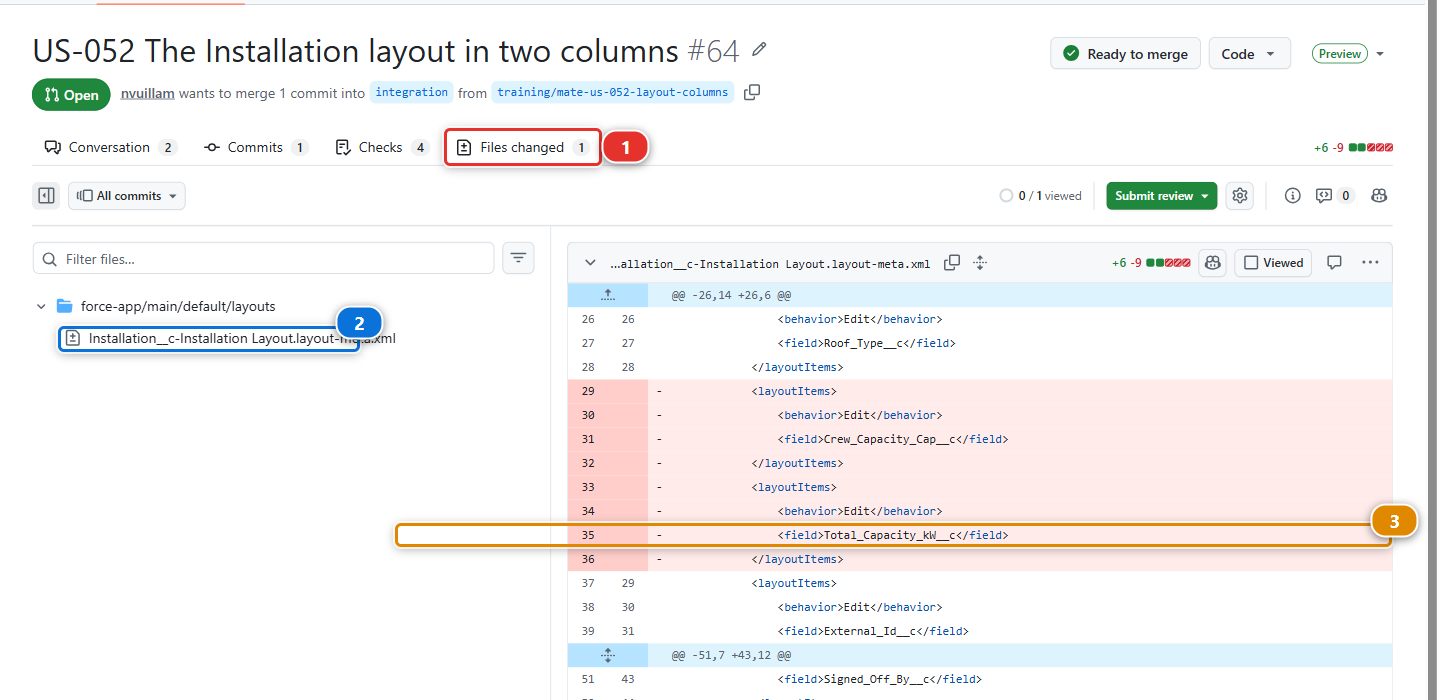
The picture is a later teammate Pull Request, US-052: yours shows Romain's three files, and the tabs and buttons are the same.
-
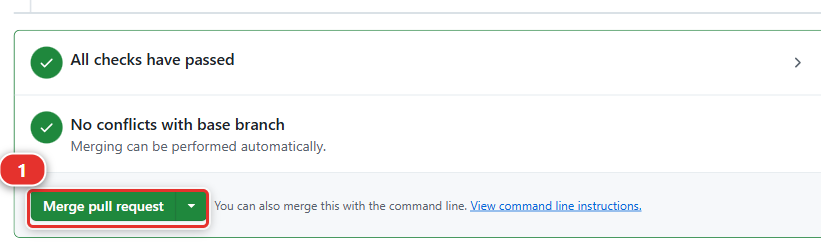
Go back to the Conversation tab and scroll to the bottom. While a check is still running, the box reads Merging is blocked: wait, the page updates on its own. When it reads All checks have passed, the Merge pull request button (1) is live
-
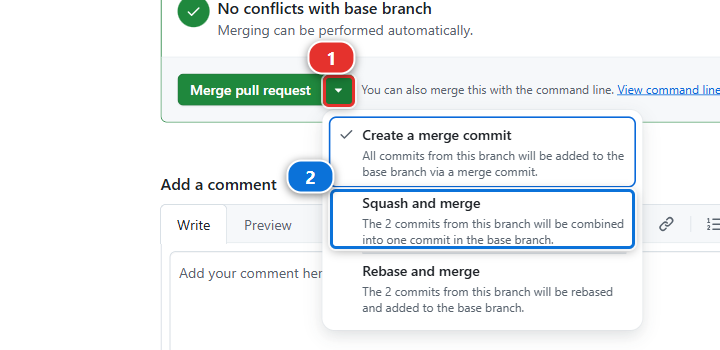
Click the small arrow (1) on the right of the green button, choose Squash and merge (2), then click Squash and merge and Confirm squash and merge. The badge at the top of the page turns purple and reads Merged
If a check fails
If a check fails here, run Simulate my teammates again: it recreates the branch and the Pull Request.
Why read the files
Reading the files is the review: you are checking that the Pull Request does what its title says, and nothing else.
This is the same merge as Lab 1.6, step 4. A check that fails here is not your fault and not something to fix.
Do 1c: check where you are now
-
In
helios-dev, open Setup > Object Manager > Installation > Fields & Relationships, and check it lists Panels Required and Crew NotesIf you joined at Level 2
If they are not there, which is the case when you joined at Level 2, put them there before step 2: with
integrationchecked out (its name is in the bottom left corner of VS Code), run Training: Level 2 > Set up one of my training orgs onhelios-dev.
Why only Romain's work
Romain's Pull Request is the newest merge into integration on GitHub. It is the only work your org
does not have: the backpromote brings it, and nothing else.
Under it, how your own Level 1 stories show depends on how you reached Level 2:
| You reached Level 2 by | Your Level 1 stories in integration are |
|---|---|
| Doing Level 1 | Pull Requests of your fork, such as #1 US-014 and #2 US-016 |
| Reset this level | One commit, chore: the state a level 2 learner starts from, usually followed by Keep my pipeline configuration, which keeps your org names |
Either way, helios-dev must already hold them, because Romain's layout places his field next to
Crew_Notes__c, and a deployment to an org without that field fails. They are there if you built
Level 1 in this org. Set up one of my training orgs deploys the app from the branch you have
checked out, and that branch holds Level 1.
You should now see
- Romain's Pull Request merged, the newest merge into
integrationon GitHub - Panels Required and Crew Notes in the fields of Installation, in
helios-dev
2. Open Backpromote
Goal the Backpromote panel open on helios-dev, computing its plan.
Do
-
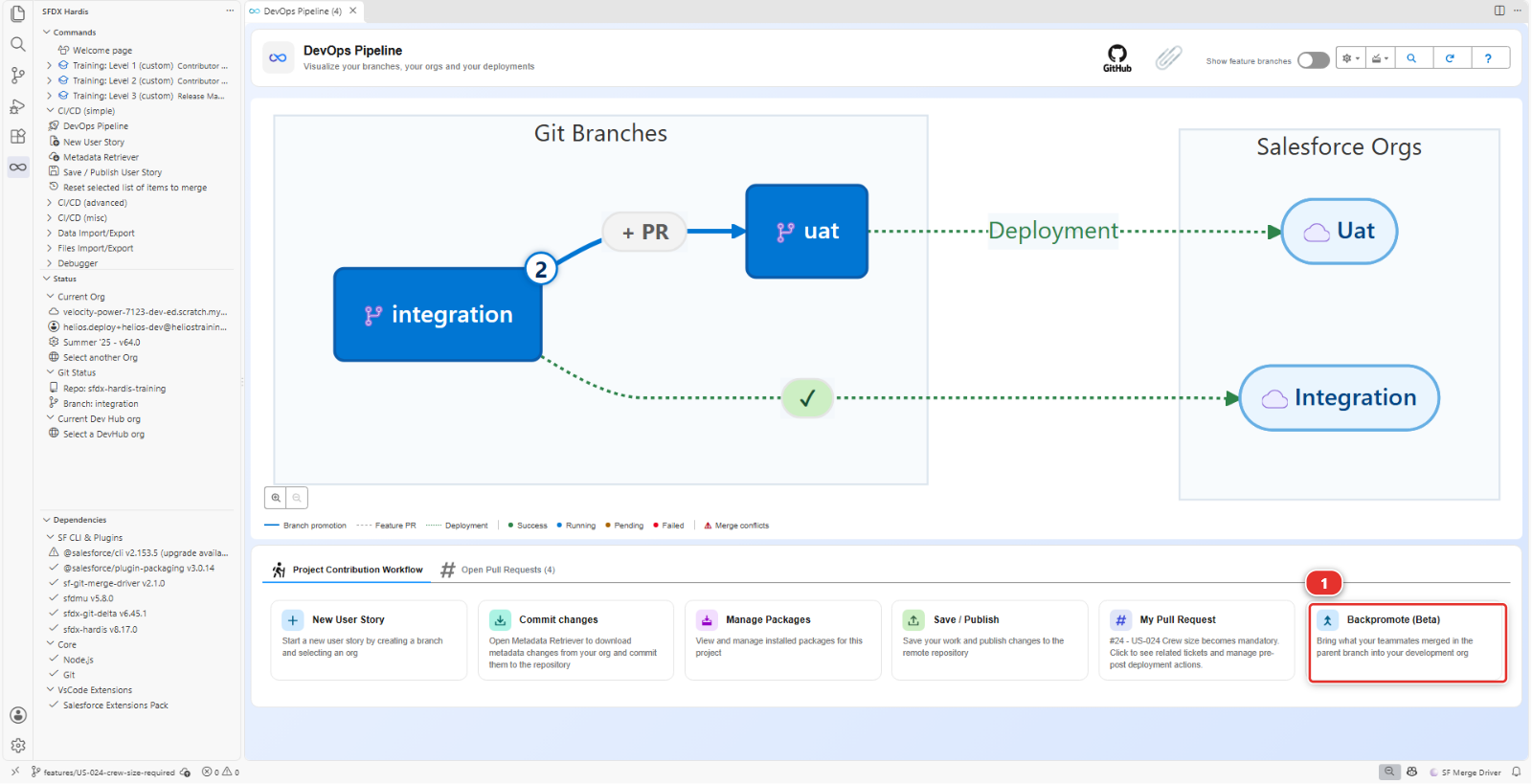
In the DevOps Pipeline panel, under Project Contribution Workflow, click the Backpromote (Beta) card (1)
-
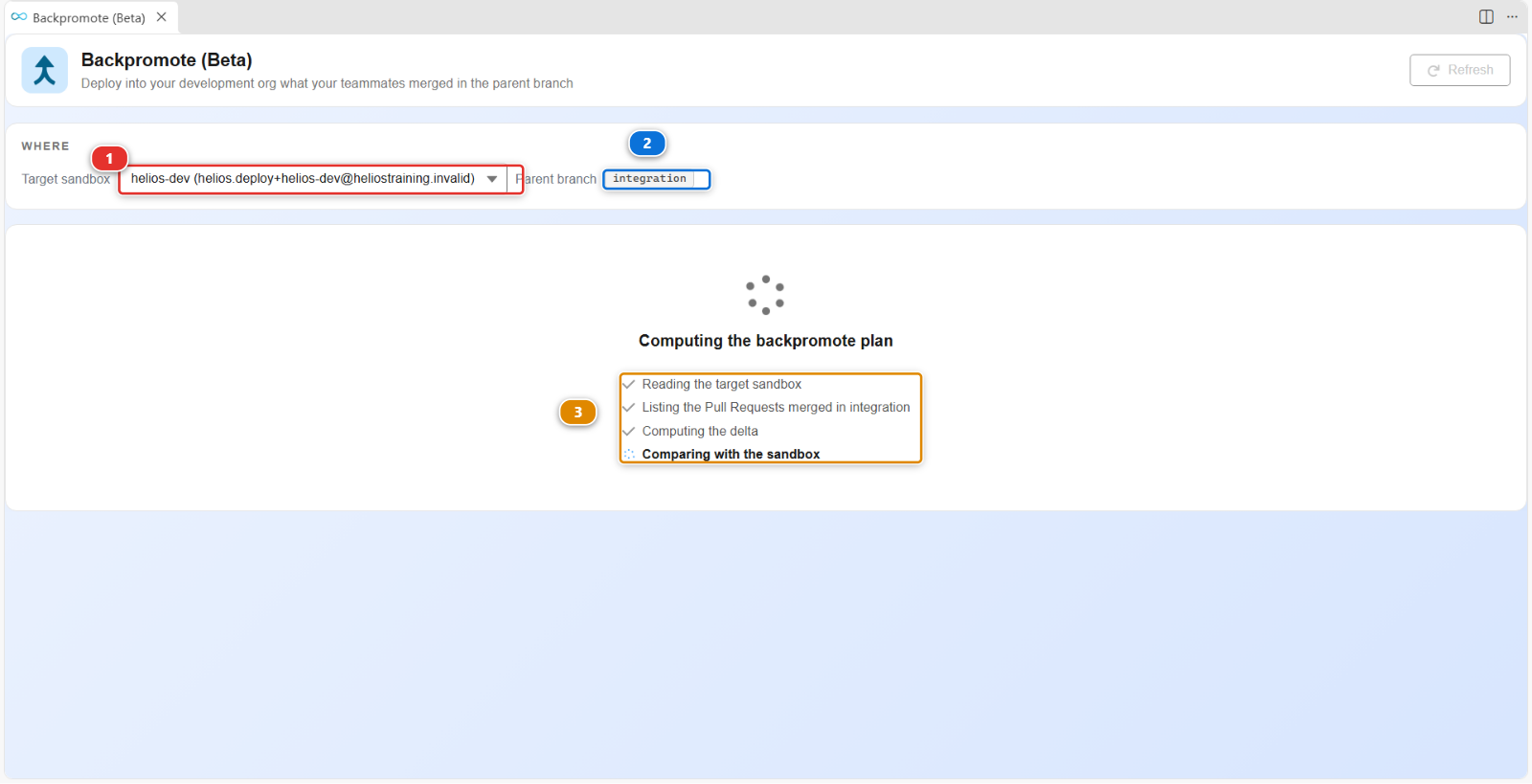
Read what it shows while it computes its plan, before it shows you anything else:
- Target sandbox (1) is the org the work comes down into,
helios-dev - Parent branch (2) is where it comes from,
integrationas it is on GitHub: the panel fetches it, so there is no need to pull first - The lines (3) read your org, list the Pull Requests merged in
integration, work out what changed there, and compare it with what your org holds
- Target sandbox (1) is the org the work comes down into,
Why
"Backpromote" is the direction that matters: work normally flows up, from your branch to integration to uat to production. A backpromote brings it down again, from a major branch into your own environment, so you are building on what the team has rather than on what you remember.
You should now see
- Target sandbox reading
helios-dev, Parent branch readingintegration, and the lines of the plan running
3. See how far behind you are
Goal you know how many Pull Requests your org is behind integration.
Do
- Read the WHERE block at the top of the panel
Why
The WHERE block answers that question, and it is the only place that does. It counts the rows from the one you pick in step 4 up to the newest.
This first time, nothing is picked for you, because nothing ever came down into helios-dev. Once
a backpromote has run, the panel remembers it and picks the row merged right after it, so the count
is exactly how far behind your org is. That count, not your memory, is what tells you whether a
refresh is needed. On a Monday after a week off it is worth reading before anything else.
You should now see
- WHERE reading 0 Pull Requests in the window: this first time, nothing is picked yet. It turns to 1 Pull Request in the window when you pick Romain's story in step 4
4. Choose what comes down
Goal Romain's story picked, and each item it brings checked before it comes down.
Do
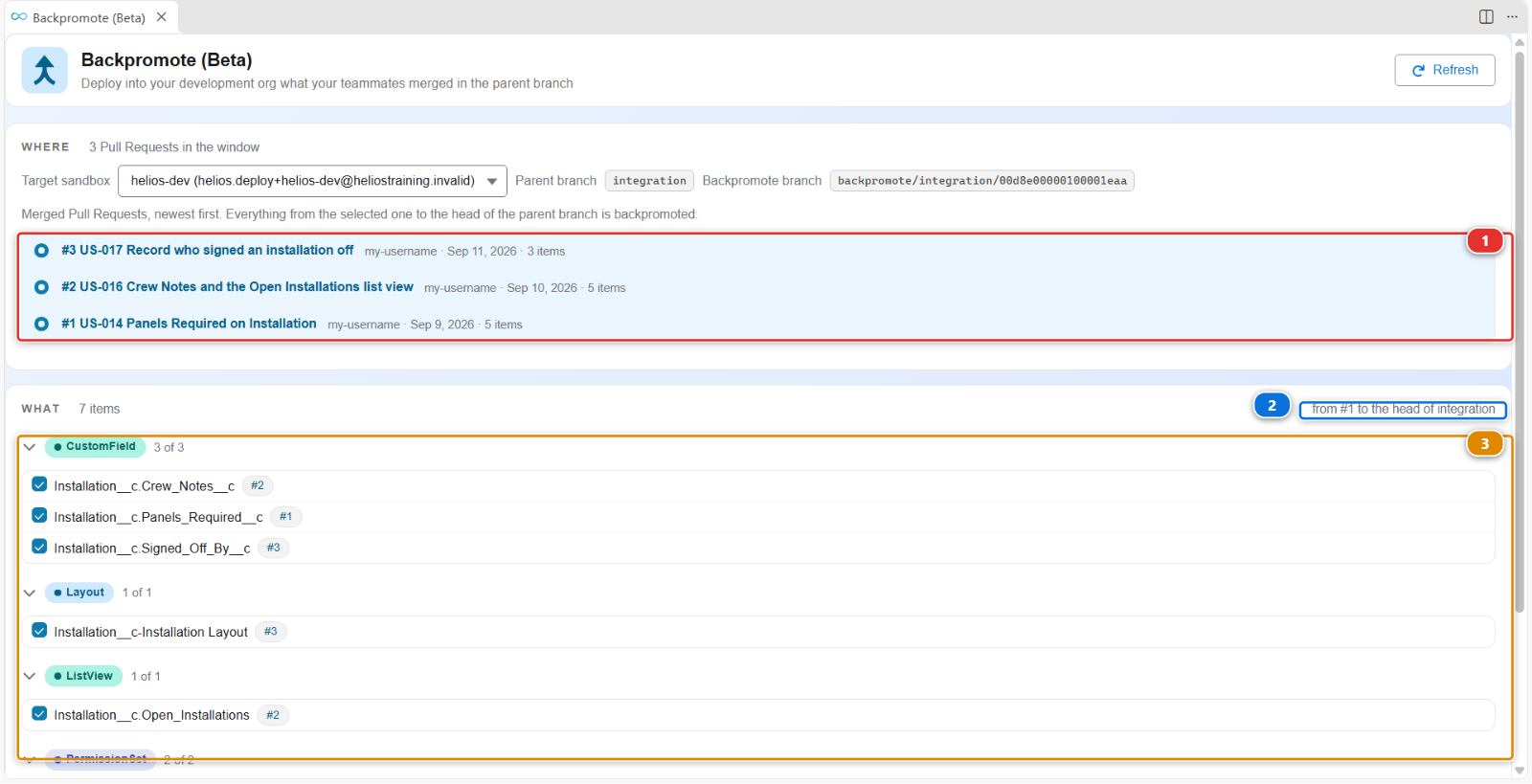
- When the plan is ready the panel fills in. What was merged into
integrationis listed newest first (1): pick the top row, Romain's US-017 Record who signed an installation off -
Pick only a row that starts with a number, a Pull Request of your fork. Clicking any other row does nothing:
- chore: the state a level 2 learner starts from and Keep my pipeline configuration, if you reset: commits, not Pull Requests
- Point the pipeline at my training orgs, if you did Level 1: the commit Set up my training environment made in Lab 1.2
- dozens of commits of the course itself, which your
integrationinherited when you made your copy of the repository. Some end with a number in brackets, like (#77): that is a Pull Request of the course repository, not of your fork. Your org has them already
-
Below the list, the metadata your pick brings is listed by type, each item with its own tick (3). Go through the list with the table below rather than clicking "all"
A file both sides changed
For a file that both sides changed, the panel offers a third answer beside Overwrite and Keep org version: Merge. Reach for it when both changes are real and you need both, and pick between the two versions in the VS Code merge editor.
| What you see | What to do |
|---|---|
| Metadata from Romain's story | Take it. That is the whole point |
| Something you are half way through building yourself | Leave it. A backpromote would overwrite your work in progress |
| Something you do not recognise at all | Take it. If it is on integration, it is the team's truth |
Why
Everything from the row you pick to the head of integration (2) is brought back, so this one
row is exactly what your org lacks.
The items are what changed in integration from that row to its head, not a comparison with your
org: for Romain's story, three items, the field, the layout and the permission set.
The picture was taken on a fork that did Level 1 without a reset, starting from #1 US-014, so its window holds three Pull Requests and more items. Yours, started from Romain's, holds one.
Merge writes the file with both versions in it, marked, and you pick between them in the VS Code merge editor, the same way Lab 2.7 has you resolve a Pull Request conflict.
The rule when you hesitate: integration wins. It is the shared reality, and your org is a copy of
it that you are allowed to modify temporarily.
You should now see
- Romain's story picked, and three items ticked: the field, the layout and the permission set
5. Run it and read the result
Goal Romain's story in helios-dev, and you back on your own branch.
Do
-
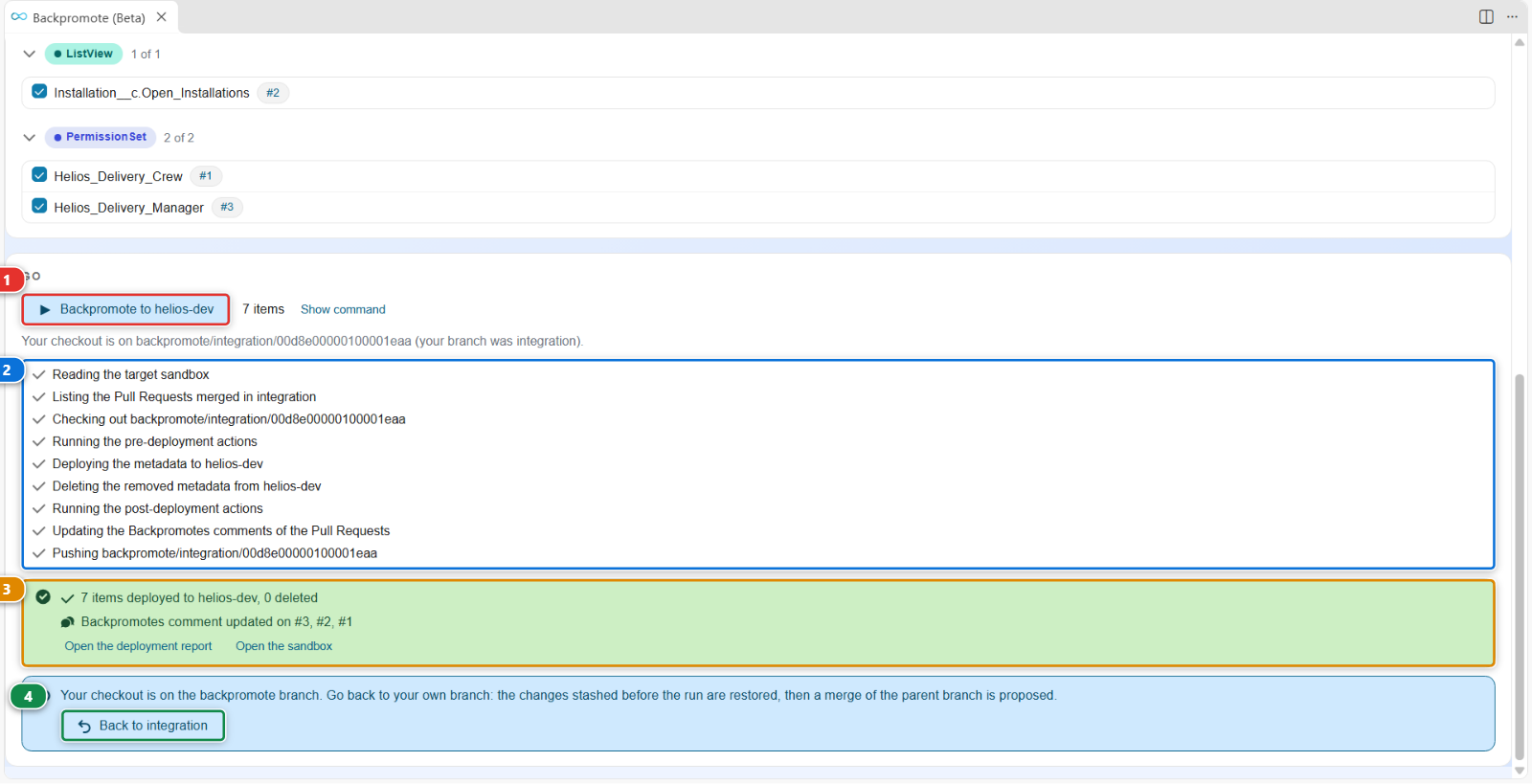
Click Backpromote to helios-dev (1). The panel works through the run step by step (2), and when it finishes it tells you what happened (3)
-
Read the summary rather than the colour:
- how many items reached your org, and how many were deleted from it
- which Pull Requests it wrote its history onto, so the next backpromote knows where to start
-
Click Back to
<your branch>(4). It is the last button of the panel and the one people miss
Why
Romain's story carries no deployment action. When the ones you bring down do, the summary also says how many ran, were skipped or failed, and how many manual actions are waiting for you in the sandbox, which nothing can do for you.
The warning in the Under the hood block below explains why Back to <your branch> matters.
Under the hood: what Backpromote just did
The panel ran:
sf hardis:work:backpromote
which:
- Fetched your fork and read
origin/integration, the branch as it is on GitHub, never your local copy - Built a plan: the components
integrationchanged between the row you picked and its head, and for each one whether it is added, changed or removed - Deployed the ones you selected into your dev org, using the same deployment engine as the CI
- Recorded what it did, so a second run does not redo the same work
Three things it deliberately does not do, and knowing them saves an afternoon:
- It does not bring records on its own. It deploys metadata, and it runs the deployment actions the merged Pull Requests declared, which is where a data load would live. If a teammate's story needed reference data and nobody declared an action for it, that data is not in your org, and no deployment will ever put it there. Lab 2.4 is about that exact problem
- It does not undo what you did by hand. If you changed something in your org that
integrationalso changed, the deployment overwrites it. That is why you read the list - It does not touch the shared orgs. A backpromote refuses a production org, and any org a major branch deploys to. It only ever writes to a developer sandbox, a scratch org or a Developer Edition org
And one thing it does that nobody expects the first time:
It leaves you on the backpromote branch
The deployment runs from a branch called backpromote/integration/ followed by the id of your
org in lower case, such as backpromote/integration/00d8e00000100001eaa in the picture of step
5, and the checkout stays there when the command finishes. The panel says so, and offers the
Back to <your branch> button (4) to undo it: it restores the changes it stashed
before the run, then proposes a merge of the parent branch.
Take that button. If you do not, New User Story still branches from the target you pick, so nothing breaks, but anything you had in progress stays stashed behind a branch you have forgotten about. The branch you are on is always in the bottom left corner of VS Code.
Back on your branch, VS Code may then ask Back on <branch>. Merge <parent> into it so that
your next save does not commit the backpromoted metadata as your own work? If it does, click
Merge <parent>. Your org now holds your teammates' metadata, and without that merge your
next Save / Publish would see it as a change of yours and put it in your Pull Request. It
does not ask when you are on the parent branch itself, or when your branch already has it.
One exception, and it is the case right after Level 1: the branch you come back to is a story
whose Pull Request is already merged, such as features/US-016-crew-notes. That branch is
finished: if VS Code asks, close the question instead of clicking Merge <parent>.
The merge would stop on a
conflict in the Installation layout, because integration holds your story as one squashed
commit with Romain's field next to it. Lab 2.2
starts a new story from integration, and that one has everything.
The history is not on your computer either. sfdx-hardis records what reached your sandbox in a Backpromotes comment on each Pull Request it brought down, so the next backpromote knows where to start, from any machine and any teammate. That is also why the command needs a git provider token: without one it cannot read its own history, and it stops.
Command documentation: hardis:work:backpromote
You should now see
- The summary: the items that reached your org, and the Pull Request it wrote its history onto
- The name of your own branch back in the bottom left corner of VS Code
What you should see
Open helios-dev and check that Romain's story is there:
- On an installation, his Signed Off By field at the bottom of the field column. The layout places it under Crew Notes, which you do not see on the record yourself: Lab 1.7 granted that field to the crew only
If it goes wrong
Simulate my teammates says no check ran on the Pull Request. The Checks tab of the Pull Request is empty: GitHub Actions are off on your fork. Lab 1.6, step 2, says how to turn them on. Then merge it yourself, step 1b.
The panel says "Nothing to commit".
Romain's change is already in your integration: you merged it earlier, and the panel prints the
address of that merged Pull Request. Go on with step 2.
The panel says there is nothing to backpromote.
Your org is already level with integration, which happens if you just finished Level 1 in the same
org. Nothing to do: move on.
Clicking a row of the list does nothing. That row is not a Pull Request of your fork: a commit of the reset, or of the course. Only a row that starts with a number can be picked, step 4.
The deployment fails on Crew_Notes__c or Panels_Required__c.
helios-dev does not have your Level 1 stories. Put them there as step 1c says, then run the
backpromote again.
The deployment fails on a component that depends on something else. Take the whole set rather than a subset. Metadata has dependencies, and half a story often does not deploy.
The deployment fails with You cannot deploy to a required field: Installation__c.Crew_Size__c.
It comes from the permission set Helios_Delivery_Manager, and it means your org is ahead of
integration: Crew_Size__c is already required there, which only Lab 2.3 does. It usually
follows a Reset this level after a run that went past Lab 2.3, because the reset used to leave
the orgs alone. Run Training: Level 2 > Set up one of my training orgs on helios-dev, which
Reset this level now offers to do for you, then run the backpromote again. Or untick
Helios_Delivery_Manager in the list of step 4 and take the rest, knowing that Romain's field
access on that permission set then stays out of your org.
Your own work in progress was overwritten. It was in the list and you took it. Rebuild it in the org: it is still in your branch if you committed it, and the deployment only changed the org.
Check your work
Welcome page > Training: Level 2 > Check my work, then pick Lab 2.1.
Go deeper
Next: Lab 2.2 - Fix a deployment error caused by a missing dependency