Lab 3.9 - Generate the Salesforce project documentation
The situation
Victor knew this org. Victor has left.
What exists: two years of metadata in a git repository. What does not exist: any description of what the objects are for, how the flows relate, or why the scheduler behaves the way it does.
You are not going to write that by hand. Most of it can be generated, and the part that cannot is exactly the part worth a person's time.
Before you start
- Lab 3.8 finished
- On
integration, up to date: the documentation describes what the team merged
Steps
1. Open the Documentation Workbench
Goal the Documentation Workbench open, with every part included.
Do
-
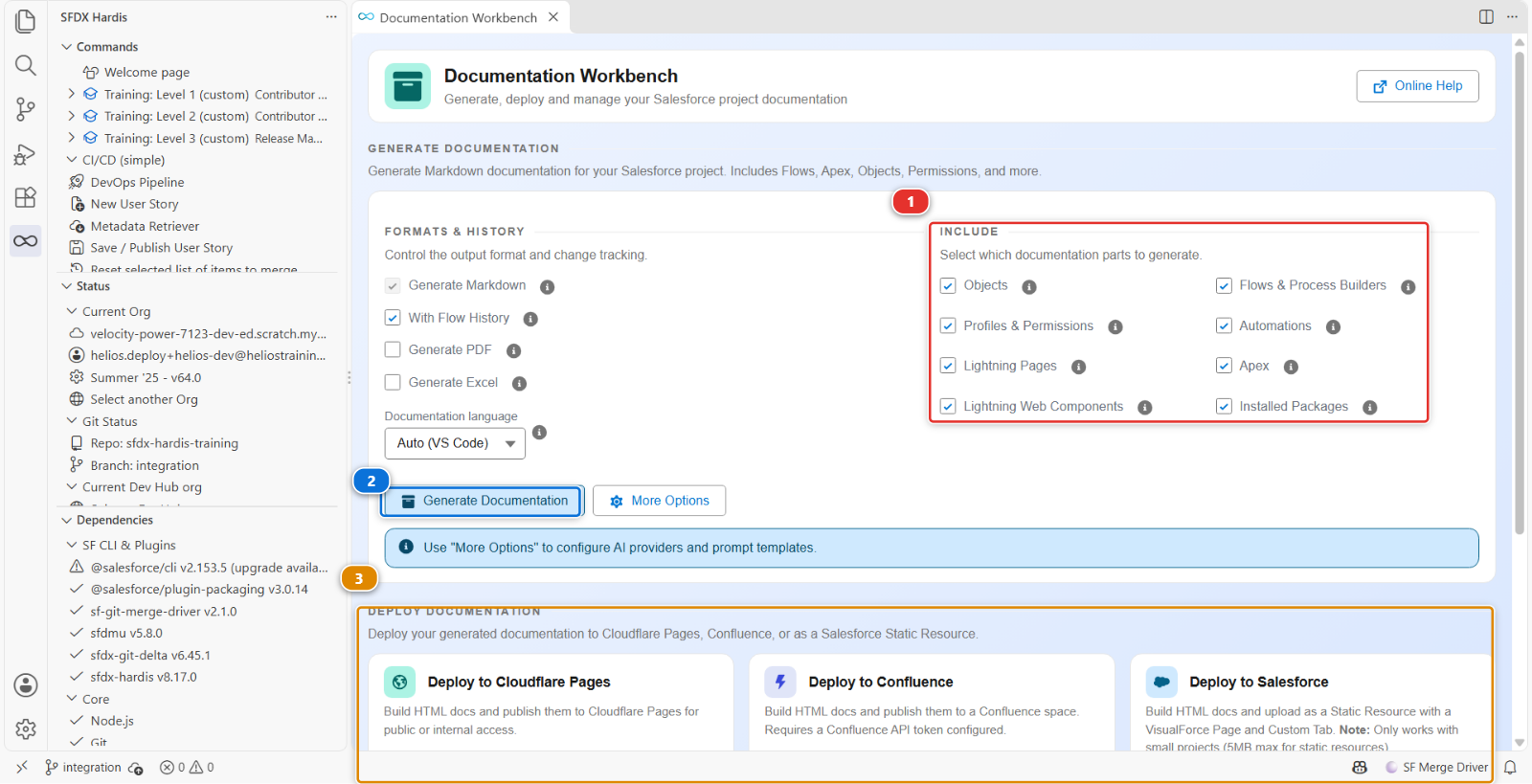
On the Welcome page, click the Documentation Workbench card
-
Find the three parts of it that matter:
- Include (1), which decides what gets documented. Eight boxes: Objects, Flows & Process Builders, Profiles & Permissions, Automations, Lightning Pages, Apex, Lightning Web Components and Installed Packages. All ticked is what you want the first time
- Generate Documentation (2), the button that produces the pages
- Deploy Documentation (3), further down, which publishes them
- To the left of Include sits a second column, Formats & History. Leave it alone for now
Why
Everything in this lab happens on this one screen.
With Flow History is ticked by default in Formats & History. That one checkbox is what step 4 is about, and without it the flow pages have no history diagrams at all.
You should now see
- The eight boxes of Include all ticked, and With Flow History ticked
2. Generate
Goal a set of markdown pages under docs/, produced from the sources.
Do
- Click Generate Documentation (2)
Why
It reads the sources in force-app/ and produces a set of markdown pages under docs/. It takes a
few minutes on a small project like Helios.
You should now see
- The pages under
docs/, once the generation ends
3. Read what it produced
Goal you know the four kinds of page, and how many fields have no description.
Four kinds of page, and they are worth knowing apart:
| Page | What it contains | Who reads it |
|---|---|---|
| Object pages | Every field with its type, description and help text, the validation rules, the record types, the relationships | An admin asked to change something |
| Flow pages | A readable diagram of each flow, plus its entry conditions and elements | Anybody who has to understand automation without opening the Flow Builder |
| Apex pages | Classes, their methods, their ApexDoc | A developer |
| Package and profile pages | What is installed, what the permission sets grant | An audit |
Do
- Open
docs/objects/Installation__c.md - VS Code shows a markdown file as its source: to read it as a page, press
Ctrl+Shift+V(Cmd+Shift+Von a Mac), or right-click the tab of the file and choose Open Preview. Do the same for every page this lab opens - Look at how many blanks your org has
Why
Fields with no description produce a row with a blank cell. That is the honest output, and it is the argument for the two seconds it takes to fill them in.
You should now see
- Every field you and your teammates created across three levels, with the descriptions you wrote in Setup
4. Look at the flow diagrams
Goal the diagram of Installation_Assign_Crew read, and its history page found.
Do
- Open the page for
Installation_Assign_Crew - Open
Installation_Assign_Crew-history.md, which sits beside it
Why
The flow is rendered as a Mermaid diagram: the trigger, the entry conditions, the decisions and their outcomes. It is readable by somebody who has never opened a Salesforce flow, which is most of the people who will ask you what it does.
The history page shows how the flow changed over time, built from git history. That answers "when
did this flow start doing that", which is otherwise a long afternoon. It exists because With Flow
History was ticked, which passes --with-history to the generator. Untick it and the page is
simply not written.
You should now see
- The flow as a diagram: the trigger, the entry conditions, the decisions and their outcomes
Installation_Assign_Crew-history.mdbeside it, showing how the flow changed over time
5. Fix the worst gaps by hand
Goal a paragraph that only a person can write, on a page protected from the next generation.
Generated documentation tells you what the org contains. It cannot tell you why.
Do
- On the Installation page, right under its title, write a paragraph saying what an installation is in the business
- Open the page of
InstallationSchedulerand the page ofInstallation_Assign_Crew, and find why the preparation buffer exists and why the crew capacity cap is there. Nobody has to add it: the people who wrote the class and the flow put the reason in their comment and their description, and the generator carried it - Protect the page you wrote in. Each generated page starts with two comment lines, and the second
reads
<!-- DO_NOT_OVERWRITE_DOC=FALSE -->. Change it toTRUEon the Installation page
Careful
The next generation leaves a TRUE page alone, and rewrites every other page from the sources,
paragraph included.
Why
That paragraph is worth more than the other forty pages, and it is the reason this lab exists at the end of a level rather than at the start. A reason written in the metadata itself, as a comment in the code or a description, needs no protection: every generation carries it.
On a project that commits its documentation, the DO_NOT_OVERWRITE_DOC=TRUE line is what keeps a
person's words alive across nightly runs.
You should now see
- A paragraph you wrote, on the Installation page, which reads
<!-- DO_NOT_OVERWRITE_DOC=TRUE -->
6. Publish it
Goal you know the three ways to publish, and why this course publishes and commits nothing.
Do
- Look at the Deploy Documentation section (3). It offers three cards, each with the same
Deploy button:
- Deploy to Cloudflare Pages publishes it as a site, the way the sfdx-hardis documentation itself is published
- Deploy to Confluence publishes it into a Confluence space, and needs a Confluence API token configured first
- Deploy to Salesforce builds the HTML and uploads it as a static resource, with a Visualforce page and a custom tab, so the documentation is reachable from inside Salesforce. It is capped by the 5 MB static resource limit, so it suits a small project
- For this lab, generate and read: click none of them
Why
The same three exist as configuration keys, docDeployToCloudflare, docDeployToConfluence and
docDeployToOrg, which is how the monitoring workflow republishes the documentation every night
without anybody clicking anything. The Cloudflare and Salesforce ones are mutually exclusive: turn
both on and only the Salesforce one runs.
Publishing is a project decision, and so is committing: this course
keeps docs/ and the generated mkdocs.yml out of git (.gitignore lists them), because they are
rebuilt from the sources whenever anybody asks, and a release manager does not send features, or
their documentation, through Pull Requests of their own.
You should now see
- Nothing to commit: Source Control shows no change from the generation
7. Make it a habit, not an event
Goal you know where the documentation gets regenerated without anybody remembering to.
Refresher Lab 3.8
Documentation generated once is out of date in a month.
Why
The generation is a command, so it can run on a schedule the way the monitoring does, and the monitoring of Lab 3.8 already does it: its nightly backup regenerates the documentation of production before it finishes. Publishing that one, with the keys above, is how a project gets documentation nobody has to remember to update.
Under the hood: what reads what
The command was:
sf hardis:doc:project2markdown
which reads:
- the package directories declared in
sfdx-project.json, soforce-app/: objects, fields, flows, Apex, permission sets, packages manifest/for a page describing the manifests themselvesconfig/.sfdx-hardis.ymlfor the project configuration it documents, which becomesdocs/sfdx-hardis-params.mdanddocs/sfdx-hardis-branches-and-orgs.md- the git history, for the "what changed and when" diagrams, when
--with-historyis passed
and writes markdown under docs/, plus a mkdocs.yml so the result is a site rather than a pile of
files. It does not replace a mkdocs.yml you already have, but it does edit it: it rewrites the
nav block and adds the scripts, styles and theme features the generated pages need. So a
navigation you hand-wrote is rebuilt on the next run, which is worth knowing before you spend an
evening on one.
The flow diagrams are Mermaid, generated from the flow XML. That means they are text in the repository, so they diff, review and version like everything else, and they never go stale relative to the flow they describe.
Two related commands worth knowing:
sf hardis:doc:override-promptslets a project override the AI prompts used when descriptions are generated rather than readsf hardis:doc:plugin:generateis what generates the sfdx-hardis documentation itself, which is a reasonable existence proof that the output is readable
If the project has an AI provider configured, the generator can also write the missing descriptions rather than leaving blanks. Useful, and not a substitute for the paragraph in step 5: a model can describe what a field is, not why the business needs it.
Command documentation: hardis:doc:project2markdown, hardis:doc:override-prompts, hardis:doc:plugin:generate
You should now see
- The nightly backup of the monitoring repository of Lab 3.8 as the place where the documentation of production is regenerated
What you should see
- A
docs/folder with object, flow and Apex pages -
docs/objects/Installation__c.mdlisting every field from all three levels - A readable diagram of
Installation_Assign_Crew - A paragraph you wrote yourself, on a page marked
DO_NOT_OVERWRITE_DOC=TRUE - Nothing to commit: Source Control shows no change from the generation
If it goes wrong
The generation fails on a flow. A flow with an unusual element can trip the diagram generator. The page is still produced without the diagram. Report it as an issue on sfdx-hardis if you hit one.
The object pages are almost empty. The sources are there but the descriptions are not. That is the org, not the tool.
Source Control lists hundreds of new files under docs/.
It should list none: this course keeps docs/ and mkdocs.yml out of git. Check that .gitignore
still lists them, and do not commit them. A project that does commit its documentation gets an
enormous first Pull Request, and small ones after it.
Check your work
Welcome page > Training: Level 3 > Check my work, then pick Lab 3.9.
Go deeper
Next: Lab 3.10 - Promote a subset with promotion branches (Beta)