Lab 2.8 - Recover from committing the wrong metadata
The situation
It is late, the Metadata Retriever has ninety rows, and the tick box in the header selects all of them in one click. You take it, you retrieve, you commit, you publish, and your Pull Request now proposes to change eighty things you have never looked at.
Nobody can review that. Worse, some of those eighty are other people's work as it existed in your org before you refreshed, which means merging your Pull Request would quietly roll them back.
This lab is short and it is the one you will actually use.
Before you start
- Lab 2.7 finished and merged
- Nothing waiting in the Source Control panel that you still care about
Steps
1. Make the mess on purpose
Goal a Pull Request into integration that carries twenty rows and a Profile around your one layout change.
Refresher Lab 1.5
Do
-
New User Story (2), under Project Contribution Workflow (1) of the DevOps Pipeline panel. Name
US-038-installation-notes-tidy, orghelios-dev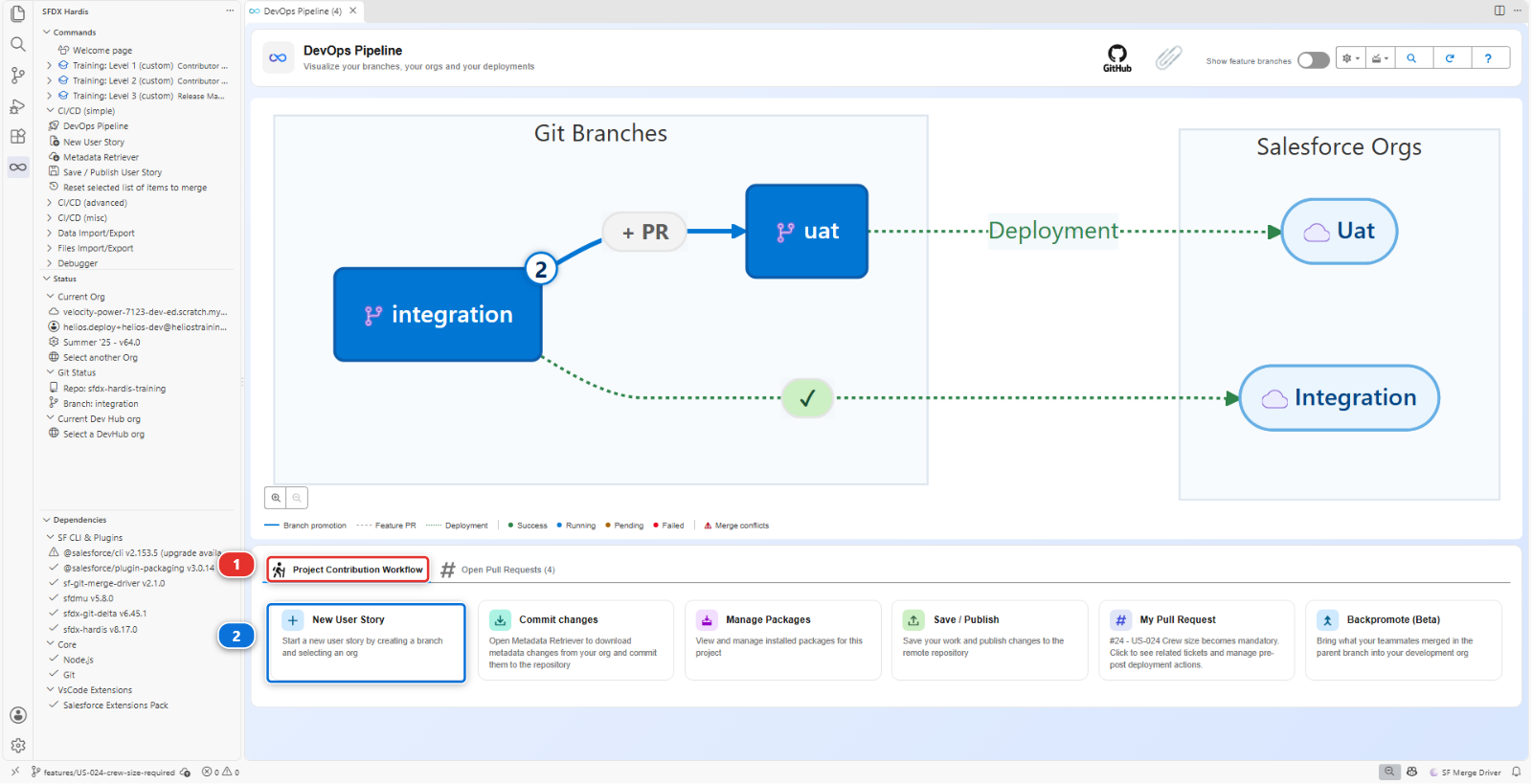
-
In
helios-dev, make one small real change: on the Installation layout, moveCrew SizeaboveInstall Date - Now open Commit changes and search the recent changes
- Click the Last Updated Date header (1), twice if needed, so the newest come first, and tick the first twenty rows (2), whatever they are: your layout is among them
-
Then type
Adminin Search in results (3), tick theAdminrow of type Profile, and clear the search. The twenty rows stay ticked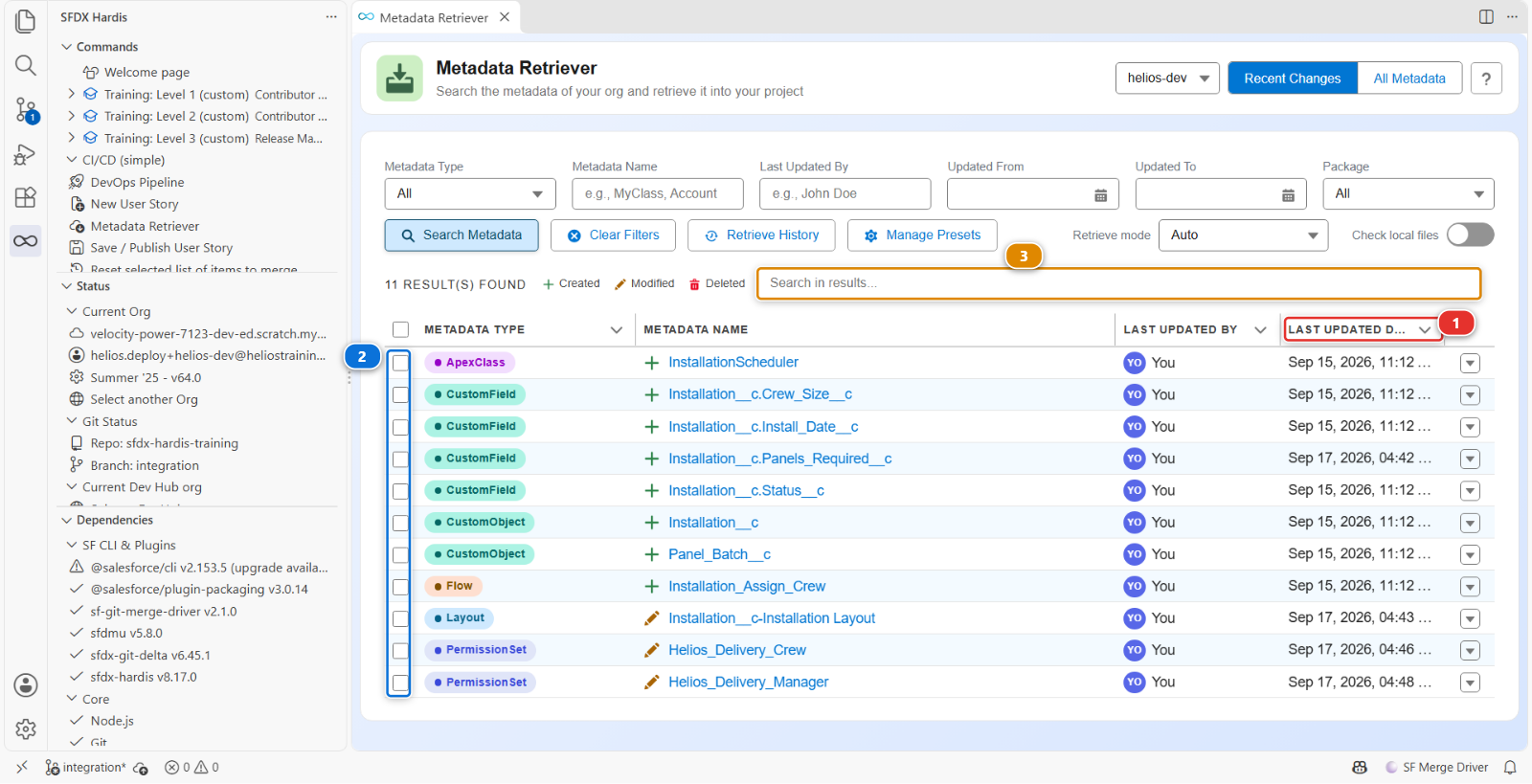
If a row is a GenOpAgentConfig
If one of your rows is a
GenOpAgentConfig, named after one of your flows, untick it before you retrieve. -
Then retrieve them. The Profile comes whole, so it takes a little longer than the retrieves of the earlier labs
- Commit them all from Source Control, publish, push, and open the Pull Request into
integration, as for any story
Careful
Do not merge it.
Why
On a real project this mistake is the tick box in the table header, every row at once. Twenty rows and a Profile make the same mess and retrieve in a fraction of the time.
A GenOpAgentConfig row has to go because an org where Agentforce is on carries them, the
Salesforce CLI does not know that type yet, and the retrieve would stop on it.
You should now see
- An open Pull Request into
integration, not merged, carrying far more than your layout
2. Look at what you did
Goal you can say what the Pull Request carries beyond your story, and what merging it could undo.
Do
- Look at the Git Delta package.xml report the publish offered
- On GitHub, open the Files changed tab of your Pull Request and read the diff
Why
At the very least there is a Profile, Admin, the System Administrator profile. The repository
carries it short, a few lines, and it came back hundreds of lines longer: the Metadata Retriever
retrieves a Profile whole, every permission, tab and page layout it has in your org, and none of it
is your story. What else comes depends on what your org went through, and
a whole-org retrieve on a real project usually carries some of it:
- a list view left over from an earlier story, still in your org, or a transaction security policy Salesforce created on its own
- Apex and LWC files that differ by nothing but their last line break: Salesforce drops it, the repository keeps it
- a field whose description now reads
'where it read': the same text, spelled differently
None of it is your story, and some of it would travel to every org. And when your org is behind
integration, which it is whenever a teammate merged since your last backpromote, the same retrieve
brings their components back as they were before: the diff then reads as deletions, and merging
it undoes their work. That is the real damage: an over-wide selection adds noise, and it can
propose to undo work.
You should now see
- The Git Delta package.xml report: more than the one layout your story changed
- In the diff, the
AdminProfile, hundreds of lines longer than the one in the repository
3. Recover: reset the selection
Goal the over-wide commit gone, and your layout move back in front of you, uncommitted.
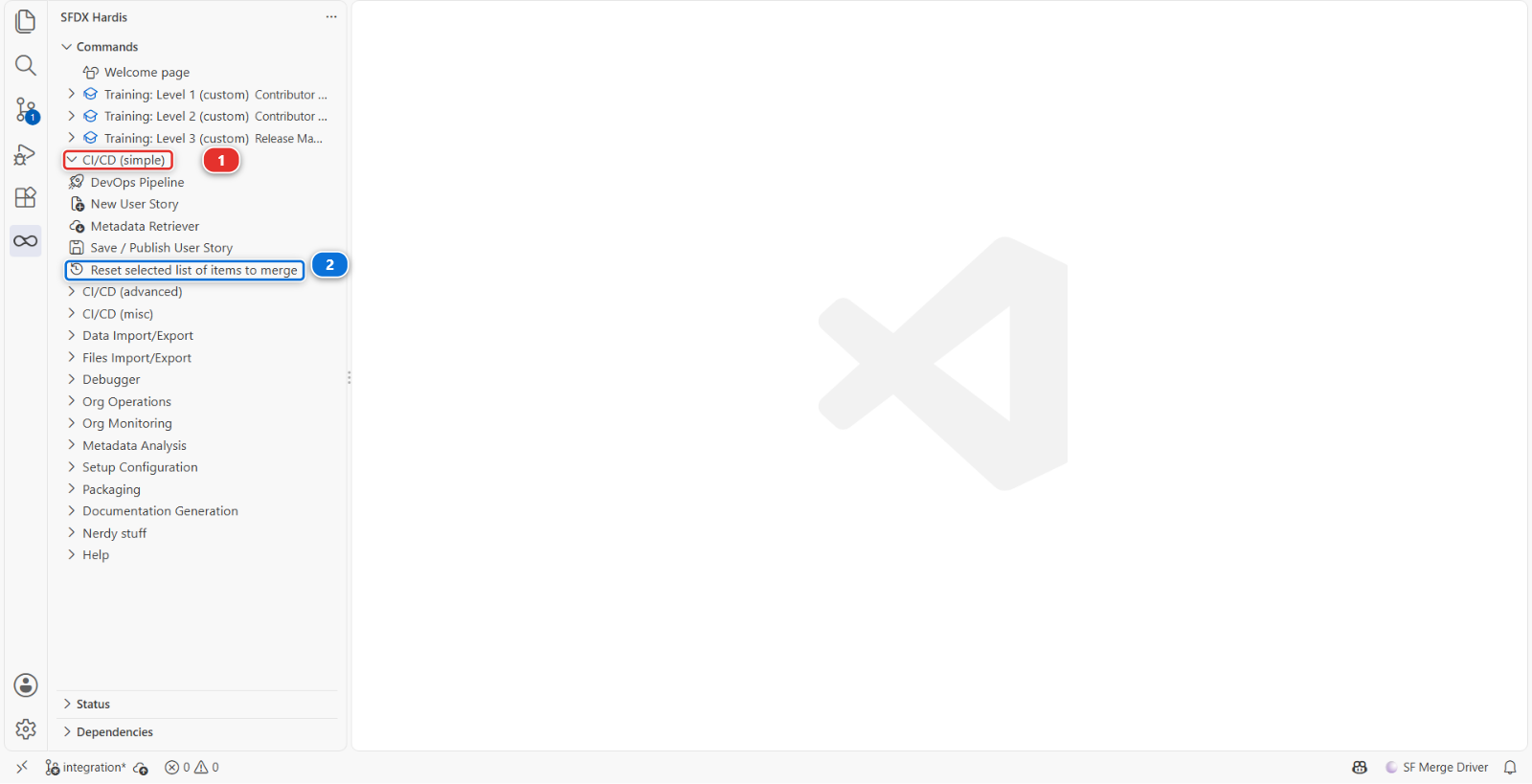
Everything else in this course is a card in a panel. This one is not: it has no card, and the only way to reach it is the SFDX HARDIS view in the left bar, which lists every sfdx-hardis command whether or not a panel exposes it.
Do
- Open the SFDX HARDIS view in the left bar
-
Open CI/CD (simple) (1), then Reset selected list of items to merge (2)
-
Confirm the reset when it asks
Why
It does more than its name suggests, and knowing exactly what saves you from undoing it twice. In one pass it:
- Undoes every commit your branch has made since it left
integration, without touching a single file. The commits go, your changes stay, in front of you, as if you had never published - Clears what was queued for the next commit, so nothing is waiting
- Restores
manifest/package.xmlandmanifest/destructiveChanges.xmlto the versions on the branch point, which is what actually clears the selection - Marks your branch as safe to overwrite on GitHub, because what you have locally no longer matches what you pushed
It asks you to confirm the reset first, and it refuses outright if you are standing on the branch you were going to merge into.
Nothing of yours is lost: the change is in Salesforce, and the file is still on your disk.
You should now see
- After this one command, the over-wide commit is gone and the layout move is back in front of you, uncommitted, in the Source Control panel
4. Deal with what you already pushed
Goal you know whether your next push may rewrite the branch on GitHub. This step has no clicks.
It is a decision to make before step 5, and in this lab it is already made for you: nobody has reviewed your Pull Request, so you are in the first case below, and step 5 does what it says. Read the second case anyway, it is the one a real project will put you in.
Why
Locally you are clean. The branch on GitHub is not: it still carries the over-wide commit, because the reset only changed the copy on your machine.
Nobody has reviewed it (the normal case, and yours here): the corrected branch goes over it when you publish again in step 5. That is what the reset authorised, and the publish does it without asking. The mistake disappears from the history as though it never happened, which on your own feature branch before review is exactly what you want.
Somebody has already reviewed it, or the branch is shared: do not force push. Rewriting history under a reviewer is how a review comment ends up attached to a commit that no longer exists. Commit the corrected state as a new commit instead, so the diff shows the mistake and its correction, both visible.
Force pushing is for a branch only you have touched
The rule is not about git, it is about people. Ask one question: has anyone else pulled this branch, or commented on it? If yes, the history is shared and you add to it. If no, it is yours and you can tidy it.
You should now see
- Your case is the first one: nobody has reviewed the Pull Request, so the publish of step 5 goes over the branch on GitHub
5. Publish again, properly
Goal the Pull Request down to one file, your layout, and merged.
Everything the retrieve brought down is still in your files, uncommitted.
Do
- In the Source Control panel, stage one file only, the layout
- Commit it
- Discard the rest: right-click Changes, Discard All Changes
-
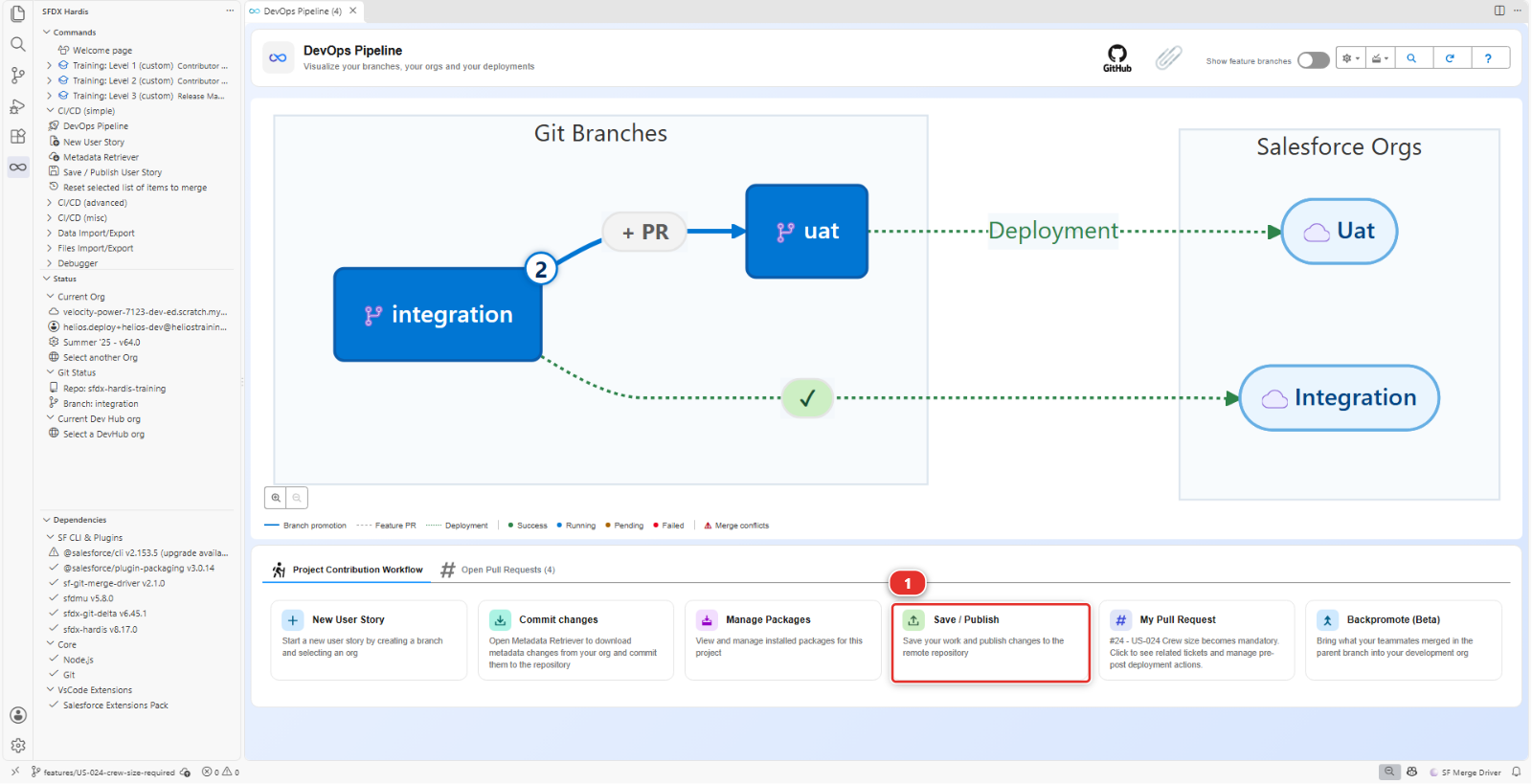
Then Save / Publish (1) again
-
Wait for its check to go green, then merge it with Squash and merge, like every story
Why
The publish pushes over the old branch without asking: the reset authorised it.
Check my work looks for the layout change in integration, which is why the Pull Request has to
be merged.
You should now see
- The Git Delta package.xml report naming one component, the layout
- The Pull Request showing one file, your layout, then merged
6. The habit that prevents this
Goal three checks of about ten seconds each, ready for every push from now on.
Do: before every push
- Read the Git Delta package.xml report. If it has entries you cannot explain, stop
- Count the files in the Source Control panel. A one-field story is two to four files. Eighty is never right
- Skim the diff for deletions. Additions are usually yours. Deletions are usually somebody else's
Under the hood: what "the selection" actually is
The command behind the menu entry is:
sf hardis:work:resetselection
There is no list of ticked items stored anywhere. Your selection is your commits. What you chose
in the Metadata Retriever became files, the files you committed became the branch, and
hardis:work:save works out the delta from the git diff between that branch and the target branch,
and adds it to manifest/package.xml. Select too much and the diff is too wide, because the diff is all there is.
That is why the fix has to touch git, and why this command does exactly three things:
git reset --soft <branch point>            undo the commits, keep every file
git checkout <branch point> -- manifest/   put package.xml back as it was
setConfig('user', { canForcePush: true })  authorize the next push to rewrite the branch
Nothing touches your org, and nothing touches your files.
The reason an over-wide selection produces deletions is worth stating plainly. If your org is behind
integration and you retrieve everything from it, the retrieved files are older than what is on
integration, and the diff reads as "remove what they added". A backpromote before starting
(Lab 2.1) is what prevents that.
Command documentation: hardis:work:resetselection, hardis:work:save
You should now see
- Nothing new on screen: the three checks are for your next push
What you should see
- The Git Delta package.xml report naming a single
Layout - A Pull Request diff of one file, the layout, then that Pull Request merged
- Your layout change still present in
helios-dev
If it goes wrong
The check of the over-wide Pull Request goes red on a Profile, with no Layout named ....
It can: the Profile came whole, with page layouts the target org may not have, the error of
Lab 2.6. Do not fix the Profile here. The reset of step 3
takes it out of the Pull Request, and the check of step 5 runs on your layout alone.
The reset says you have changes waiting. Publish them or discard them in the Source Control panel first, then run the reset again.
After the new publish, the Git Delta report still names several components. You committed more than the layout after the reset. Everything the retrieve brought down is still in your files, and only what you commit goes into the package: reset again, and stage one file.
You already merged the bad Pull Request.
Revert it on integration with the Revert button GitHub offers on a merged Pull Request, then
redo the story properly. Do not try to fix integration by hand.
Check your work
Welcome page > Training: Level 2 > Check my work, then pick Lab 2.8.
Go deeper
Next: Lab 2.9 - Capstone: deliver a User Story that has it all